¶ FAQ
¶ Users can't use the extensions
If users can't use the extension, they probably have not been assigned the permission set(s) required to enable them to use the extension.
Find here how to do this and which permission set is required.
During installation, from release 5.2.202410NN.0 on, the question will be asked if the USE permission has to be set to every user.
¶ Checks when a warning or error message is not received of a set up security
- Check that the start date is entered on the relevant security. The start date must be on or before today.
- When the start date has been entered, always log out completely from Business Central and log in again. If not, the security has not yet been activated.
- Make sure the correct Permission Sets are associated with the security. When a user has multiple Permission Sets for, for example, changing permissions on a customer, it is possible that the linked set(s) is overruled by those that are not linked. Therefore, always check whether the table that has to be protected is covered with all permissions that have modification permissions. This means that, if a user has permission sets allowing to modify anything on that table, but they are not (all) in the column of Linked Permission Sets, that set up security will not ‘work’ for that user. For instance, if a security has been set up where the default is set to Not Editable, but the user has permission sets that are not set in one of the exception rules, that security will not be applicable for that user and the user will still be able to edit that table.
- The user does not have the USE permission assigned.
¶ Can I change the “No. of Assigned Permission Sets” to/in all Security Lines at once
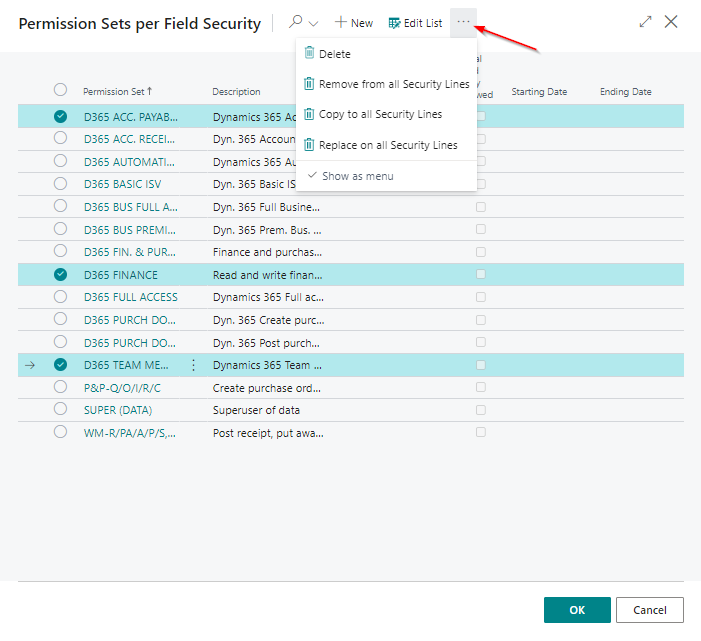
To Remove, Copy, or Replace the Assigned Permission Set(s) to all Security Lines, this can be performed with one action by selecting the value in a cell of a Linked Permission Set.
Use the options (AssistEdit button) in the menu on page Permission Sets per Field Security.
Choose what has to be done:
- Delete the selected sets from that column
- Remove the selected sets from all Security Lines
- Copy the selected sets to all Security Lines
- Replace the selected sets to all Security Lines
¶ How can I see which Permission Sets are assigned to a security line
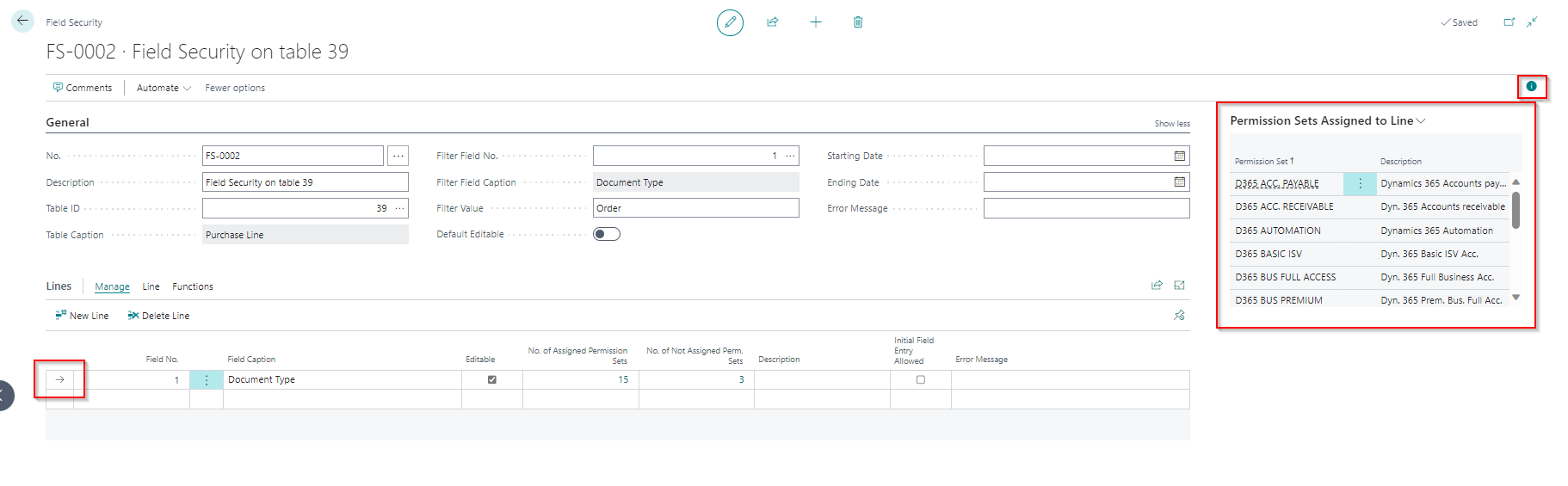
In a Field or Filter Security, click on the “Expand Factbox pane” in the top right corner.
This will show the permission sets which are assigned to the selected line.
¶ System tables and security lines
Most system tables are not accessible for the Field and Filter security, because Microsoft has shielded these system tables from programming, to prevent errors when logging in.
¶ Licenses
¶ How can I turn my trial into a license
A trial can be turned into a license by going to the Field Security Setup, Field Validation Setup and/or Inventory Reconciliation Setup in Business Central.
In the top of the screen, find the button “Request License”. Click this button to apply for a license. The registration details will show up which have to be completed, should some details be missing. After completing the details, click on the button “Confirm and request license”.
After completing the registration, a mail will be sent and the license will be matched to your account.
¶ How to retrieve license when extension is installed in a new environment
When our extension has been installed in a new environment, it is also required to register first after installation in this new environment.
Go to the Setup page of that extension and use the “Register” option in the top bar.
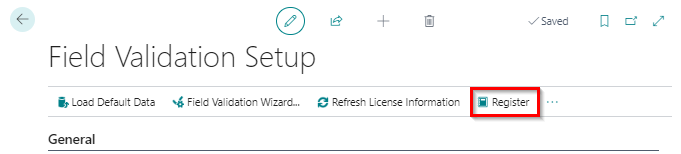
After filling in and sending your details, an acknowledgement will be received that registration has been successful.
The administration at 2-Controlware will receive this registration and matches it with a (valid) license.
The matching of the registration with the license will usually be processed within 48 hours.
¶ The extensions have been added to my license, but I still can not use them
Before the extensions can be used, the app(s) first have to be registered. This is required for each app and database separately.
Once registered, the 2-Controlware administration will receive a notification and will check if a valid contract is applicable. If so the license usually will be activated within 48hrs after registration. In the meantime a 30 day trial will start.