The Compliance Advanced Permissions Recorder is easy to install in Business Central. Registration is required, a license is not. This page shows the steps. To learn what the app does, see Advanced Permissions Recorder.
¶ Install the app
Business Central online (SaaS): install from Microsoft Marketplace. Search for Compliance Advanced Permissions Recorder.
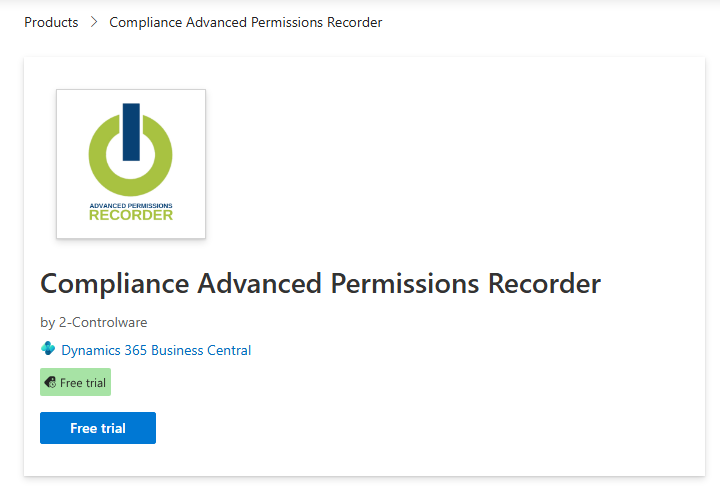
On-premises: the Recorder is supported on-premises. See Publish and install an extension. The license must contain the granules Compliance Essentials (70077720) and Compliance Advanced Permissions Recorder (70196850). Partners can download the apps by logging into the web portal. If you are a partner and not authorized as reseller for the granules, contact sales@2-controlware.com.
Compliance Essentials is a required app and is installed together with the Recorder. For the Business Central versions that are supported, see the release notes.
¶ Give users access
Assign the permission set Use Advanced Permissions Rec. (code 2C RECORDER USE) to every user who records permissions. It includes the permissions of Compliance Essentials that the app needs. To start a recording, the user must also be allowed to create permission sets in Business Central, for example with the SUPER or SECURITY permission set.
¶ Register the app
- After installation, Business Central asks if you want to set up the app with a wizard. If the question does not appear, search for Assisted Setup and start Advanced Permissions Recorder Setup Wizard.
- Follow the steps in the wizard: Welcome, Registration and Start Recording.
- In the registration step, fill in the form completely and choose Save.
- Choose Finish. The page to start recording permission sets opens.
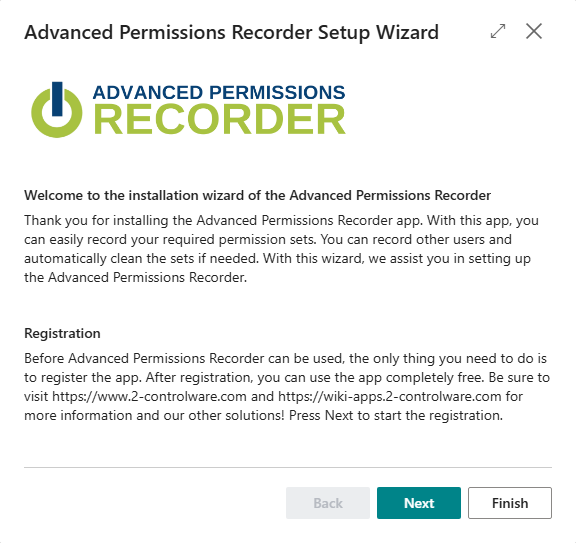
Step 1, Welcome.
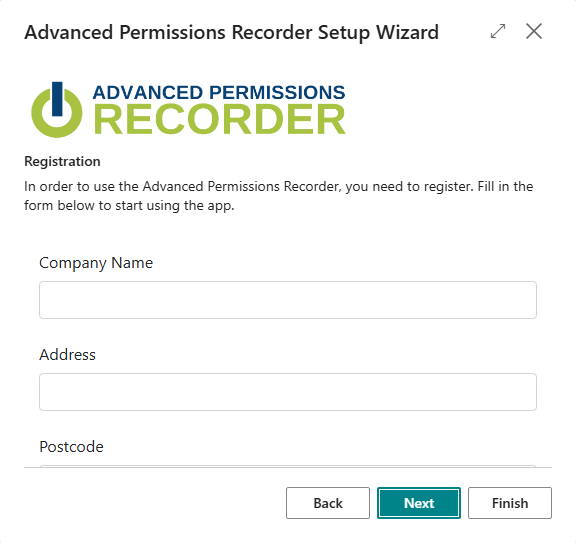
Step 2, Registration: fill in the form completely and choose Save.
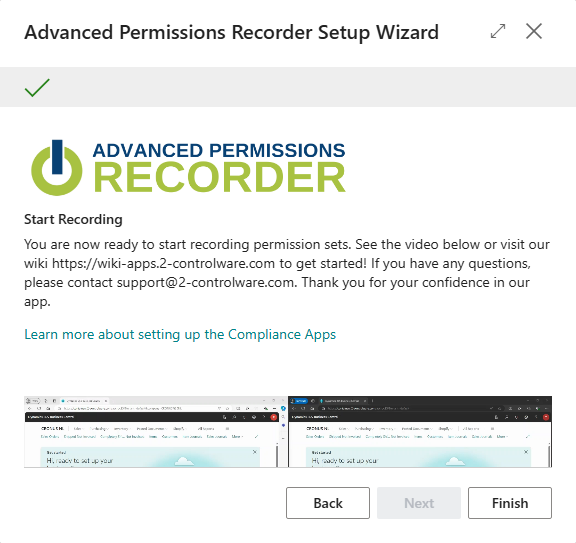
Step 3, Start Recording: the green check mark shows that the registration is done.
The Recorder does not require a license. After registration you can use it freely.
If you try to start a recording before you registered, the app asks if you want to start the wizard.
¶ Register later, and check the status
Search for Advanced Permissions Recorder Setup. The fast tab License Information shows the status. Choose Register to register, or Refresh License Information to retrieve the latest status.
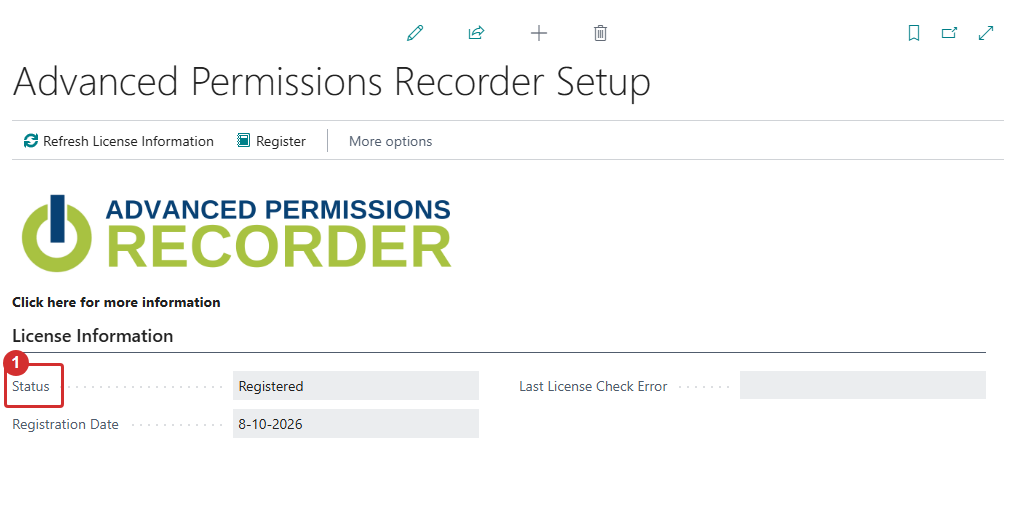
The setup page with the License Information fast tab.
¶ Where to go next
Start your first recording: Record permissions.
Last reviewed: October 2026.