Use the Advanced Permissions Recorder to find out which permissions a task needs. Let a user perform the task in Business Central, and the Recorder collects the objects and permissions that were used and saves them in a permission set.
Transcript of this video
Advanced Permissions Recorder. Find the permissions a task needs. A user must post sales invoices. Which permissions does that need? Guess too few and the user gets errors. Guess too many and the access is a risk. Open Record Permissions. Choose the session of the user who will do the task. Name the new permission set. All object types and all permissions are switched on, so nothing is missed. Choose Start and confirm. Now the user does the task in their own session. Back in the recorder, choose Update Recorded Permissions. Every object that was used is listed, with the permissions it needed. When the task is done, choose Stop to save the set. The new permission set holds exactly what the task needed. Check it, assign it, and keep it up to date. Record the permissions, do not guess. Advanced Permissions Recorder, by 2-Controlware. Free after registration.
Before you start: the app is installed and registered, you have the permission set Use Advanced Permissions Rec., and you may create permission sets in Business Central.
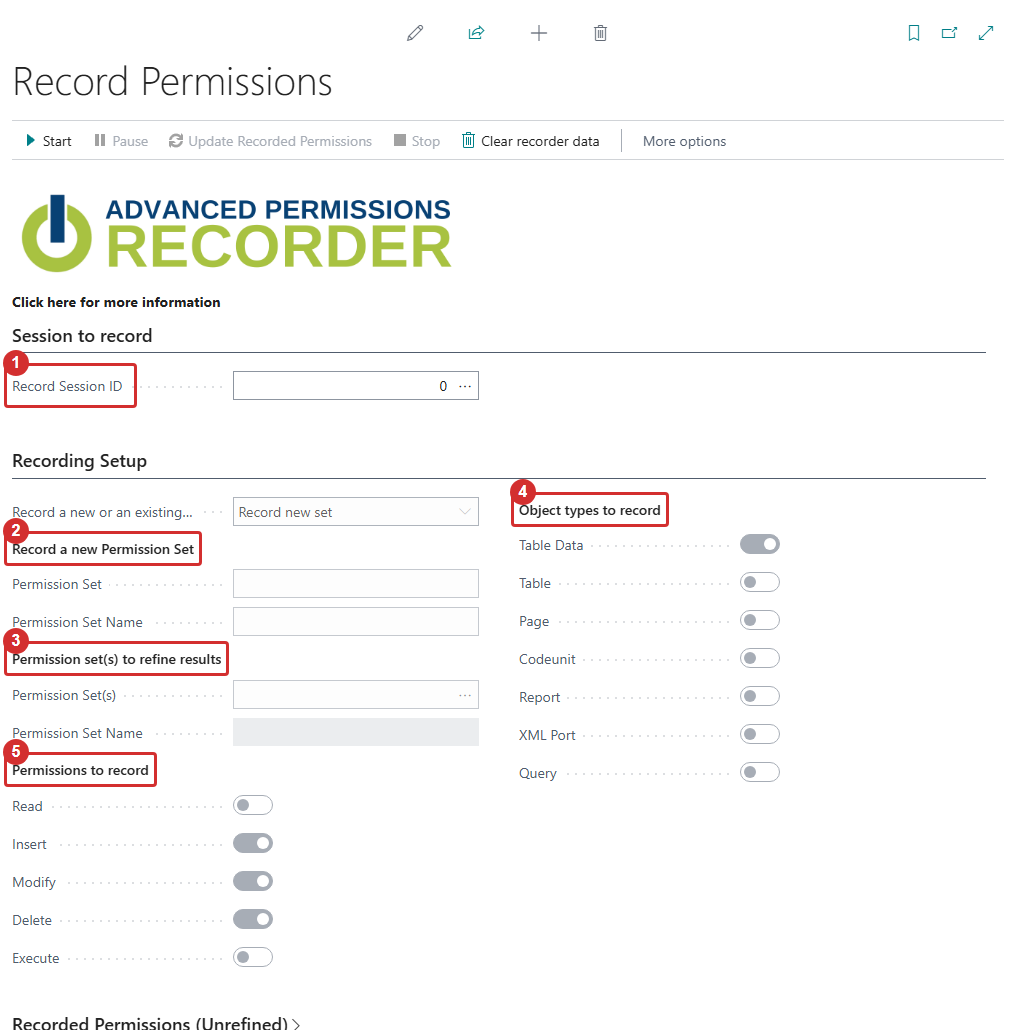
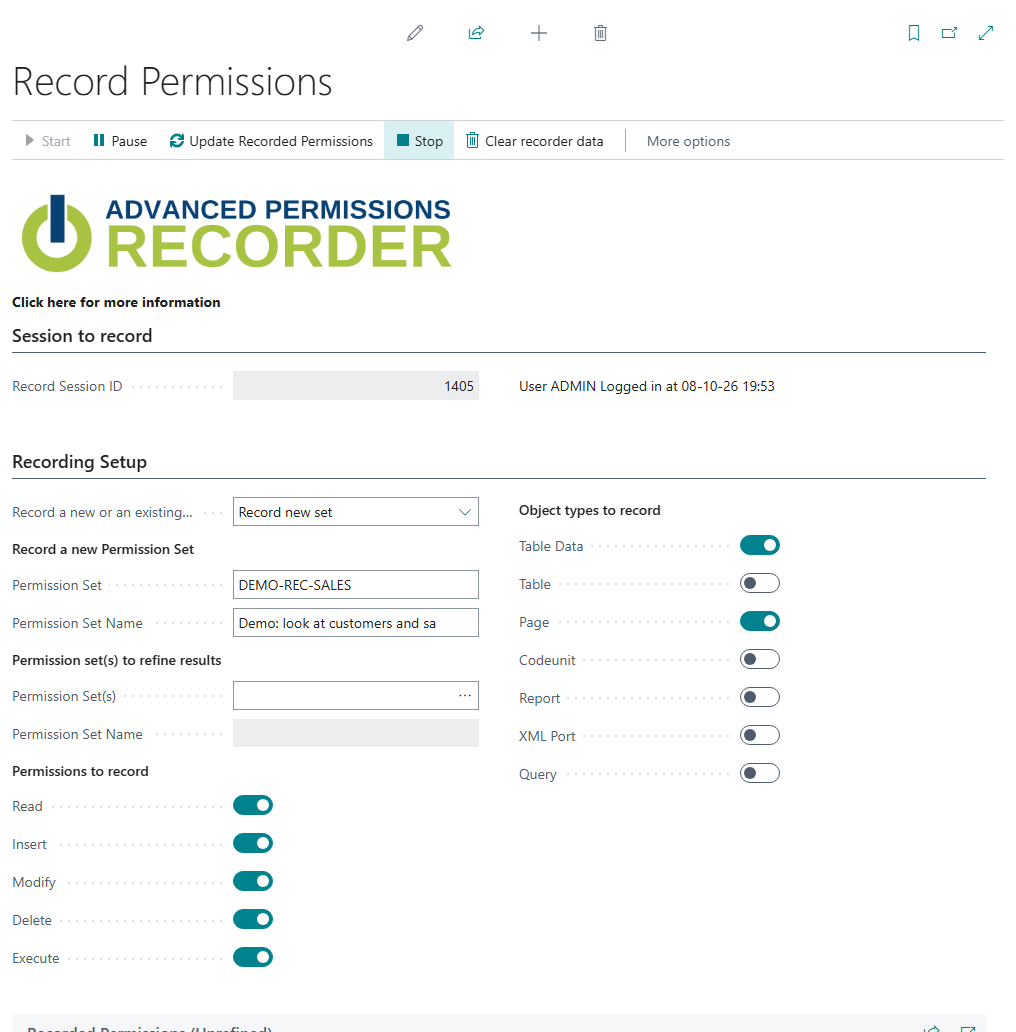
The Record Permissions page: 1 session, 2 target set, 3 refine, 4 permissions and object types, 5 actions.
¶ Open the Recorder
- In Business Central, search for Record Permissions. You can also choose Record Permissions on the Permission Sets page, or on a permission set card. From a user-defined set, the Recorder opens with Modify existing set and that set already selected. Starting from a system set gives the message "Only user-defined Permission Sets can be modified."
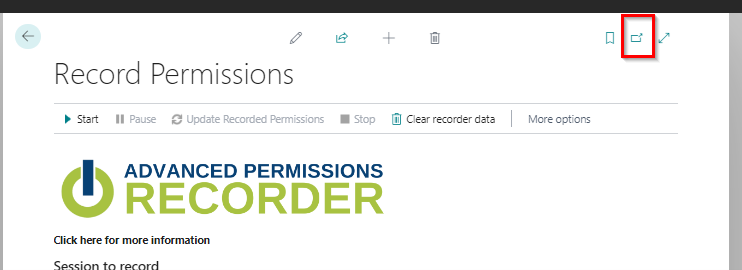
- Optional, for ease of use: choose Open this page in a new window in the top right corner, so you can keep it open next to the session you record.
¶ Choose what to record
-
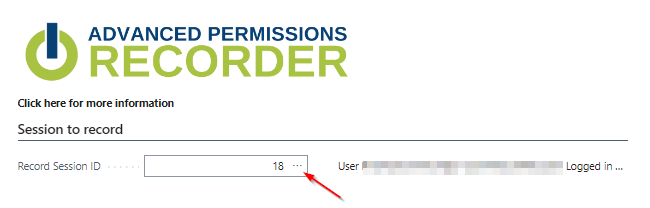
Use the assist-edit button at Record Session ID to choose the session to record. This can be your own session, or the session of a user who is logged on and will perform the actions.
-
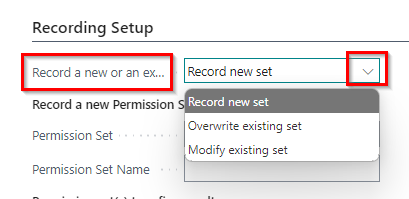
Choose how to save the result in Record a new or an existing Permission Set:
- Record new set: enter the code and name of the new permission set.
- Overwrite existing set: select a set that turned out to be incorrect. Its data is completely replaced.
- Modify existing set: select a set that turned out to be incomplete. New data is added to it.
-
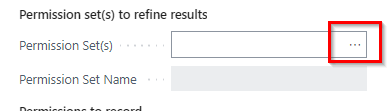
Optional: under Permission set(s) to refine results, select one or more existing sets. Usually this is a "universal" set that is assigned to all users, for example a LOGIN, BASIC or ALL set. The Recorder removes permissions that these sets already give, so the new set only holds what is extra.
-
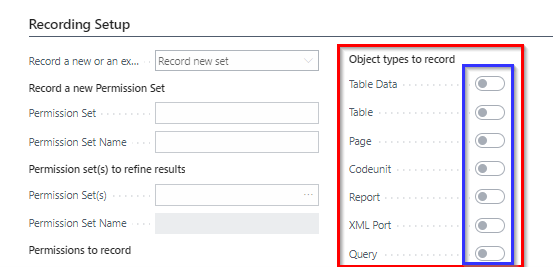
Under Object types to record, switch on the object types you want to record (Table Data, Table, Page, Codeunit, Report, XML Port, Query).
-
Under Permissions to record, switch on the permissions you want to record (Read, Insert, Modify, Delete, Execute).
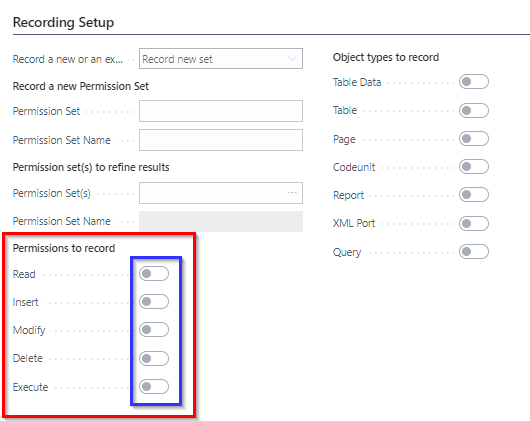
The Recorder remembers your choices for the next time. Switch on at least one object type and one permission before you start.
¶ Record
-
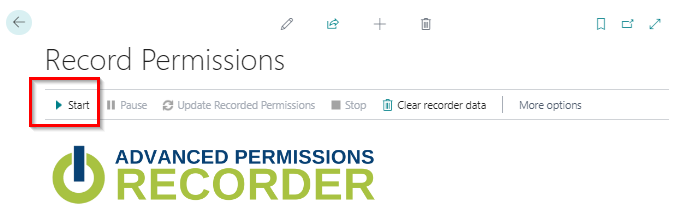
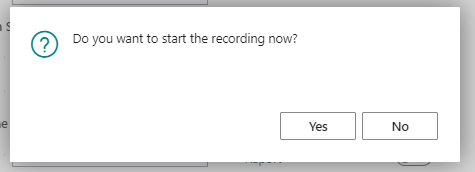
Choose Start.
-
Choose Yes to start recording, or No to cancel.
-
The user whose session you selected now performs the task in Business Central. If you record yourself, sign in a second time with the same user, so you have two sessions: start the recording in the first one, select the other session, and do the task in the other session.
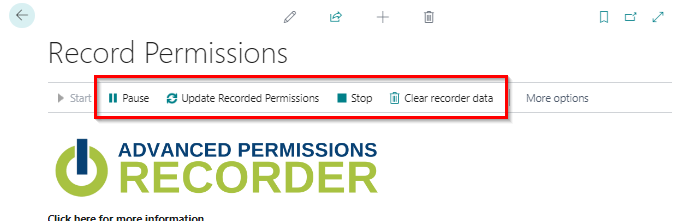
While the recording runs, Start is dimmed and Pause, Update Recorded Permissions and Stop are available.
You can use these actions:
| Action | What it does |
|---|---|
| Pause | Pauses recording. Choose Start to continue. |
| Update Recorded Permissions | Shows the (unrefined) permissions recorded so far. Choose it after the task was done in the recorded session. |
| Clear recorder data | Removes all temporary recorded data. Permissions that are already saved in a set are not affected. |
| Stop | Stops the recording and saves the set. |
¶ Stop and view the result
-
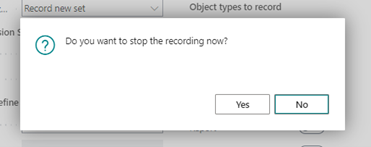
When the task is done, choose Stop. The Recorder asks if you want to stop now. Choose Yes to stop, or No to continue recording.
-
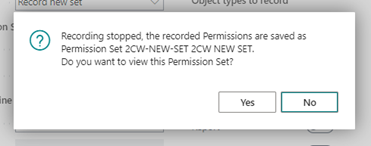
The Recorder asks if you want to view the new permission set. Choose Yes to open it, or No to return to the list of permission sets, where the new set is present.
The permission set now contains the permissions that were used during the recording.
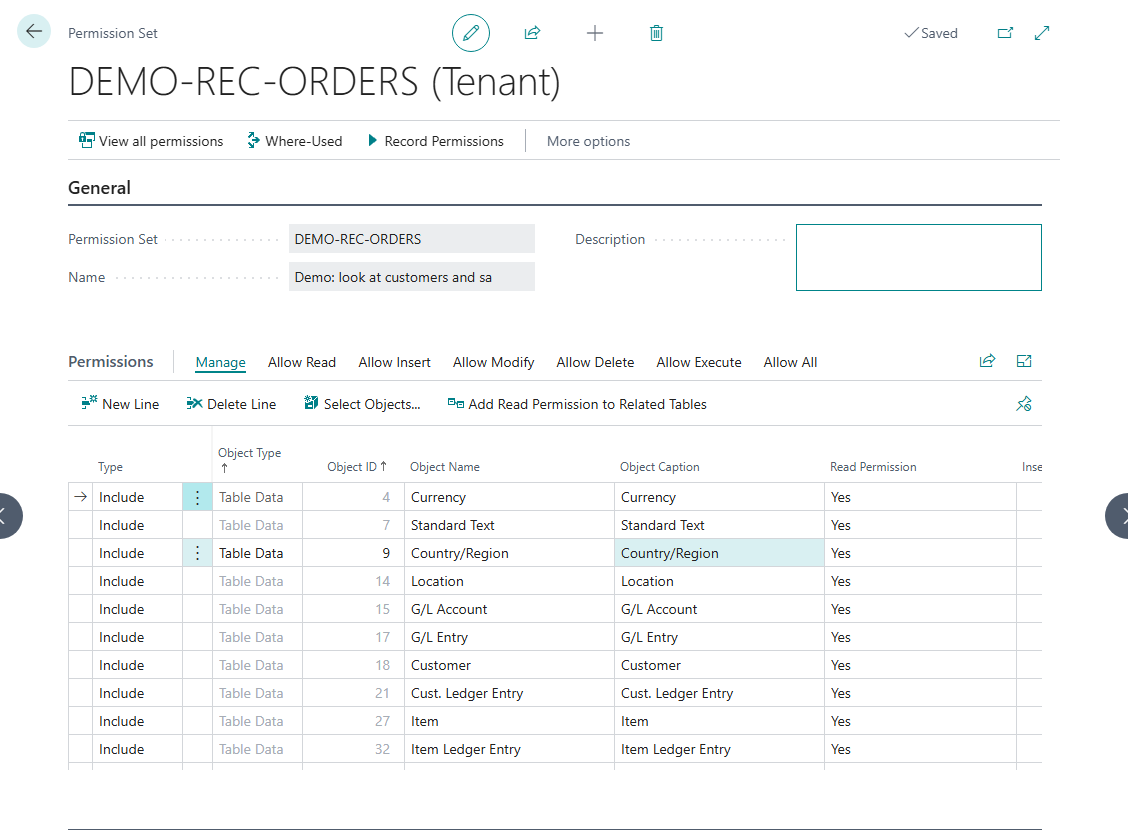
The recorded permission set: every object the user touched, with the permissions that were used.
¶ How the result is built
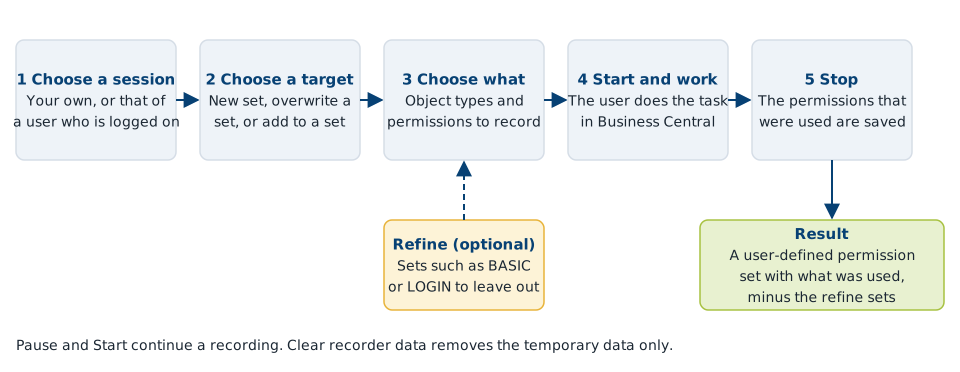
In words: while the recording runs, the Recorder listens to the permissions that Business Central checks for the session you selected. It keeps the objects that were used, limited to the object types and the permissions you switched on. When you choose Stop, it saves them in the permission set you chose. If you selected sets to refine with, it first removes the permissions that those sets already give. The result is a user-defined permission set: you can edit it, test it and track it with Advanced Permissions Management.
Test the set with a user before you use it in production. A recording only contains what was done during the recording, so a task that has a rare path, such as an error case or a month-end step, needs a recording of that path too. Use Modify existing set to add it.
Last reviewed: October 2026.