Use this page to run the analysis and to compare your inventory accounts with the general ledger. The result shows per general ledger account how large the difference is and what causes it.
¶ Before you start
- The app is registered and your user has the permission set
2C IR RECONCILIATION. See Install and set up Inventory Reconciliation. - Accounting periods are defined for the posting dates of your entries. The analysis needs them. On the Inventory Reconciliation page, choose Updates and then Accounting Periods to check. If periods are missing, add them before you start.
¶ Run the analysis
-
Search for Inventory Reconciliation. Bookmark the page.
-
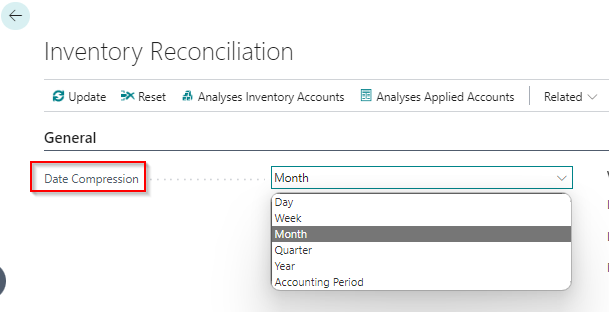
Check Date Compression. The default is Month. You can also choose Day, Week, Quarter, Year or Accounting Period. Read Date Compression and dimensions before you change it.
-
Optionally, under Scheduler, turn on Process with Job Scheduler. The first analysis can take a long time, depending on your data, up to a whole weekend. See Schedule the update job.
-
Choose Update.

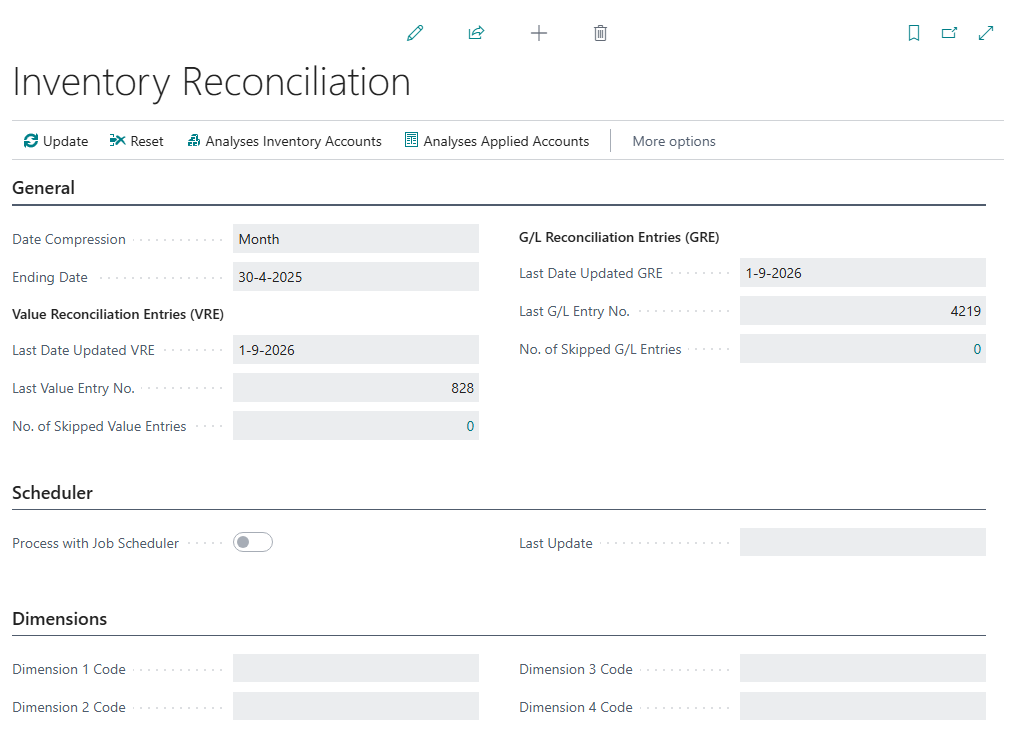
The calculation continues from the last entry that was processed before. After the run, these fields show the progress:
- Last Date Updated VRE: the date of the last posting in the subledger.
- Last Value Entry No.: the number of the last subledger entry that was analyzed.
- No. of Skipped Value Entries: subledger entries that were skipped. Choose the number to see them.
- Last Date Updated GRE: the date of the last G/L entry.
- Last G/L Entry No.: the number of the last G/L entry that was analyzed.
- No. of Skipped G/L Entries: G/L entries that were skipped. Choose the number to see them.
¶ Update or Reset
| You want to... | Use | What it does |
|---|---|---|
| Process new postings, every day or week | Update | Continues from the last analyzed entry. Also the action for the first run. |
| Pick up a changed posting group setup without a full rebuild | Updates > Update Setup Accounts | Changes only the setup accounts in the existing analysis entries. |
| Refresh the analysis pages when they need a manual refresh | Updates > Update Analyses Pages | Recalculates the analysis pages for inventory and applied accounts. |
| Start again from scratch | Reset, then Update | Deletes the analysis entries, so the next Update builds everything again. |
| Change Date Compression or a Dimension Code after a first update | Confirm the question, then Update | Business Central deletes the entries and you have to update again. |
Use Reset only to (re)build the initial analyses. Business Central asks for confirmation first, and warns that the entries are deleted and that rebuilding can take a long time. If an update is slow, see the FAQ.
¶ Date Compression and dimensions
Date Compression decides for which period the app combines entries into one analysis entry. A shorter period gives more detail and many more entries.
- Day creates many more G/L Reconciliation Entries and Value Reconciliation Entries. When you choose Day, Business Central warns you that the number of entries increases drastically. Use Day only when you need it.
- When you change Date Compression or one of the four Dimension Codes and the analysis was already updated, Business Central asks if you want to continue. If you do, the entries are deleted and you have to update again.
Choose the Date Compression and the dimension codes before the first Update. Changing them later means a complete rebuild.
¶ Skipped entries
The app tries to analyze skipped entries again in every update. A common reason is that inventory transactions are not yet posted to the general ledger. Run the report Post Inventory Cost to G/L to solve this. Other reasons are errors in customized code or manual data changes. The reasons are listed in the reference.
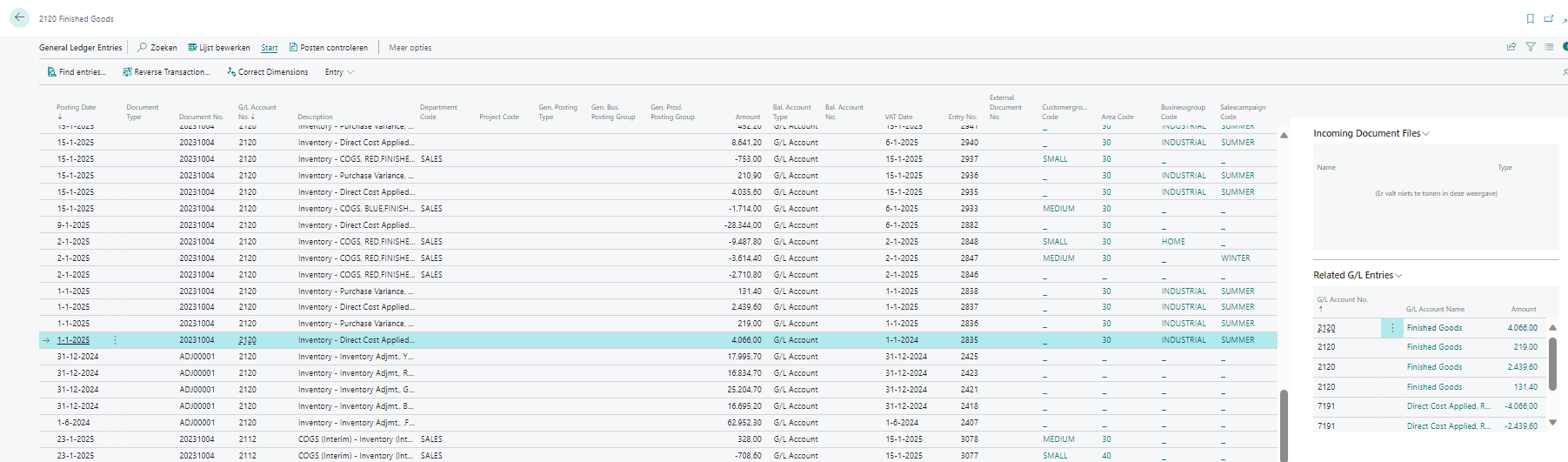
When you choose a number of skipped entries, you see the list with details.

Choose an entry number to see in short what the entry was. Choose Open the full list to see all entries with more details. Choose the different kinds of data to go deeper.
¶ Open the analysis
On the Inventory Reconciliation page, choose Analyses Inventory Accounts (or Analyses Applied Accounts). You can also search for the pages Analysis Inventory Accounts and Analysis Applied Accounts directly. Bookmark them.

¶ Reconcile inventory accounts with the general ledger
On the Analysis Inventory Accounts page, select in Show values according to the type of reconciliation you want to see:
- Used Setup of Posting Groups during posting: the posting group setup that was used when the entries were posted.
- Setup of current Posting Groups: the posting group setup as it is today.
Compare the two to find differences caused by a change of a G/L account in the posting groups, or by a changed inventory posting group on an item.
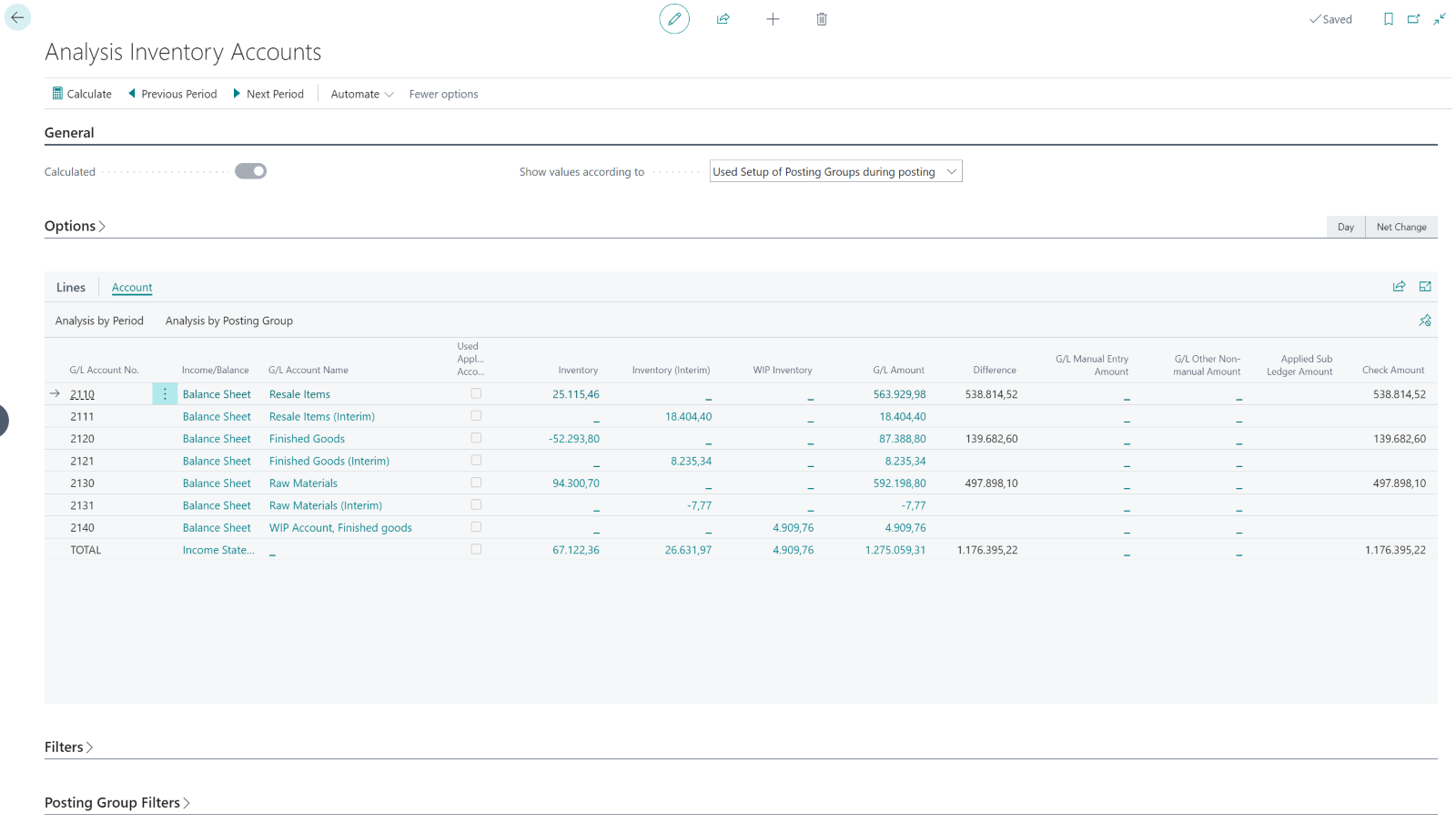
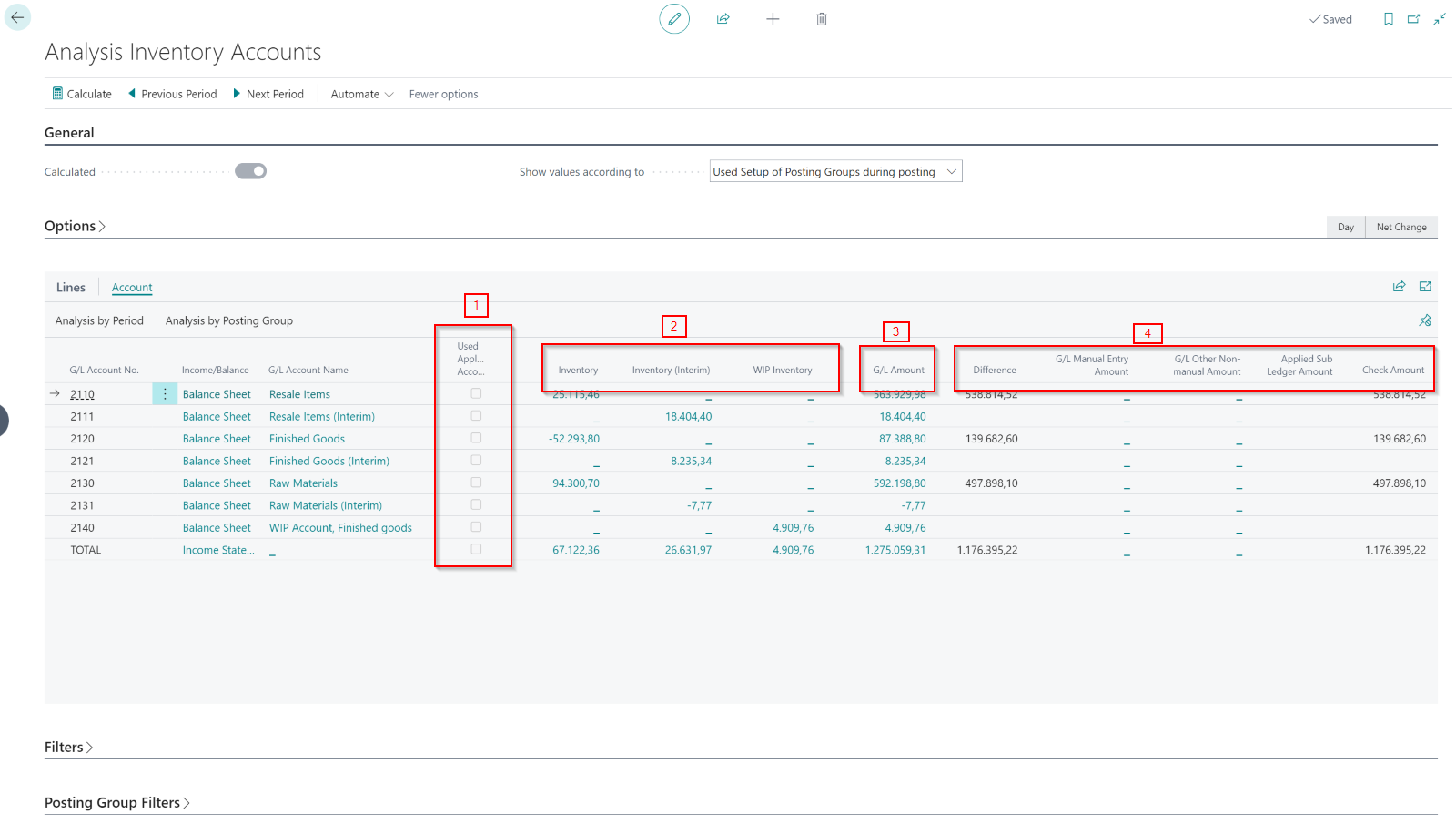
For each general ledger account the page compares the subledger (the fields Inventory, Inventory (Interim) and WIP Inventory) with the general ledger (the field G/L Amount). The field Difference shows what does not match. Use the Options FastTab (View by, View as) and the Filters to refine the view. Select an account to open Analysis by Period or Analysis by Posting Group.
¶ Find the cause of a difference
- Check whether the account is also an applied account. A check mark in the applied account column shows this. When it is, reconciliation is harder.
- Look at G/L Manual Entry Amount: the amount of manual postings on the G/L account.
- Look at G/L Other Non-manual Amount: automatic postings for which the app cannot find a linked value entry in the subledger, for example compressed entries or postings from another subledger.
- Open Analysis by Period and Analysis by Posting Group for the account, to see in which period or posting group the difference arises.
When manual and other non-manual postings together equal the difference, the subledger and the general ledger are fully reconciled. In other words, Difference minus G/L Manual Entry Amount minus G/L Other Non-manual Amount must be 0.
For the result accounts, see Reconcile applied accounts. The steps to find a cause are the same there.
¶ Reconcile applied accounts
Applied accounts are the result accounts that Business Central uses when it posts inventory cost, such as cost of goods sold, purchase and production variance accounts. This page shows how to compare them with the general ledger, how to read the columns, and which drill-down view to use.
Run the analysis first, as described in Reconcile inventory accounts.
¶ Open the analysis
- Search for Analysis Applied Accounts, or choose Analyses Applied Accounts on the Inventory Reconciliation page. Bookmark the page.
- In Show values according to, choose the type of reconciliation:
- Used Setup of Posting Groups during posting: the posting group setup that was used when the entries were posted.
- Setup of current Posting Groups: the posting group setup as it is today.
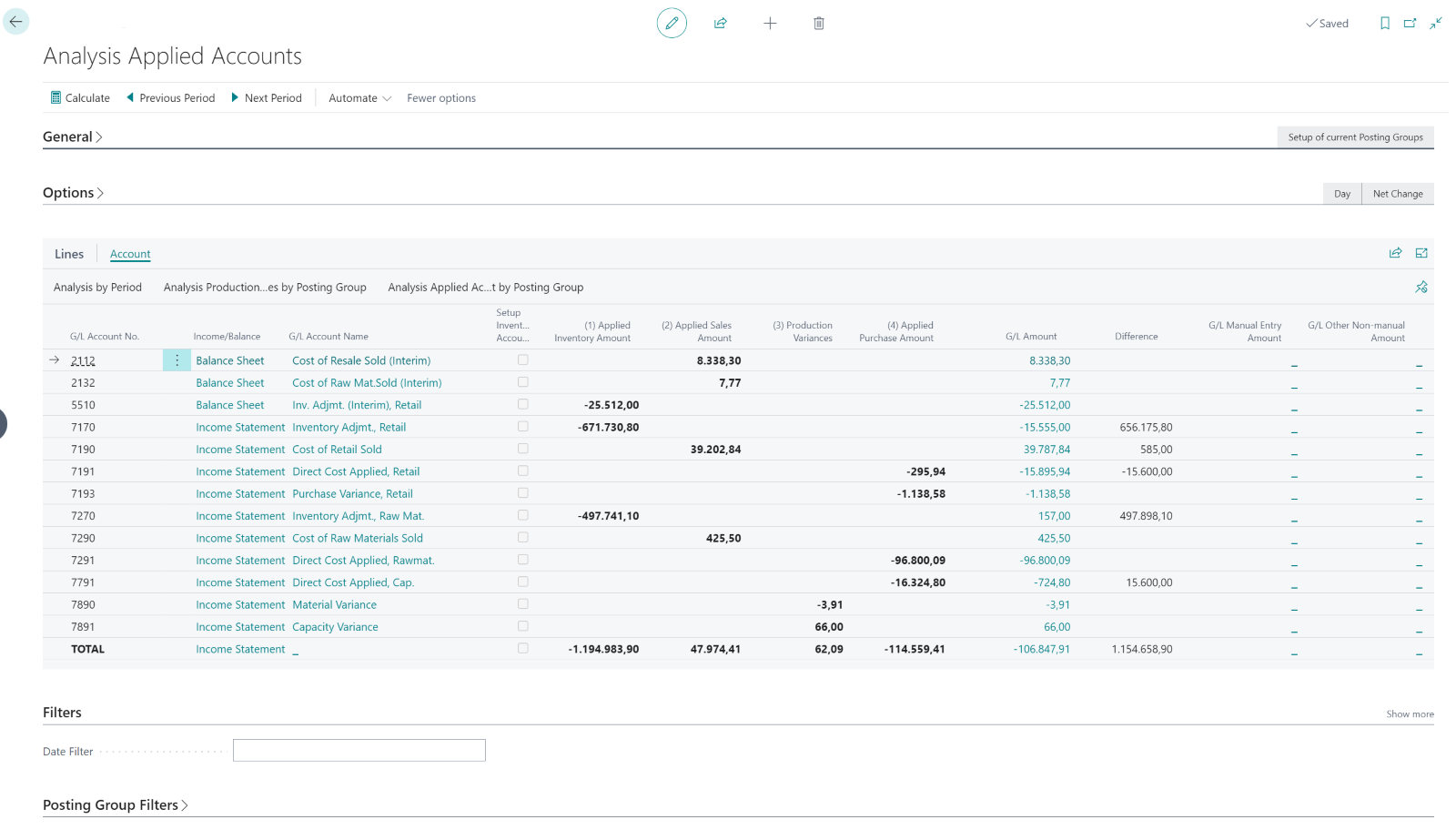
For each general ledger account, the page compares the applied amounts with the general ledger amount (field G/L Amount). The field Difference shows what does not match.
¶ The columns (1) to (4)
The totals have a number in their caption. Detail columns that belong to a total are shown next to it.
| Column | Caption | Detail columns next to it |
|---|---|---|
| (1B) | Inventory Adjmt. Costs | none |
| (1) | Applied Inventory Amount | Invt. Accrual (Interim), (1B) Inventory Adjmt. Costs |
| (2) | Applied Sales Amount | COGS (Interim), COGS |
| (3) | Production Variances | Material Variance, Capacity Variance, Mfg. Overhead Variance, Cap. Overhead Variance, Subcontracted Variance |
| (4) | Applied Purchase Amount | Direct Cost Applied, Overhead Applied, Purchase Variance |
After the totals, the page shows G/L Amount, Difference, G/L Manual Entry Amount and G/L Other Non-manual Amount. Detail columns with a drill-down show the entries behind the number when you choose it.
¶ Find the cause of a difference
The steps are the same as for inventory accounts. Follow Find the cause of a difference. For applied accounts, keep these points in mind:
- Check whether the account is also used as an inventory account (check mark in that column). When it is, reconciliation is harder.
- G/L Manual Entry Amount is the amount of manual postings on the G/L account.
- G/L Other Non-manual Amount is the amount of automatic postings for which the app cannot find a linked value entry in the subledger, for example compressed entries or entries from another subledger.
When manual and other non-manual postings together equal the difference, the subledger and the general ledger are fully reconciled. Difference minus G/L Manual Entry Amount minus G/L Other Non-manual Amount must be 0.
¶ Trace a difference with the drill-down views
Select one G/L account and open one of these views. Each shows one account at a time.
| View | Use it to find... |
|---|---|
| Analysis Applied Account by Period | the period in which the difference arises |
| Analysis Applied Account by Posting Group | the posting group combination that causes it |
| Analysis Production Variance by Posting Group | the posting group behind production variances |
Use View by and View as to change the period (Day, Week, Month, Quarter, Year or Accounting Period) and to choose between Net Change and Balance at Date. Use Previous Period and Next Period to move through the periods.