This page shows how to install and set up Compliance Inventory Reconciliation. Registration is required before you can use the app. For the supported Business Central versions, see Supported Business Central versions.
¶ Install the app
Install the app from Microsoft AppSource. Search for Compliance Inventory Reconciliation.
In AppSource, choose Free trial. No payment is taken at this point. The free trial of 30 days starts when you register the app, not when you install it. After the trial you need a license to run the analysis up to the current day.
For on-premises installation, see Publish and install an extension on Microsoft Learn. Your license needs the granules listed on Getting started.
¶ Run the setup wizard
After installation, Business Central asks you to set up the app with a wizard. If the question does not appear, search for Assisted Setup and start the Inventory Reconciliation Setup Wizard. The wizard guides you through these steps.
-
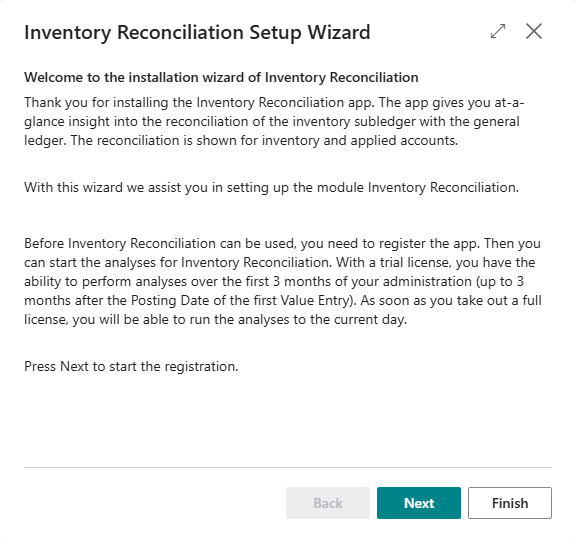
Welcome. The page explains that you must register the app and what the trial includes.
-
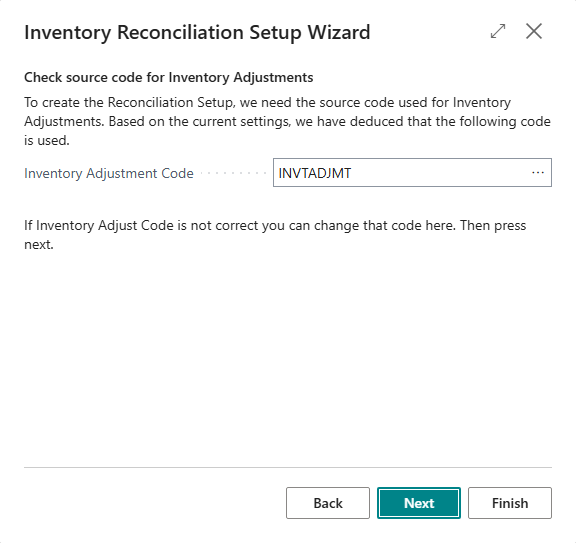
Check source code for Inventory Adjustments. The wizard shows the source code it found in your Source Code Setup, the code for adjusting cost. If it is not correct, change it here. The same code is stored in the field Inventory Adjust Code on the setup page.
-
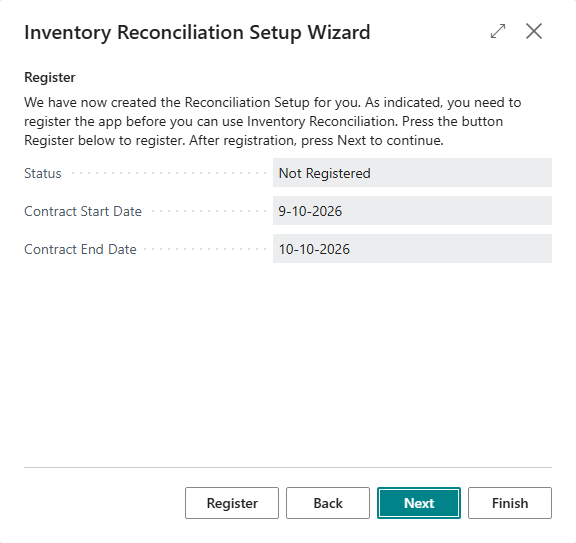
Register. Choose Register, fill in the form, and then choose Next.
-
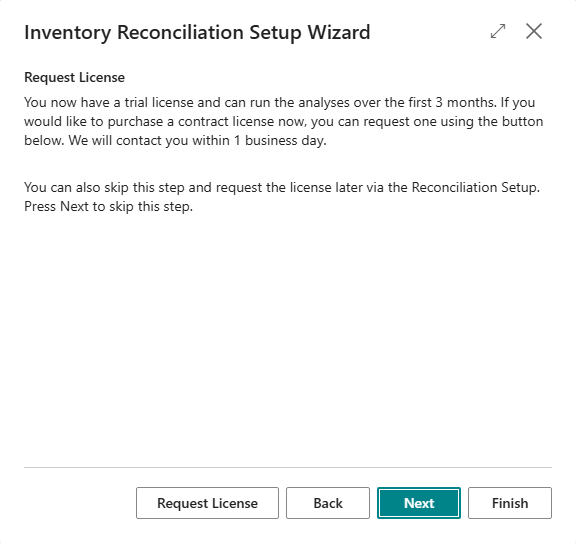
Request License, if you need one. You can skip this step and request the license later on the setup page.
-
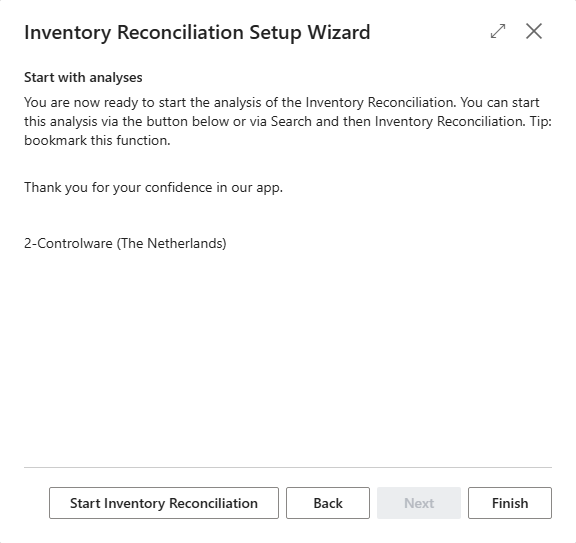
Start with analyses. Choose Start Inventory Reconciliation, or search for Inventory Reconciliation later.
You can also skip the wizard and set up the app manually with the steps below.
¶ Register the app
Register the app after every new installation. The app only works after registration.
- Search for Inventory Reconciliation Setup.
- Choose Register and fill in the fields.
- Choose Save.
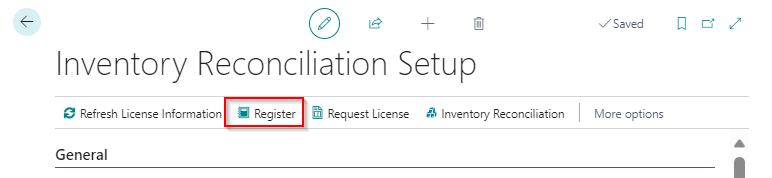
If Business Central asks whether the extension may make a request to an external service, choose Allow Always. Registration and license checks need this connection.
¶ Check your license
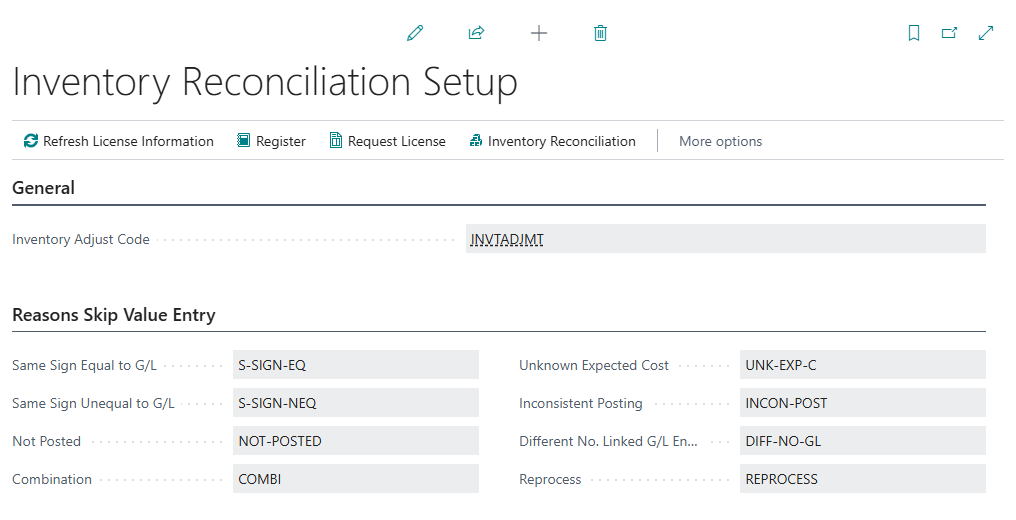
On the License Information FastTab of Inventory Reconciliation Setup you see the Status and the dates: the registration date and the trial end date for a trial, or the contract start and end dates for a contract. Choose Refresh License Information to update the status.
| Status | What it means |
|---|---|
| Not Registered | The app is installed but not registered. Register first. |
| Trial | The trial is running. The analysis stops at an Ending Date. See below. |
| Contract | You have a license. The status changes from Trial to Contract after your contract is matched, which usually takes 24 to 48 hours. You can then analyze up to the current day. |
| Trial/Contract Finished | The trial or contract has ended. The app shows an error. Choose Request License on the setup page to get a license. |
During the trial, the analysis covers only the first months of your stock entries, counted from the posting date of the first value entry. The Ending Date on the Inventory Reconciliation page shows where it stops: the end of the month that is three months after the month of the first value entry.
When the status changes from Trial to Contract, the analysis entries that were built during the trial are deleted the next time you open the Inventory Reconciliation page, and you have to run Update again to build the full analysis.
For the length of the trial and what to do when a license does not show, see Licenses.
¶ Skip reason settings
The setup page also holds the settings for skipped entries. You do not have to change them to start. See the reference.
¶ Assign the permission set
Assign the permission set Use Inventory Reconciliation (2C IR RECONCILIATION) to every user who works with the app. Do this for new users as well, or the app gives an error.
- Search for Users and open the user.
- On User Permission Sets, add a new line with
2C IR RECONCILIATION.
You need an account with SUPER permissions to assign permission sets.
Upgrading from an earlier version? The permission set was renamed in release 5.2.202410.NN. The old name,
2C INV RECONCILATION(with a spelling error), is obsolete. Assign2C IR RECONCILIATIONinstead.
¶ Where to go next
Reconcile inventory accounts to run your first analysis.
¶ Schedule the update job
The first analysis can take a long time. Let Business Central run the update as a job in the background, so you do not have to wait for it.
¶ Turn on the scheduler
- Search for Inventory Reconciliation.
- Under Scheduler, turn on Process with Job Scheduler.
The app creates a job queue entry named INVENTORY RECONCILIATION. By default the job starts the next day at 1:00 AM and runs every 24 hours (1,440 minutes). Each run does the same as the Update action. If you turn the option off, the app removes the job queue entry.
Turn the option on before you start the first long run, so you do not have to wait for it. For the difference between Update and Reset, see Update or Reset.
¶ Change the schedule
You change the time or date in the job queue.
-
Search for Job Queue Entries and open the entry INVENTORY RECONCILIATION.
-
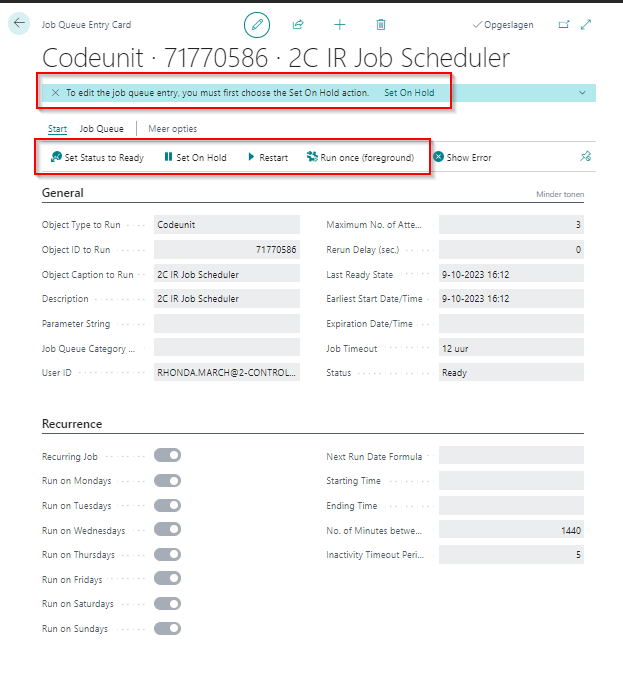
Choose the status Ready to see the options: set the job on hold, restart it, or run it once.
-
To edit the schedule, first choose Set On Hold.
-
Choose the days on which the job starts, and the start date and time.
-
Choose Set Status to Ready to activate the job again.
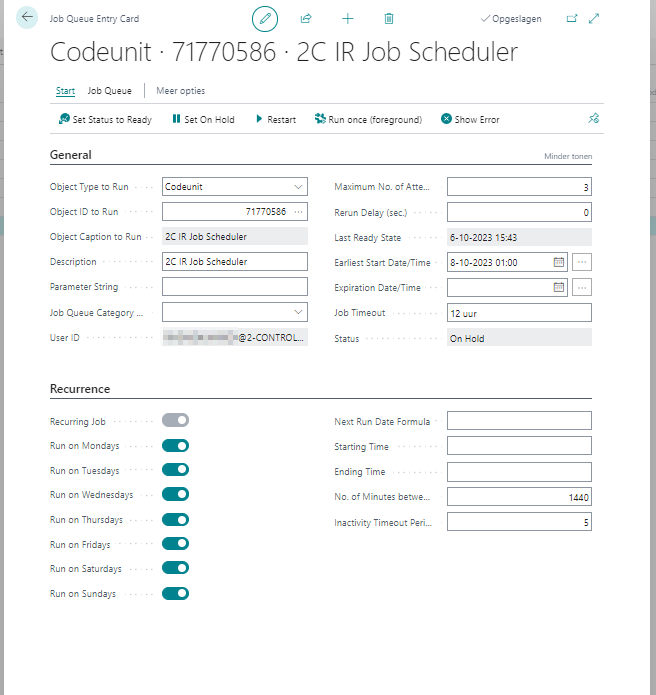
The job now runs at the new time.
¶ Check that the job ran
On the Inventory Reconciliation page, the field Last Update under Scheduler shows when the job last updated the analysis. The fields Last Date Updated VRE and Last Date Updated GRE show how far the analysis has come. If the job does not run, check the status in Job Queue Entries, and see the FAQ.
¶ Inventory Reconciliation go-live checklist
Use this checklist when you start with Inventory Reconciliation in a production company, or when you move it to a new environment. Work from top to bottom. Each item links to the page that explains it.
¶ Before the first update
- The app is installed and registered. The Status on Inventory Reconciliation Setup is Trial or Contract. See Check your license.
- You know the Ending Date if you are in the trial, and who requests the license. See Licenses.
- The Inventory Adjust Code is the source code that you use for inventory adjustments. See Run the setup wizard.
- Accounting periods exist for the posting dates of your first and last G/L entry. Check with Updates > Accounting Periods.
- Date Compression is chosen. Month is the default. Day creates many more entries. See Date Compression and dimensions.
- The Dimension 1 Code to Dimension 4 Code that you want to analyze are set. Changing them later deletes the entries.
- Inventory cost is posted to the general ledger: run Post Inventory Cost to G/L first, so fewer entries are skipped.
- Users have Use Inventory Reconciliation (
2C IR RECONCILIATION). See Assign the permission set.
¶ The first update
- Process with Job Scheduler is on, so the first long run happens in the background. See Schedule the update job.
- You planned for a long first run. It can take up to a whole weekend, depending on your data.
- After the run, Last Date Updated VRE and Last Date Updated GRE are close to today.
¶ After the first update
- The No. of Skipped Value Entries and No. of Skipped G/L Entries are checked. Solve the causes, for example with Post Inventory Cost to G/L. See Skipped entries.
- You compared Used Setup of Posting Groups during posting with Setup of current Posting Groups for your inventory accounts.
- For each inventory account, Difference minus G/L Manual Entry Amount minus G/L Other Non-manual Amount is 0, or you know why it is not. See Find the cause of a difference.
- The same for the applied accounts. See Reconcile applied accounts.
- The job queue entry INVENTORY RECONCILIATION is Ready, and Last Update shows a recent date.
¶ Ongoing
- Someone looks at the skipped entries and the differences at every period end.
- After a change of the posting groups, run Update Setup Accounts, or Reset and Update when you want a clean start. See Update or Reset.
- When the trial turns into a contract, run Update again, because the entries from the trial are deleted.
If something does not work as expected, see the FAQ. Support: support@2-controlware.com.
Last reviewed: October 2026.