This page takes you from installation to a working dashboard in Compliance Advanced Permissions Management (APM). Registration and licensing have their own page: License and registration. Every setting is explained in the settings reference.
Install before you need the audit trail. APM can only show changes made after its baseline, the snapshot it takes on installation. From that moment every permission change is recorded.
¶ Before you start
| Item | Requirement |
|---|---|
| Business Central | Version 27 or later, online (cloud). On-premises is available on request: contact support@2-controlware.com. See the release notes for the supported versions. |
| Required app | Compliance Essentials. It is installed automatically with APM at no additional cost. |
| Who sets it up | A user with the SUPER permission set. |
| On-premises license (on request) | The granules Compliance Advanced Permissions Management (11112090) and Compliance Essentials (70077720). See Getting started. |
¶ Install the app
Business Central online: install Compliance Advanced Permissions Management from Microsoft AppSource (Free trial), or from the Extension Management page.
On-premises (on request only): APM is available for the cloud. If you need it on-premises, contact support@2-controlware.com first. After that, publish and install the app and Compliance Essentials as extensions. See Publish and install an extension. Partners download the apps from the web portal.
On installation the app:
- takes a snapshot of all permission sets, permissions and relations: the baseline;
- creates the job queue entry that checks every hour for permission changes caused by app updates;
- creates the number series APM-REVSESS for reviews (numbers start at RS-00001);
- adds two entries to Assisted Setup: Advanced Permissions Management setup and Generate baseline permission sets.
¶ Give users access
Assign the permission set Use Advanced Permissions Management to every user who works with the app. It includes the Compliance Essentials permissions the app needs. See Roles and permissions for who needs what.
¶ Run the setup wizard
After installation, a notification says that setup is not completed yet. Choose Start setup wizard. You can also search for Assisted Setup and start Advanced Permissions Management setup. You can run the wizard again at any time.
The wizard has seven steps. The registration step is skipped when the environment is already registered, or already counts as licensed.
| Wizard step | What you do | Default |
|---|---|---|
| Welcome | Read the introduction and choose Next. | None |
| Registration | Fill in the registration form to start a free trial of 30 days. You cannot continue until the app is registered. | None |
| General Settings | Set the change grouping window in minutes, how long a changed set stays highlighted, and the number series for reviews. | See the settings reference |
| Background Job Schedule | Check the schedule of the job that detects changes caused by app updates, and see its status and the user it runs as. When you finish the wizard, the job is scheduled for you and runs as you. | Every 60 minutes, enabled |
| Load Default Data | Optional. Load the permission library and the quality rules. You can do this later from the setup page. | None |
| Role Center | Optional. Switch your profile to the APM Role Center. Sign out and in again if it does not switch. | None |
| Next Steps | Choose Open Dashboard Now, then Finish. The dashboard opens on the permission sets in use. | None |
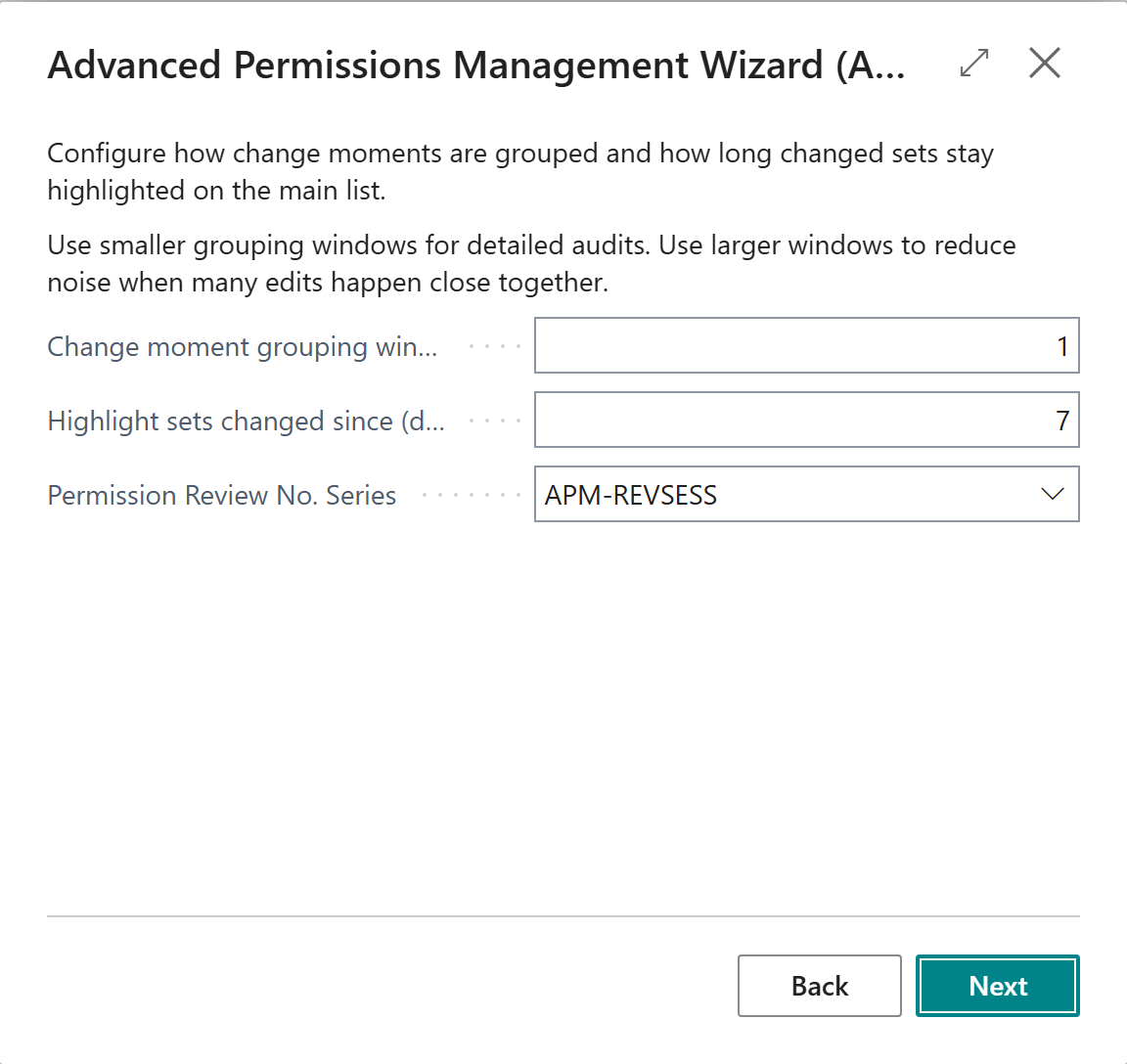
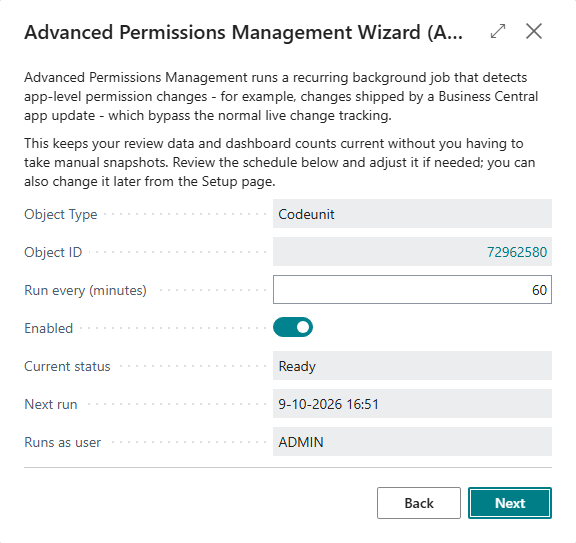
The Background Job Schedule step: the job runs every 60 minutes, and as the user who finishes the wizard.
¶ Check that it works
- Open Advanced Permissions Management. Your permission sets are listed with their baseline date.
- Change a permission in a user-defined permission set in Business Central and refresh the list.
The change counter of that set goes up. The change appears in the Change Explorer with your name and the time. Changes are now recorded automatically. For a guided first run including a review, see the quick start. To learn the screen, continue with the dashboard.
¶ Check that the background job runs
Open Advanced Permissions Management Setup and expand the fast tab Background Job. The Status should say Running. If it does not, choose Schedule Background Job. See App updates for the statuses and what they mean.

The fast tab Background Job: status, the user the job runs as, and the last run.
¶ Other functions on the setup page
The setup page, Advanced Permissions Management Setup, also gives you these actions:
- Generate Exclude Permission Sets starts the permission set generator. Permission Sets (Library) and Permission Restrictions (Library) show the library behind it.
- View Reset History shows all baseline resets with their archive counts. View Period Changes shows changes across a date range, including archived data. See Baseline reset.
- Schedule Background Job schedules the hourly job so that it runs as you. Use it when the Background Job fast tab says the job is not running.
- Check for App Changes runs the check for changes caused by app updates right away instead of waiting for the hourly job.
- Load Default Data loads or refreshes the permission library and the default quality rules.
¶ APM license, trial and registration
Advanced Permissions Management (APM) records changes from the moment you install it. To open the pages of the app you need a registered trial or a license. This page explains who counts as licensed, what the trial includes, and what happens when it ends. For the general licensing answers of all Compliance apps, see Troubleshooting.
¶ Recording versus using the app
- Recording always runs. Changes to permission sets are recorded from installation, even before you register, and also after a trial has ended.
- The pages need a registered trial or a license. The main list, Who Last Changed What, the Change Explorer, starting a review, what-if analysis, the quality check and the other pages ask you to register first. This includes rollback and baseline reset, because you start them from the main list.
- The hourly app-update check also needs a trial or license. It does not run while the app is unregistered or the trial has ended.
Install early and register when you are ready to look at the data. Changes made before you register are not lost.
¶ How the license works
APM has no separate AppSource plan or price. Trial and license run only through the registration of the app in 2-Controlware, as described on this page. Every environment registers once, for a 30-day trial, and you request a license for longer use.
¶ Register and start the trial
If you did not register in the setup wizard:
- Search for Advanced Permissions Management Setup (not "Wizard").
- Choose Register.
- Fill in the form and choose Save.
- Choose Load Default Data to load or refresh the permission library and the default quality rules.
After registering you have a free trial of 30 days. The fast tab License Information shows the Status (Not Registered, Trial, Contract, or Trial / Contract finished), the registration date and the trial end date or contract dates. Choose Refresh License Information to retrieve the latest status. Choose Request License to purchase a license. When the license is active, the status changes from Trial to Contract, usually within 24 to 48 hours.
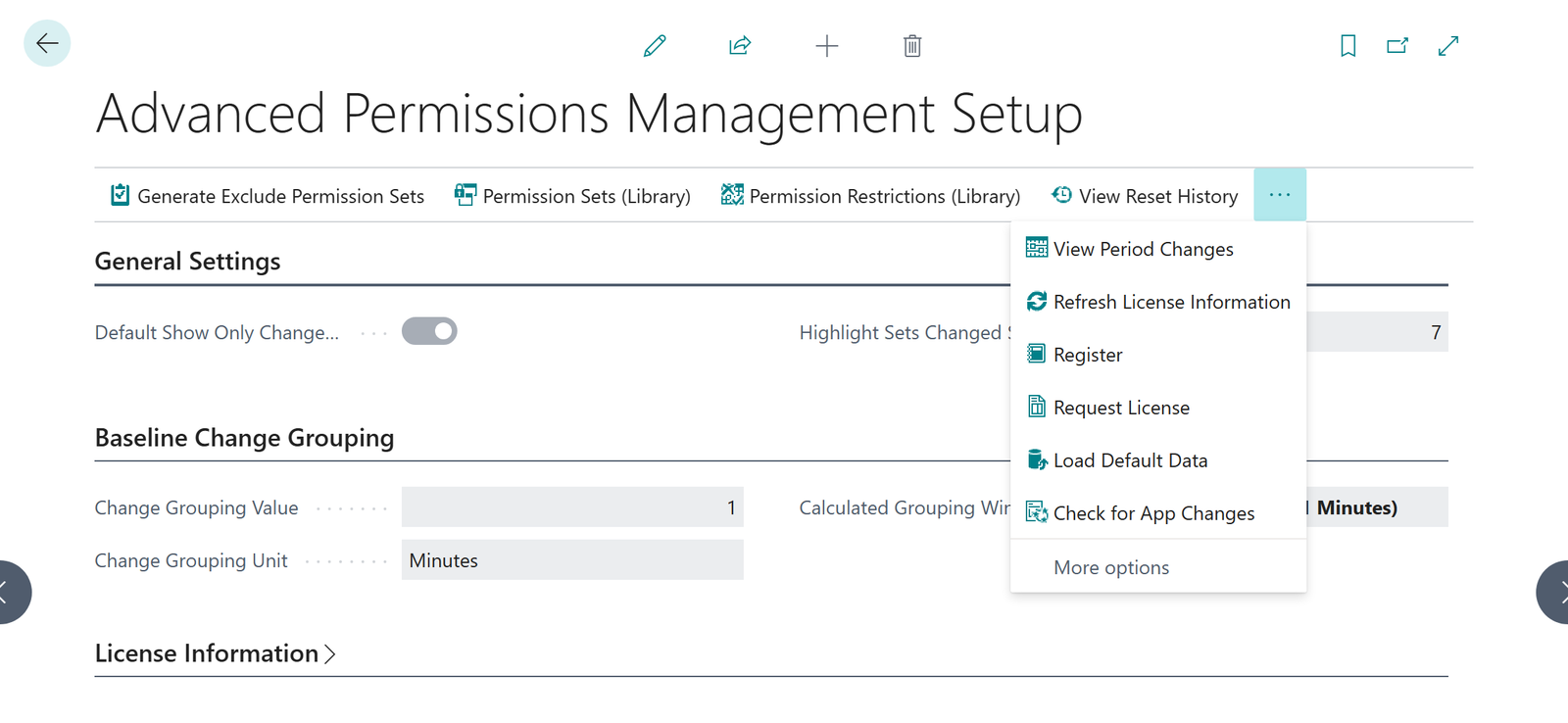
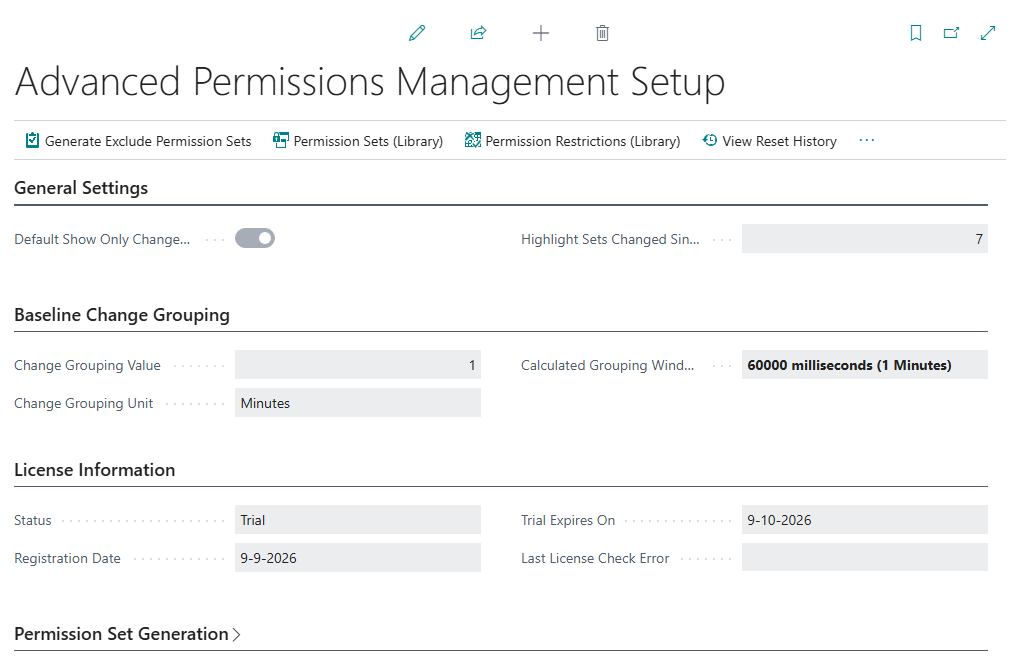
The License Information fast tab on the setup page.
When a user with the SUPER permission set opens the Role Center and the app is not registered, a reminder to register appears.
¶ What you can do in a trial and with a license
| Function | Trial | License (Contract) |
|---|---|---|
| Recording changes | Yes | Yes |
| Main list, history, Who Last Changed What, version compare, Change Explorer | Yes | Yes |
| Period review | Yes | Yes |
| Hourly app-update check, Check for App Changes | Yes | Yes |
| What-if analysis | Yes | Yes |
| Quality check, one set | Yes | Yes |
| Quality check, batch | Up to 5 sets per run | Unlimited |
| Rollback | Yes | Yes |
| Manual baseline reset | Yes | Yes |
| Permission set generator | Wizard and preview only | Yes |
| Names and descriptions with Copilot | No | Yes |
| What-if cleanup | No | Yes |
| Copy, import and export of permission sets | No | Yes |
| Scheduled baseline reset | No | Yes |
When you use a function that needs a license in a trial, the app says so and offers to open the license request. The message names the function, says that it "is not available in the trial of Compliance Advanced Permissions Management" and that it "requires a license or contract."
¶ What happens when the trial ends
- Changes keep being recorded. Nothing stops at the end of the trial.
- When you open a page, the app asks "Your trial or contract for Compliance Advanced Permissions Management has expired. Do you want to request a license now?" The page opens after you have a license.
- The hourly app-update check pauses until the app has a trial or license again.
- Your recorded data is kept. You see it again as soon as the app is licensed.
¶ If the registration service cannot be reached
The registration and license check contact a 2-Controlware service. If that fails, for example because outgoing HTTP is blocked, the app grants temporary access with a rolling one-day contract, so your environment is not blocked. The setup page then shows the reason in Last License Check Error.
In Business Central, the extension must be allowed to make HTTP requests. If Business Central asks whether the extension may make a request to an external service, allow it.
¶ Install in a new environment
An app that you install in a new environment must be registered again in that environment. See Troubleshooting.
¶ APM quick start and typical month
This page has two parts. First, a ten-minute start that takes you from installation to your first recorded change. Second, a runbook for a typical month, so APM becomes a routine and not a one-off project. For what the app does, see Advanced Permissions Management.
¶ Start in 10 minutes
You need: Business Central 27 or later, a user with the SUPER permission set, and a test permission set of your own (user-defined) that you may change.
- Install the app from Microsoft AppSource or from Extension Management. APM takes its baseline right away. See Install and set up.
- Give users access. Assign the permission set Use Advanced Permissions Management to the people who will work with the app.
- Run the wizard. Choose Start setup wizard in the notification, or start Advanced Permissions Management setup from Assisted Setup. Register in the wizard to start your 30-day trial. See License and registration.
- Open the dashboard. Search for Advanced Permissions Management. You see your permission sets with their baseline date and three change counters.
- Make a test change. Open your test permission set in the standard Business Central permission set page, add one permission line, and go back to the APM list.
- See the change. Choose Refresh Permission Set Version if the counters have not moved. Then choose Change Explorer: your change is there with your user name and the time.
- Start a review. Choose Start Period Review, keep the defaults and choose Start Review. Review your test change, complete the review, and you have your first piece of evidence.
The result: changes are recorded from now on, and you know the path from change to evidence. Remove your test line afterwards, or roll the set back.
APM can only show changes made after its baseline. Install it before the audit period you want to cover, not after.
¶ A typical month with APM
The rhythm below is a suggestion. It keeps the review work small, because every step looks at a short period.
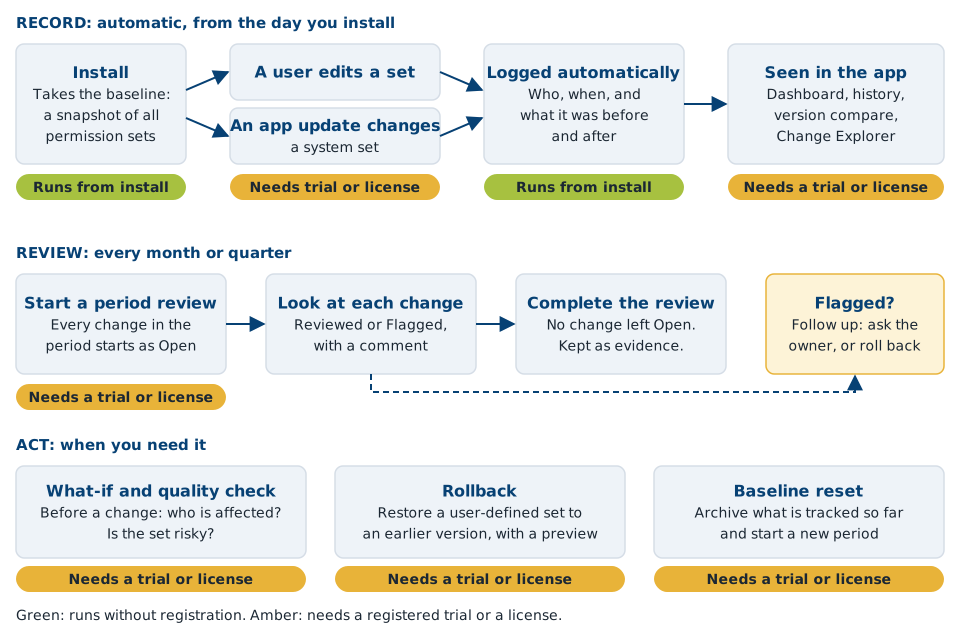
| When | What you do | Where |
|---|---|---|
| Day 1 | Install, run the wizard, register, assign the permission set. | Install and set up |
| Every week | Open the Role Center. Read the headline. Check the tiles for unreviewed and flagged changes. | Dashboard |
| Before a risky change | Run a What-if Impact on the set you are about to edit. | What-if analysis |
| After every app update | Choose Check for App Changes, filter the Change Explorer on App Update. | App updates |
| Every month | Start a period review for the past month. Review each change, flag what needs follow-up, complete the review. | Reviewing changes |
| Every quarter | Run Analyze Set Quality (Batch) over your user-defined sets. Fix the critical findings. | Quality checks |
| When a change was wrong | Roll back the set to the version before the change. | Rollback |
| Once a year (optional) | Reset the baseline for a clean start. The old history stays available. | Baseline reset |
| Before the audit | Collect the evidence: completed reviews, the Change Explorer for the period. | Audit and evidence |
The Role Center helps you keep to this rhythm. It reminds you to start a review when app updates were detected, or when open changes pile up since the last completed review.
Last reviewed: October 2026.