Recording changes is not enough for an audit. You also have to show that someone looked at them and what was concluded. A period review in Advanced Permissions Management (APM) is that evidence: you go through the changes of a period and give each one a status and, where it helps, a comment.
Review status is an audit record only. It never blocks or reverses the change itself, because Business Central cannot hold back a permission change until it is reviewed. To undo a change, use rollback.
Transcript of this video
Advanced Permissions Management. Period review. Recording permission changes is not enough for an audit. Someone also has to look at them, and write down what they concluded. Open the changes that are waiting for review. Each line shows who changed which permission set, and when. Select a change, flag it, and add a comment that says why. Here, delete access on vendors was not approved. Confirm, and the change leaves the open list, recorded with your name, the time, and your comment. A review is evidence. It never blocks the change itself. Every permission change reviewed, with a reason. Advanced Permissions Management, by 2-Controlware. Try it for thirty days.
Video (1 minute): open the changes that are waiting for review, flag one with a comment, and see it leave the open list.
¶ The Change Explorer
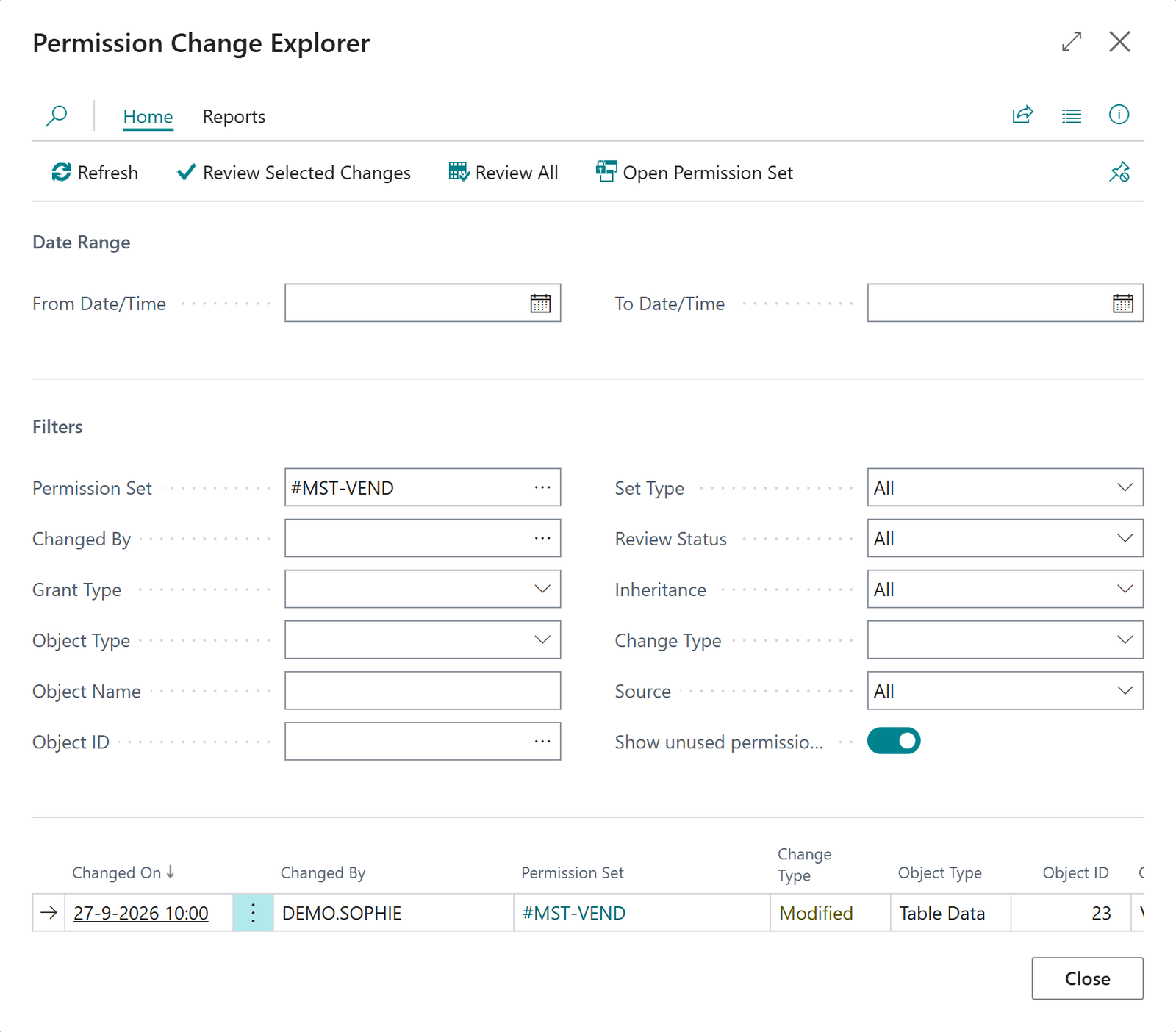
Every permission, permission set and relation change is logged individually. The Change Explorer combines them in one filterable page. Open it from the ribbon of the main list, from a tile on the Role Center, or from a review. From the main list, Review Open Changes opens it for the selected permission set, filtered on the review status Open.
You can filter on:
- date range and permission set;
- Changed By (changes caused by an app update appear as App Update);
- change type: Added, Modified or Removed;
- object type, object name and Review Status (All, Open, Reviewed, Flagged);
- direct or inherited changes;
- Source: the current period, archived history, or both.
For every change you see the permissions before and after, who changed it, and, once reviewed, the last review comment, who reviewed it and when. Export to Excel exports the current view, with an optional summary sheet.
¶ Review the changes of a period
Before you start: there must be recorded changes in the period. A review of a period without changes is not possible.
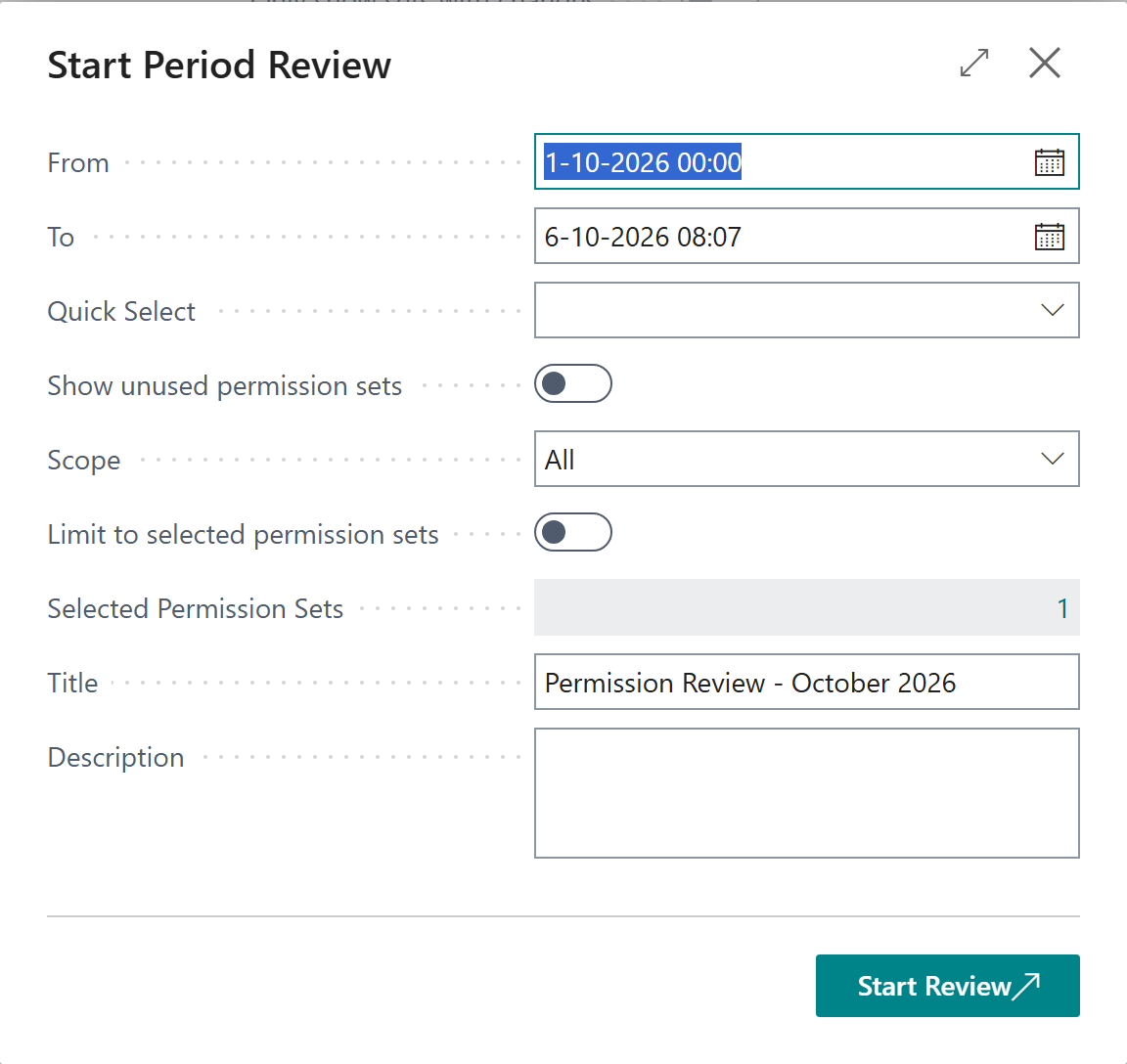
- On the main list, choose Start Period Review (or New Permission Review on the Role Center).
- Check the period and the scope, and give the review a title.
- From starts one second after the end of your most recent review. For the first review it is the first day of last month.
- To defaults to now and cannot be in the future.
- Scope is all permission sets, only user-defined sets or only system sets. You can limit it to the sets you selected, and include sets that no user holds.
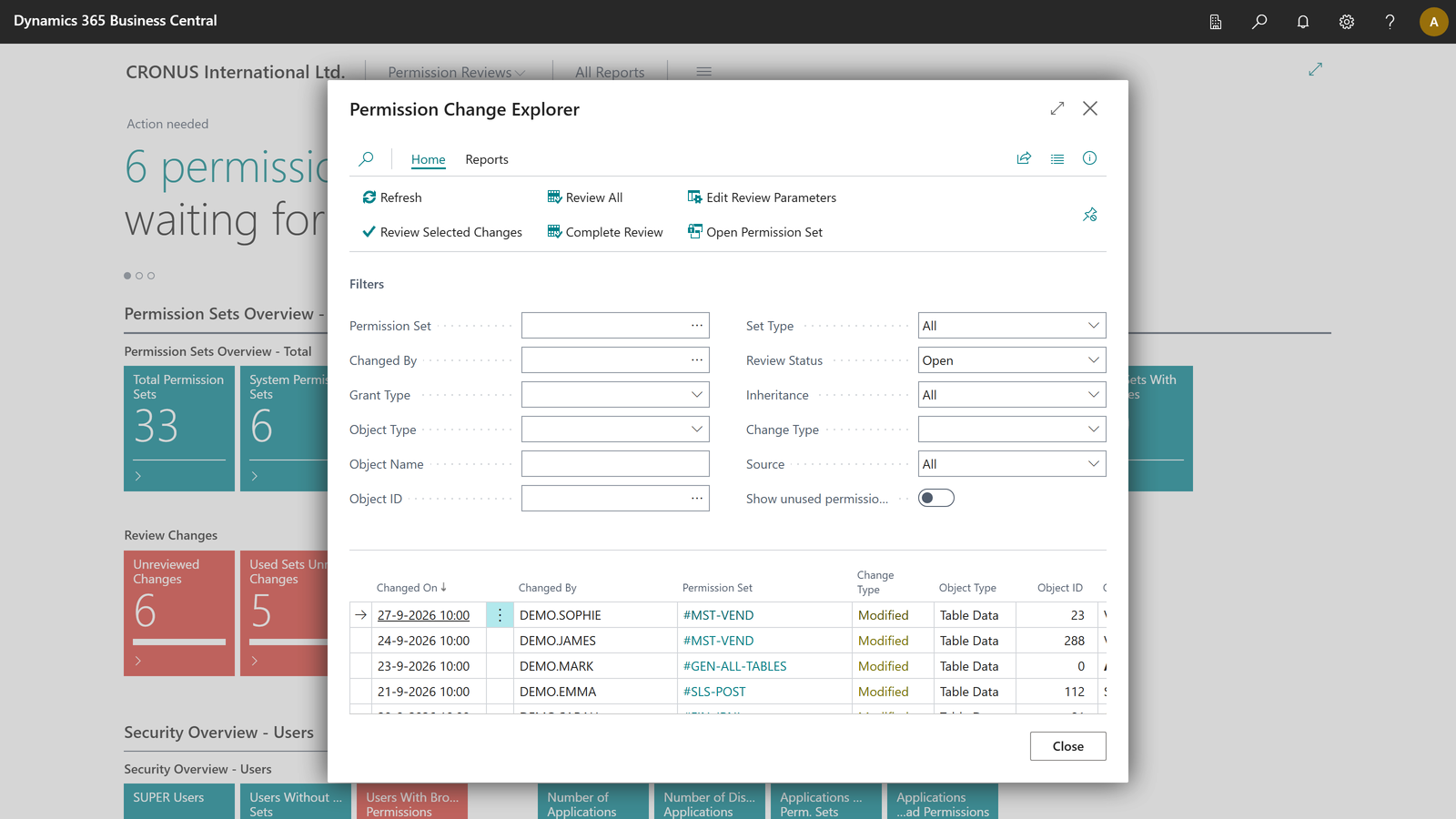
- Choose Start Review. The Change Explorer opens with the changes of this review.
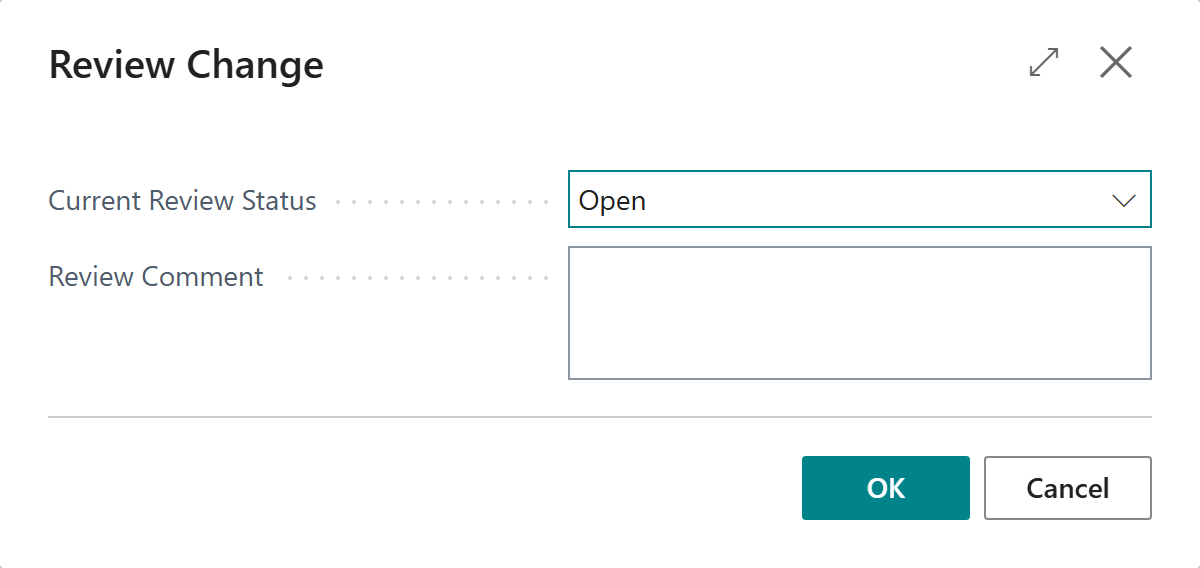
- Select changes and choose Review Selected Changes, or choose Review All. Set the status to Reviewed or Flagged and add a comment where it helps.
- When no change is left open, choose Complete Review.
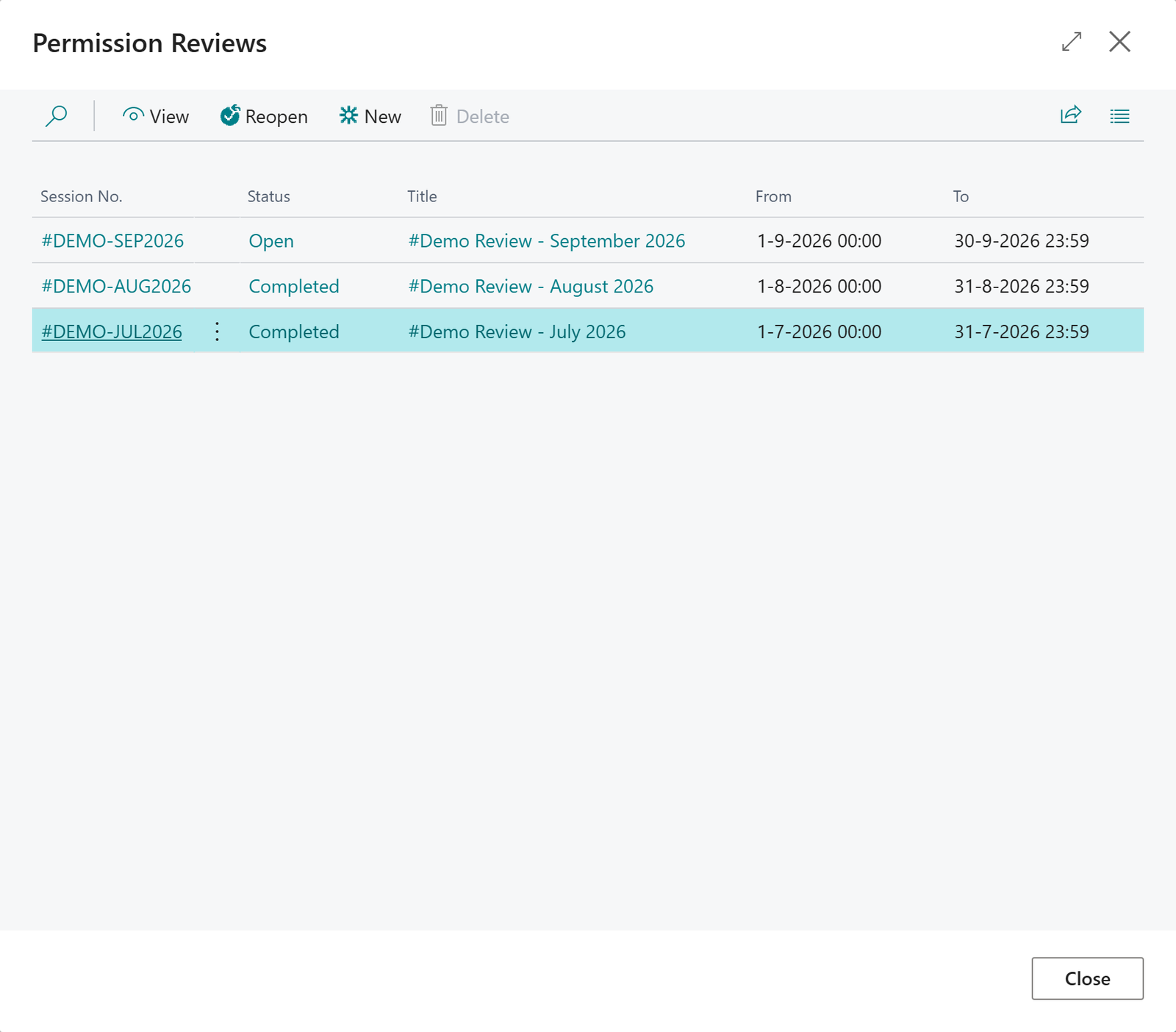
The result is a completed review with a stored summary. View Permission Reviews lists all reviews. A completed review can be reopened with Reopen, which makes its changes reviewable again.
¶ Status values
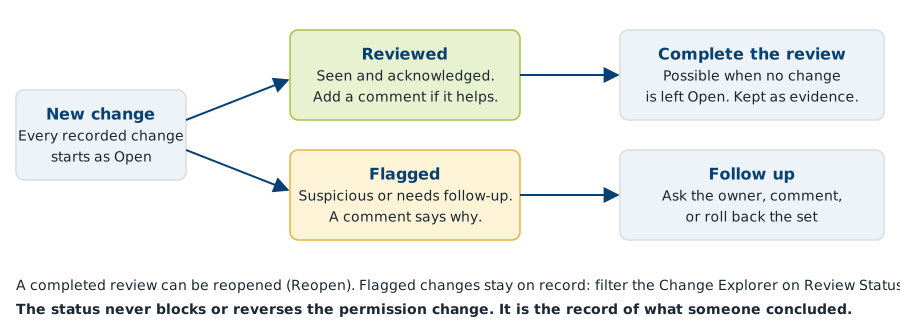
| Status | Meaning |
|---|---|
| Open | Default for every new change. Not looked at yet. |
| Reviewed | Seen and acknowledged. |
| Flagged | Marked as suspicious or in need of follow-up. |
¶ Follow up flagged changes
A flagged change stays on record. To work through them, open the Change Explorer and set Review Status to Flagged, or choose the headline on the Role Center that says how many changes were flagged. For each flagged change you can:
- ask the owner of the permission set or the person who made the change why it was needed;
- add a comment with the answer, so the evidence is complete;
- roll back the set if the change was wrong. This works for user-defined sets.
For a worked example, see Investigate a surprise permission.
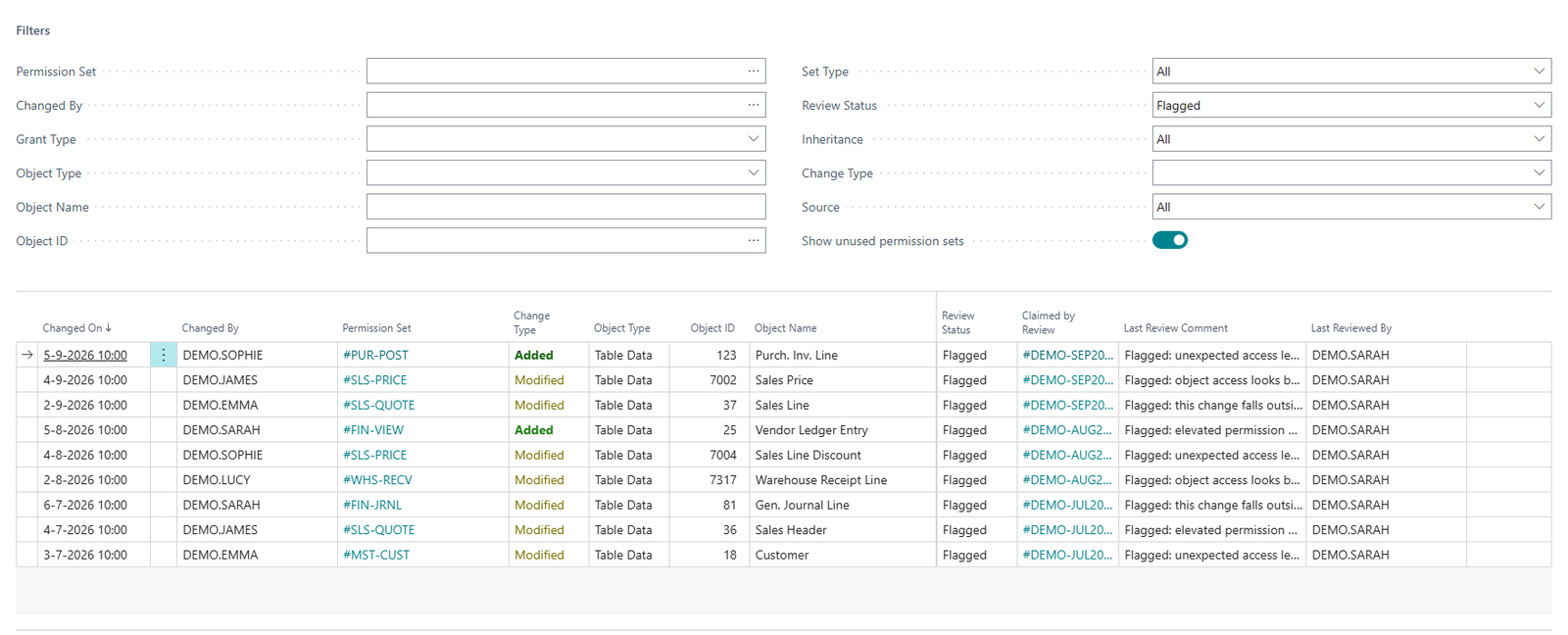
Flagged changes with their comments in the Change Explorer.
¶ Good to know
- Marking a relation change as reviewed carries the status over to the permission changes it caused, so you never review the same thing twice.
- Two reviews cannot overlap for the same scope.
- A change can belong to one open review at a time. If you select a change that is part of another open review, the app offers to open that review.
- When the last open change of a review is handled, the app offers to complete the review.
- A manual baseline reset is blocked while a review is open.
¶ APM dashboard and Role Center
The first question in an audit is "what is the current state, and what changed?" The Role Center and the main list of Advanced Permissions Management (APM) answer it without building a report.
¶ The Role Center
The Role Center shows what needs attention. Its headline rotates between messages such as:
- "N permission changes are waiting for review";
- "N changes have been flagged for follow-up";
- the permission set with the most changes since the baseline;
- "N users have SUPER access. Consider reducing this.";
- "Your baseline is over 90 days old. Consider resetting.";
- "All permission sets are up to date and reviewed."
Below the headline are tiles with the number of permission sets by type, the changes in the current period, and the open and completed reviews. Every tile opens the matching list with the same filter that produced its number, so a tile and the Change Explorer always agree.
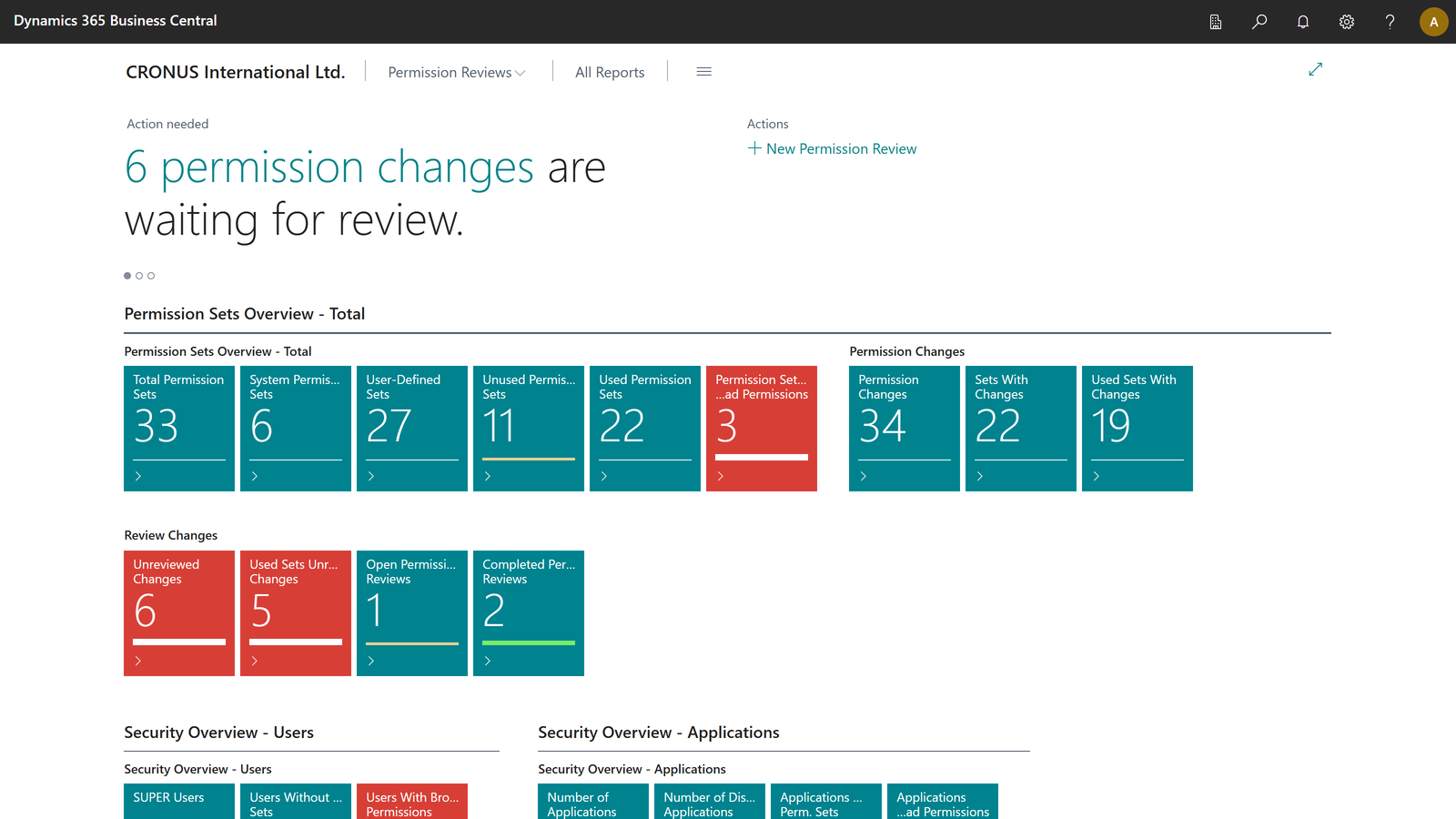
The Role Center also reminds you to start a review when app updates were detected, or when open changes have piled up since the last completed review. Use New Permission Review to start one.
To use the Role Center, switch your profile to it in the setup wizard or in your Business Central settings. If it does not switch, sign out and in again.
¶ The main list
The main list, Advanced Permissions Management (search for it with Tell Me), shows every tracked permission set:
- its type (System or User-Defined), baseline date, number of permissions and number of linked users;
- three change counters: permission changes, permission set changes and relation changes.
Recently changed sets are highlighted. Select a set to see its permissions, users and relations in the fact boxes. From the ribbon you open every other function for that set: history, who last changed what, version compare, review, what-if, quality check and rollback.
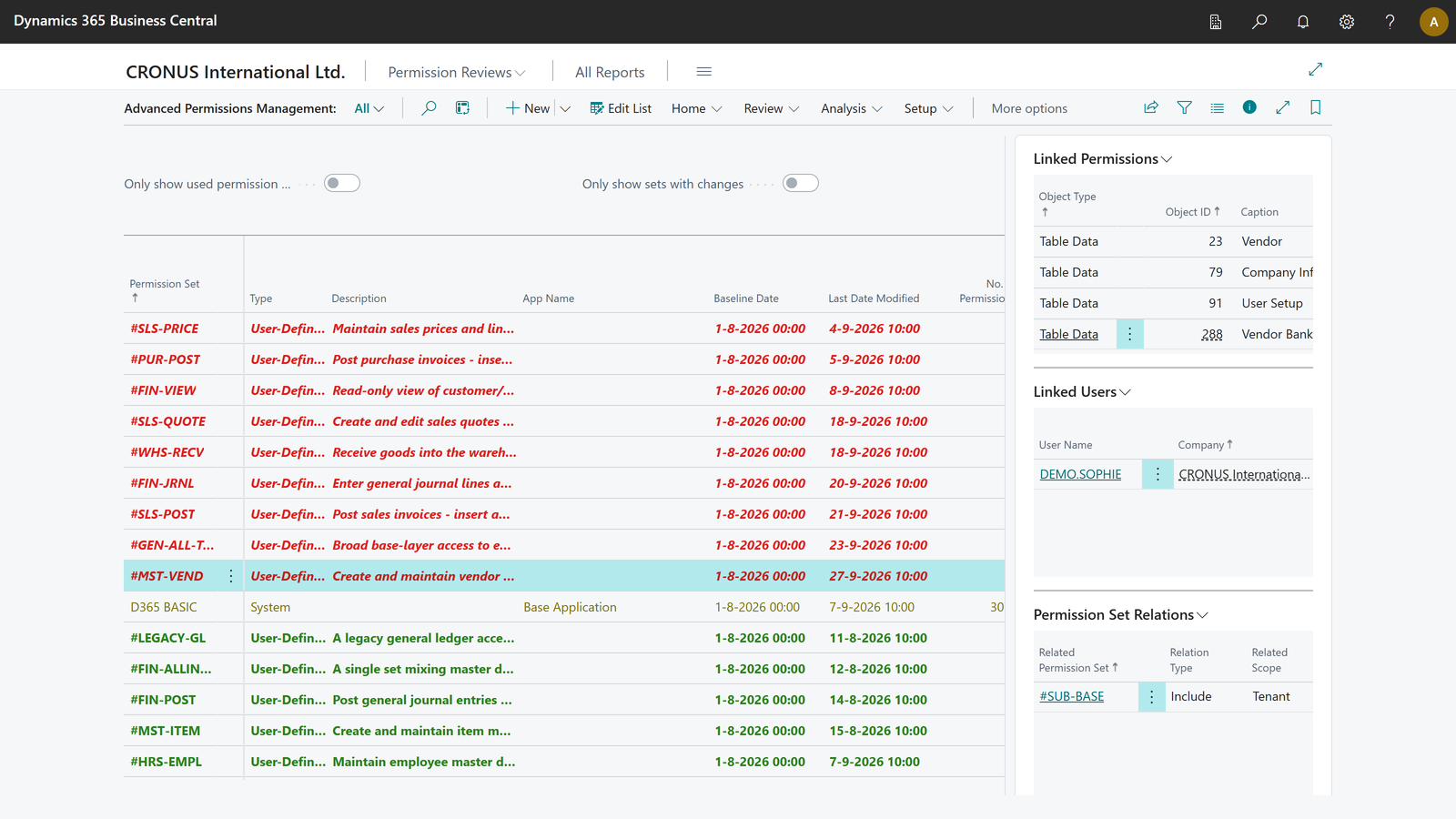
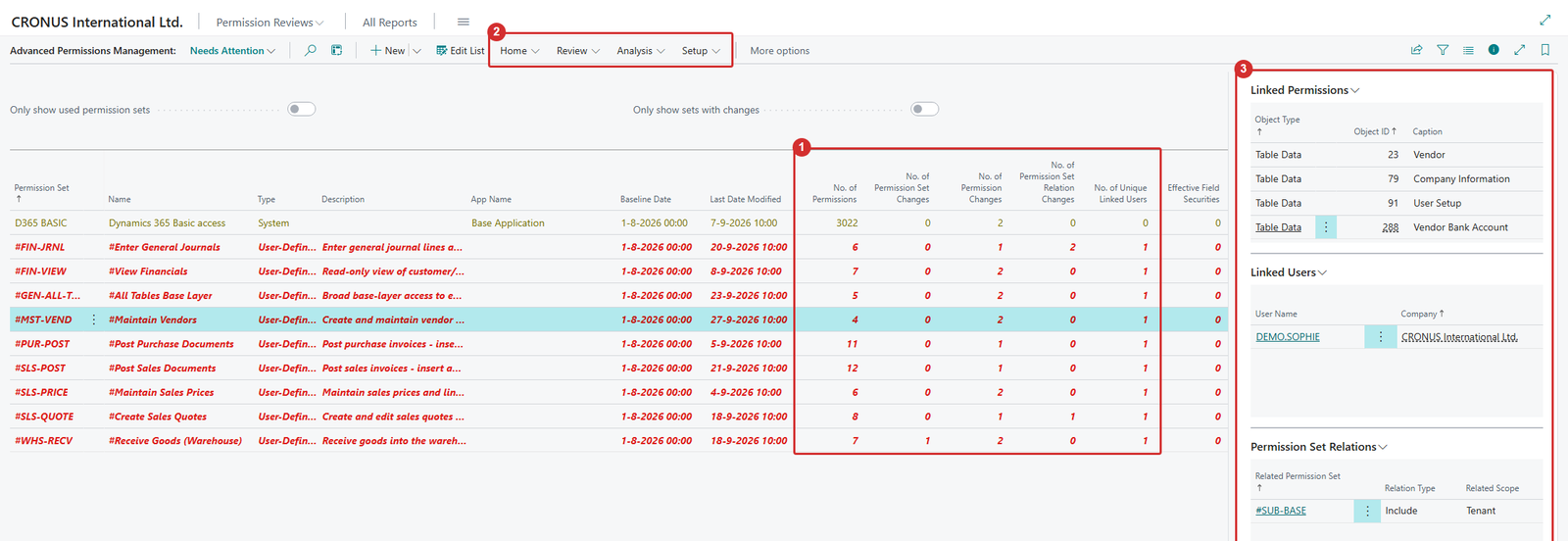
The main list: 1 counters, 2 ribbon, 3 fact boxes. Highlighted rows were changed recently.
The numbers are always current, because changes are recorded the moment they happen.
¶ Narrow the list
- Use the toggles Only show used permission sets and Only show sets with changes.
- Use the views Sets with Changes, Used Sets Only, User-Defined Sets, System Sets and Needs Attention.
¶ Companion apps
When Field Security or Field Validation is installed, the main list gets extra columns per permission set (Effective Field Securities, Effective Filter Securities, Action Security Entries). Use Choose Columns to show or hide them.
¶ Permission set history and version compare
An audit trail is only useful when every change has a name and a time attached, and when you can narrow it down to the period, the permission set or the person you are asked about. Advanced Permissions Management (APM) gives you three views on one permission set: who last changed what, the history, and a version compare.
Transcript of this video
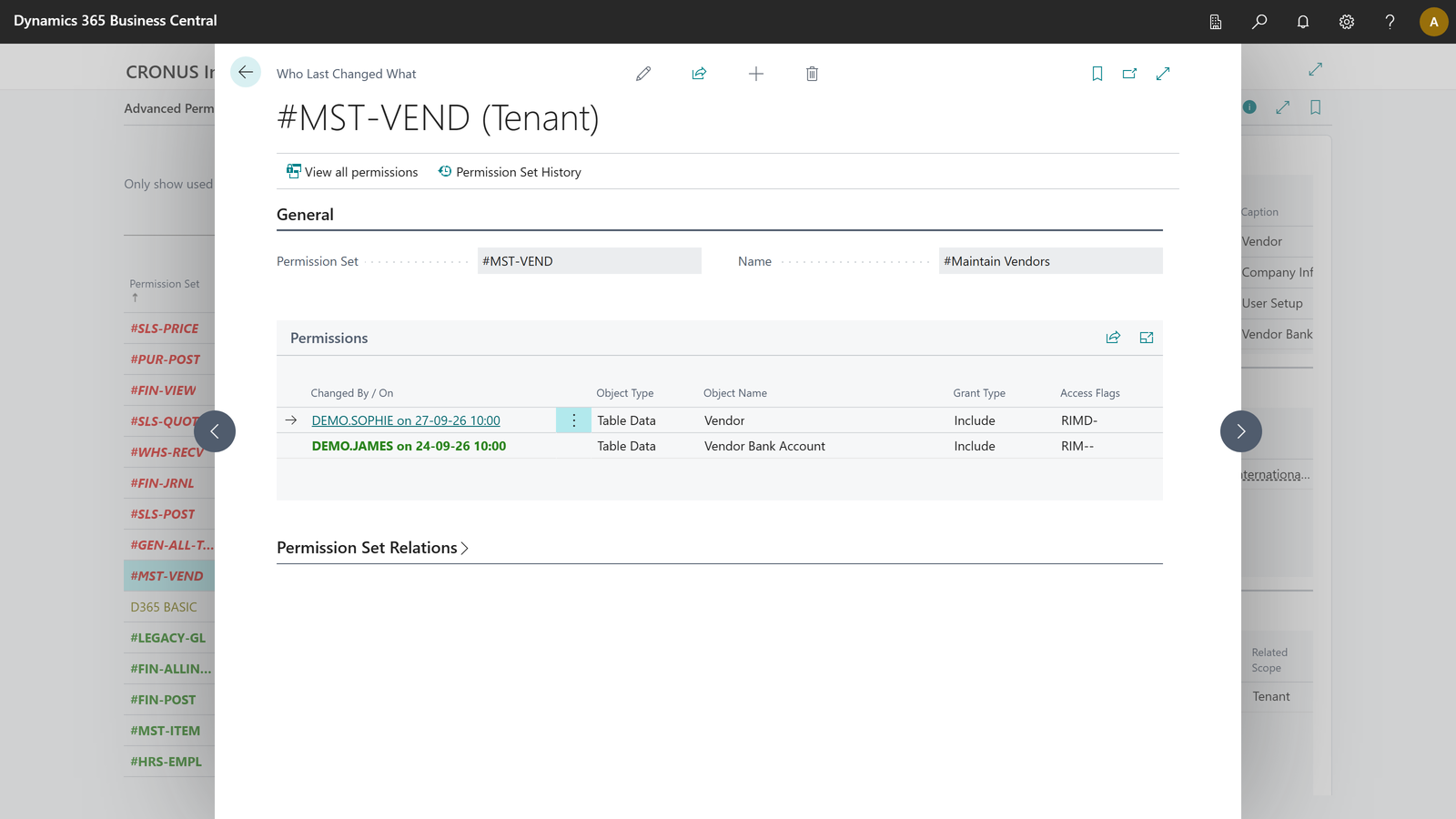
Advanced Permissions Management. Change history. A permission set changed last week. Who did it, and what exactly was different? In standard Business Central, answering that takes a lot of digging. Every permission line shows the person who changed it last, and when. Here, access to vendors was changed on September twenty-seventh, and you see the new permissions right next to it. Every other line has its own name and time. Nothing is anonymous, and nothing has to be reconstructed. Pick any two moments in time, and the two versions appear side by side. You see what was added, removed or changed. That is audit evidence, without a spreadsheet. Every change has a name and a time. Advanced Permissions Management, by 2-Controlware. Try it for thirty days.
Video (1 minute): see who changed what, and compare two versions.
¶ See who last changed each permission
Who Last Changed What shows every permission line of a set with the person who last changed it and when.
- On the Advanced Permissions Management list, select the permission set.
- Choose Who Last Changed What.
You see each permission line, the new permissions and the user and time of the last change. Nothing is anonymous and nothing has to be reconstructed.
¶ Browse the history of a set
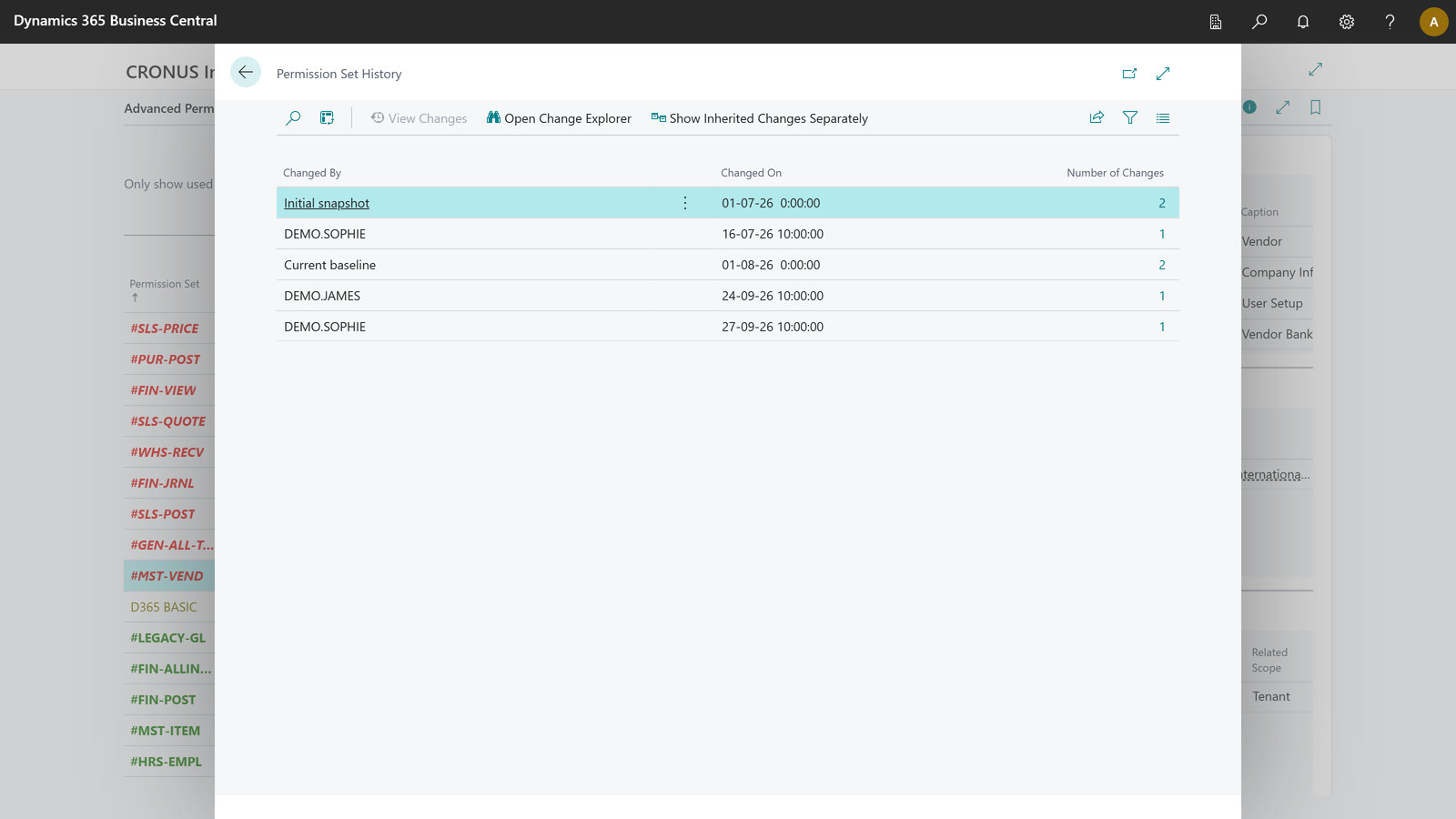
Permission Set History lists the change moments of a set, from the initial snapshot onwards. Quick successive edits by the same person are grouped into one change moment. The time window is a setting; see the settings reference.
- Select the permission set.
- Choose Permission Set History.
From here you can open the Change Explorer for a change moment, and show inherited changes separately. This is also where you pick a version to roll back to.
¶ Compare two versions
Version Compare shows side by side what was added, removed or changed between two points in time.
- Select the permission set.
- Choose Version Compare.
- Choose the assist-edit button (...) on each version field and pick two points in time.
The page lists the differences line by line, including changes to relations. Switch on Show Only Changed Lines to hide lines that did not change. Version Compare also works across a baseline reset, because archived and current data are used together.
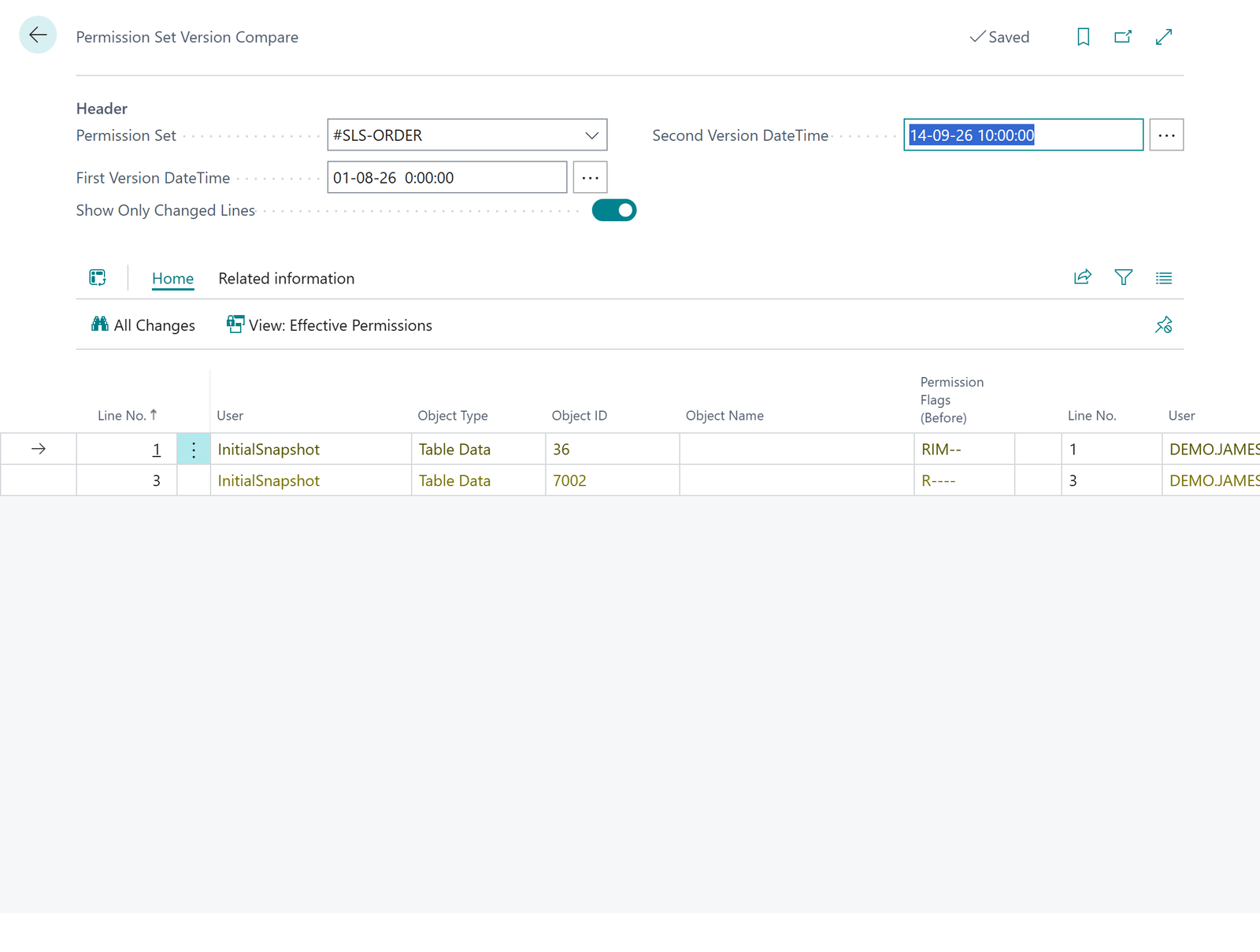
With the window maximised you see both sides: the permission flags before on the left, and the flags after on the right, line by line.
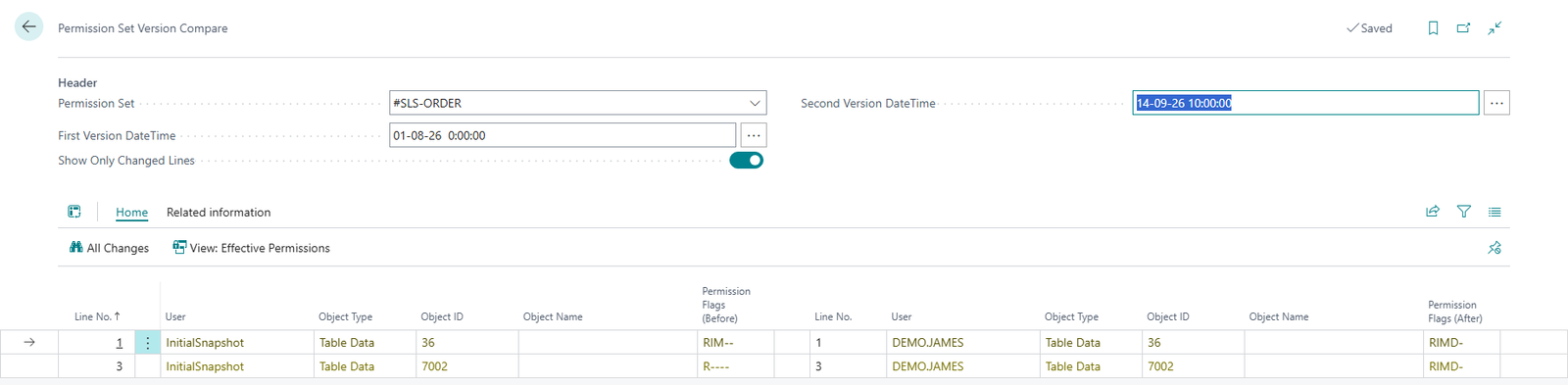
Version Compare, maximised: the permission flags (Before) and (After) of every changed line.
¶ Find all changes in one place
To look across all permission sets, use the Change Explorer. See Reviewing permission changes. Not sure where to start with a surprising permission? Follow Investigate a surprise permission.
¶ Permission changes caused by app updates
An app update can change one of Microsoft's own permission sets, or a permission set of another app, and give users more access than before. Standard Business Central does not log changes to system permission sets at all. Advanced Permissions Management (APM) does.
Transcript of this video
Advanced Permissions Management. App update detection. An app update can quietly change Microsoft's own permission sets, and give users more access than before. Standard Business Central does not log those changes at all. So would you ever notice? Advanced Permissions Management does notice. It checks your installed apps in the background, every hour by default, and records every difference as an app update. Take this line. An update gave a system permission set the permission to modify customers. You see the set, the table, and the permissions before and after. Three changes here, none of them in standard Business Central. Every one stays on record, ready to be reviewed and signed off. No more surprises after an update. See what Microsoft changed. Advanced Permissions Management, by 2-Controlware. Try it for thirty days.
Video (1 minute): app update detection and how the changes show up with the permissions before and after.
¶ How it works
A background job checks your installed apps every hour by default. It compares their system permission sets with the baseline and records every difference as an App Update change. The job is created when you install the app, so you do not have to switch anything on.
Such changes do not pass through the normal Business Central change events, which is why a separate job is needed. The job also keeps the dashboard counters current.
The job only runs while the app has a registered trial or a license. See License and registration.
¶ Check that the job runs
The job is a Business Central job queue entry. Such a job always runs as the user who sets it to Ready, so it stops when that user is disabled or removed. On Advanced Permissions Management Setup, the fast tab Background Job shows:
| Field | What it shows |
|---|---|
| Status | Running, Not scheduled, Stopped with an error, Owned by a user that cannot run it or On hold. |
| Runs as user | The user the job runs as. |
| Last run | When the job last ran and its result. A run that was skipped because the app is not registered or the trial has ended is shown here too, and in the job queue log. |
When the job is not running, the Role Center shows a notification with the action Schedule job now. You can also choose Schedule Background Job on the setup page: the job then runs as you. Finishing the setup wizard schedules the job for the user who finishes it.
¶ See the changes
- Open the Change Explorer from the ribbon of the main list, or from a tile on the Role Center.
- Filter Changed By on App Update.
You see the permission set, the object and the permissions before and after the update. Every change stays on record and can be reviewed and signed off like any other change.
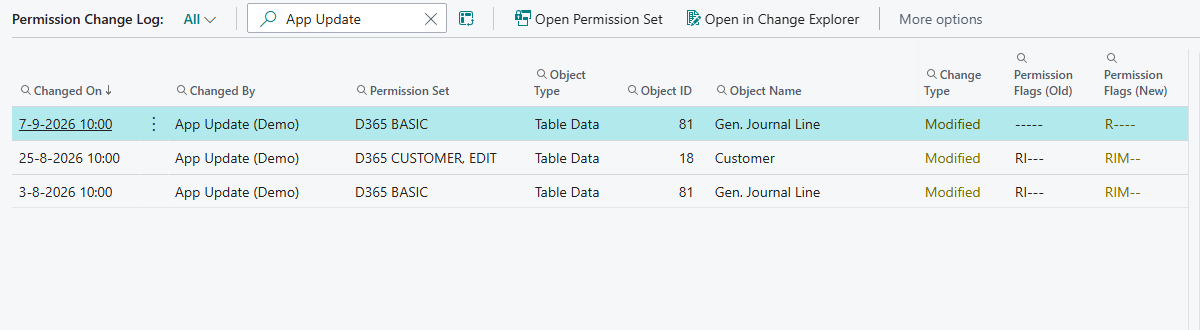
App update changes in the Change Explorer: permission set, object, and the permissions before and after.
¶ Run the check now
To see the effect of an update right away, choose Check for App Changes on the main list or on the Advanced Permissions Management Setup page. APM tells you whether it found changes.
You can change the schedule of the job in the setup wizard or in the job queue.
¶ Make it part of your routine
After every app update, run Check for App Changes and look at the App Update entries. If something looks wrong, ask the app publisher and flag the change in your next review with a comment that says what you found. See the typical month.
¶ Roll back a permission set
A mistake that cannot be undone is a risk. Rollback in Advanced Permissions Management (APM) restores a user-defined permission set to a version you trust, which limits both the damage and the time it takes to recover.
Transcript of this video
Advanced Permissions Management. Rollback. Someone changed this permission set by mistake, and now a user can delete vendors. A mistake you cannot undo is a risk. How do you get back to the last good version? Choose Rollback on the permission set. The wizard asks which earlier version you want to return to. Pick the last version you trust. Every change moment is kept in the history. Before anything happens, you see exactly what will change. One permission is modified, and one is removed. Confirm that this changes live permissions, and restore. The permission set is back at the version you chose. Undo a mistake in minutes. Advanced Permissions Management, by 2-Controlware. Try it for thirty days.
Video (1 minute): restore a permission set after an unwanted delete permission, with a preview before anything changes.
¶ Restore an earlier version
Before you start:
- The permission set must be user-defined.
- You need a registered trial or a license, because the wizard starts from the main list. See License and registration.
- You need permission in Business Central to change permission sets. See Roles and permissions.
- On the Advanced Permissions Management list, select the permission set and choose Rollback Previous Version.
- Choose the assist-edit button (...) at Restore to version, pick the version from the history, and choose Next.
- Check the preview of how many permission lines will be added, changed and removed, and how many relations.
- Switch on the confirmation that this changes live permissions immediately, and choose Restore.
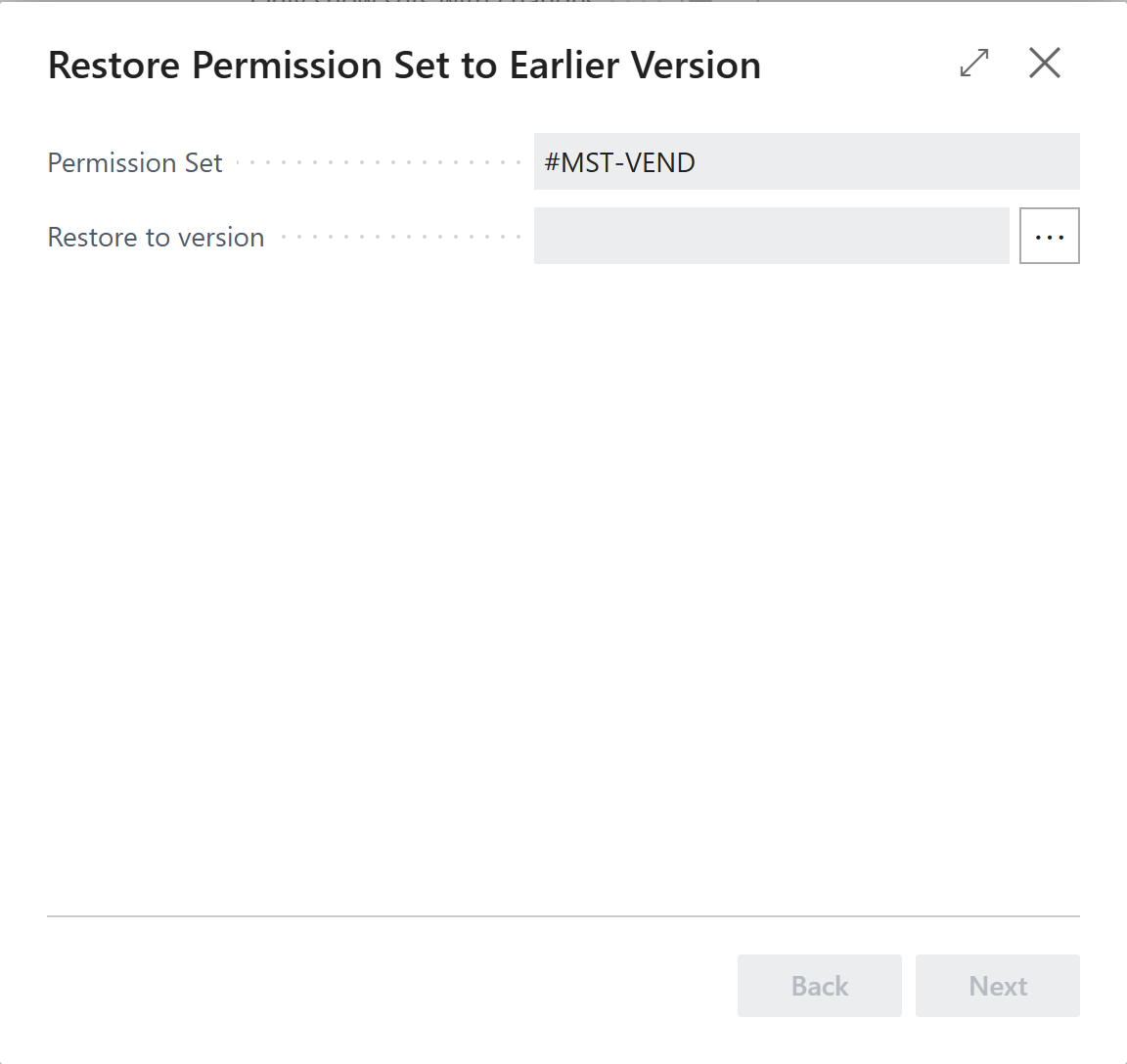
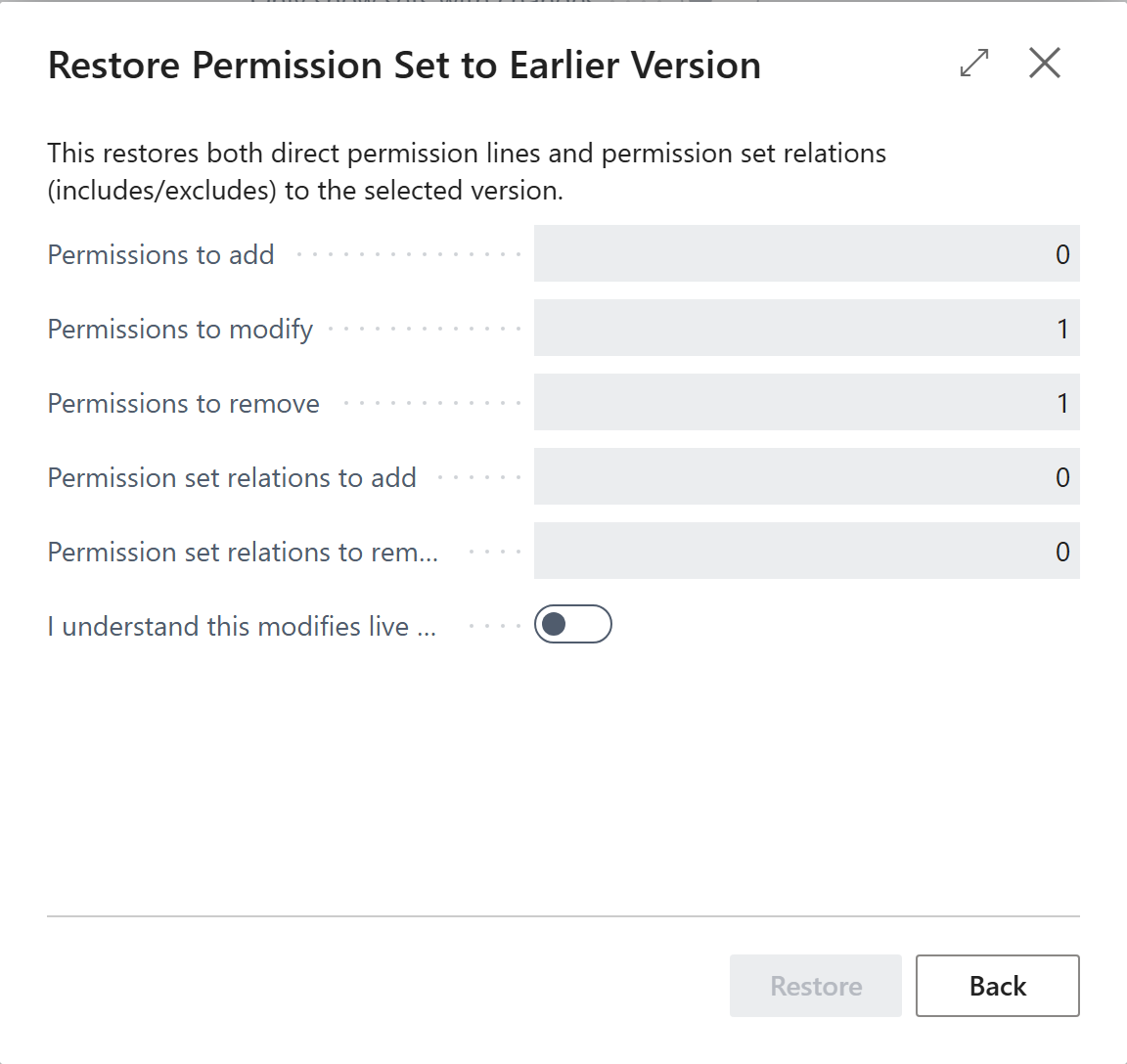
The permission set is back at the chosen version. The last step links to the history so you can check the result. The rollback itself is logged like every other change.
Roll back is a live change. Run a what-if analysis first when the set is included by many other sets.
¶ Limits
- Rollback restores permission lines and relations. It does not undo a rename of the set and does not change which users have the set.
- System permission sets cannot be rolled back, because they are read-only in Business Central.
- There is no separate "undo" for a rollback. If you went back too far, run the wizard again and pick another version.
¶ Baseline reset in APM
After a reorganization, a migration or at the end of an audit year you may want a clean starting point, while the earlier history stays available as evidence. A baseline reset in Advanced Permissions Management (APM) does that.
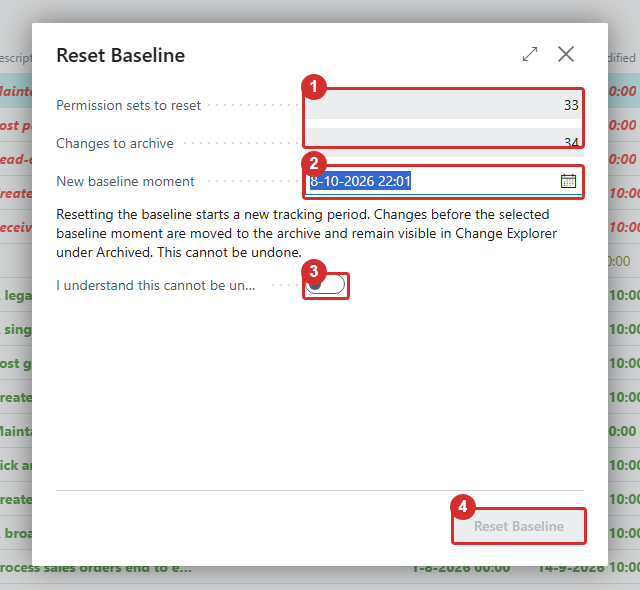
The Reset Baseline wizard: 1 what is reset and archived, 2 the new baseline moment, 3 confirm, 4 reset.
Transcript of this video
Advanced Permissions Management. Baseline reset. After a reorganization, or at the end of an audit year, you want a clean start. But you must not lose the history. Choose Reset Baseline. The wizard shows how many permission sets are reset, and how many changes move to the archive. Confirm that this cannot be undone, and reset. Nothing is deleted: earlier changes stay in the archive, and the change explorer still shows them. The wizard reports what it did: thirty-three permission sets were reset, and thirty-four changes moved to the archive. A clean start, with the history kept as evidence. Advanced Permissions Management, by 2-Controlware. Try it for thirty days.
Video (under a minute): reset the baseline after the period review is completed.
¶ What a reset does
A baseline reset archives all snapshots and change entries tracked up to the baseline moment you choose, and starts a new tracking period from that moment. Nothing is deleted. Archived data stays available, and is included automatically whenever a history, a comparison or a review spans a reset. In the Change Explorer you find it under the source Archived. Every reset is recorded in the reset history.
Do not confuse a baseline reset with Initial Snapshot - Full Reset, which deletes all tracked data. See the settings reference.
¶ When to reset
- At the start of a new audit year, so each year has its own period.
- After a reorganization or migration that changed many permission sets on purpose.
- When the Role Center says that your baseline is over 90 days old and you want shorter periods.
You do not have to reset. Version compare and history work across a reset, so a reset only changes how the data is grouped into periods.
¶ Reset manually
- Complete or abandon your open reviews first. A manual reset is blocked while a review is still open.
- On the Advanced Permissions Management list, choose Reset Baseline.
- On Confirm Reset, check how many permission sets and changes are affected. Choose the New baseline moment: changes before this moment are archived, changes on or after it stay in the active period. The moment must be after your current baseline and cannot be in the future.
- Switch on I understand this cannot be undone and choose Reset Baseline.
The last page shows how many permission sets were reset and how many changes were archived.
¶ Reset on a schedule
On the Advanced Permissions Management Setup page, use the fast tab Automatic Baseline Reset. Choose Auto Reset Period: monthly, quarterly or yearly, on the first or the last day, or a custom date formula. The setting is off by default and needs a license. A scheduled reset runs from the hourly background job and is not blocked by open reviews.
¶ Look at what was reset
On the setup page, choose View Reset History for all resets with their archive counts, or View Period Changes for changes across a date range including archived data.
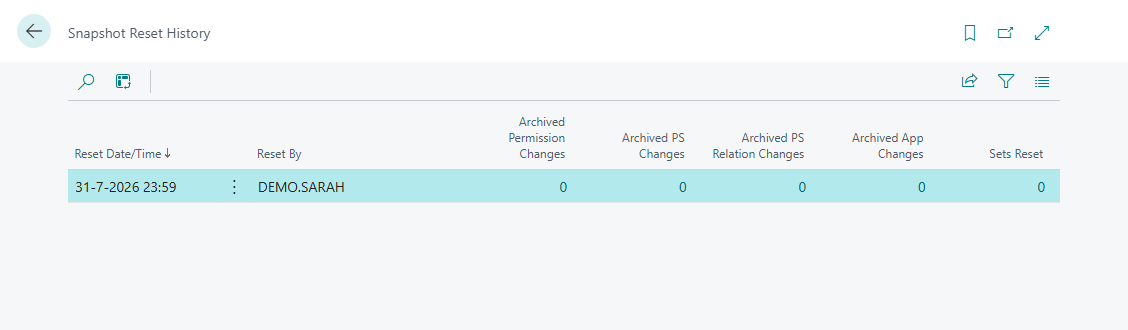
The reset history shows every reset with its archive counts.
Last reviewed: October 2026.