Each recipe gives the business case, the values to enter, the result and what to check if it does not work. For recipes with Filter Security see Filter Security recipes. For all options see Lock fields and Block actions. Register the app first. See Install and set up Field Security.
For every recipe, link the permission sets, set a Starting Date and have the users sign out and in again.
¶ Only Human Resources may change the Job Title
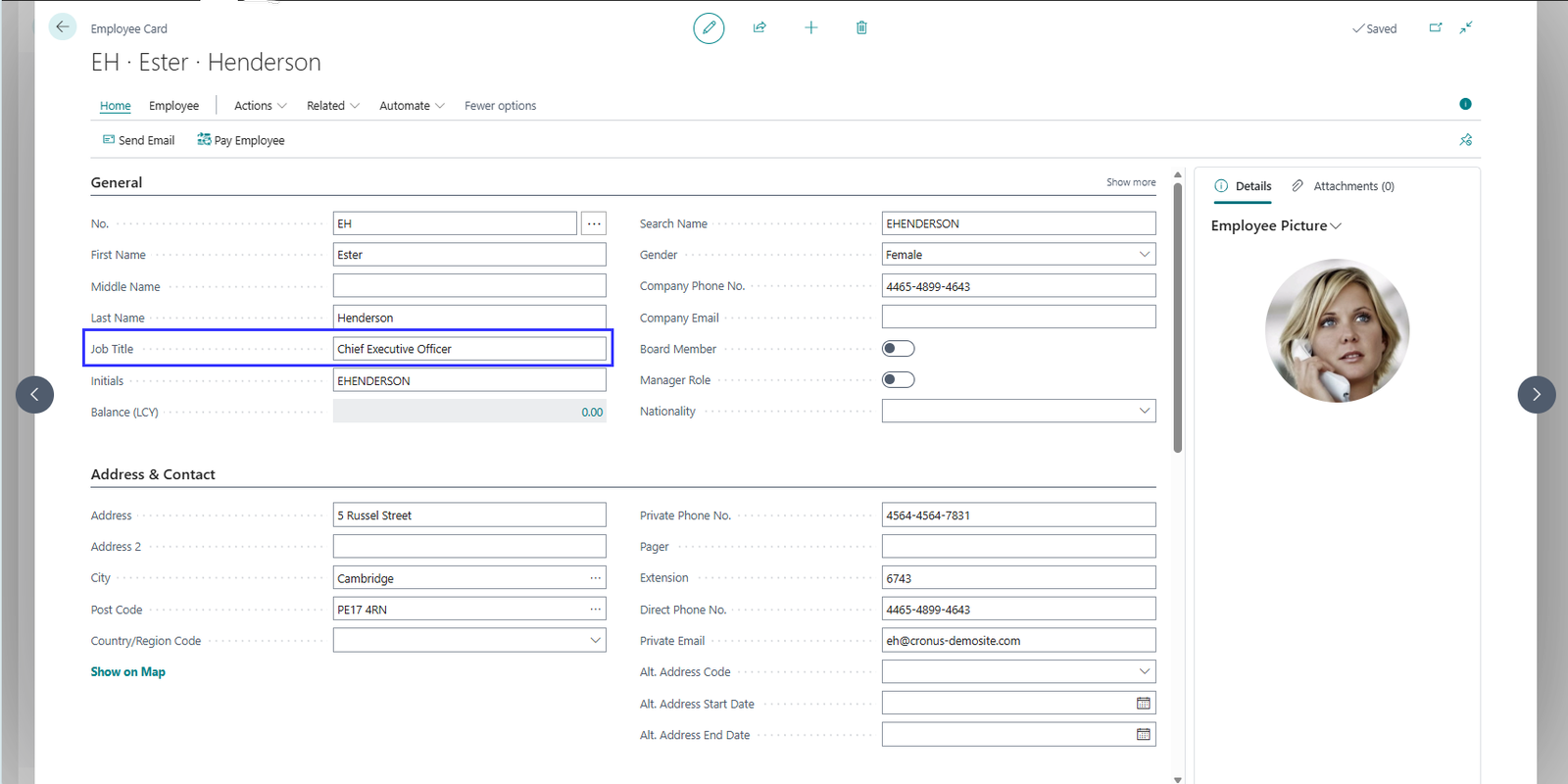
Business case. Anyone who may edit an employee can change the job title, and standard Business Central cannot protect just one field of a table. You want to lock the Job Title and keep everything else on the employee editable.
Without Field Security. A user changes the Job Title from "Managing Director" to "Chief Executive Officer". The change is saved. Nobody is asked why.
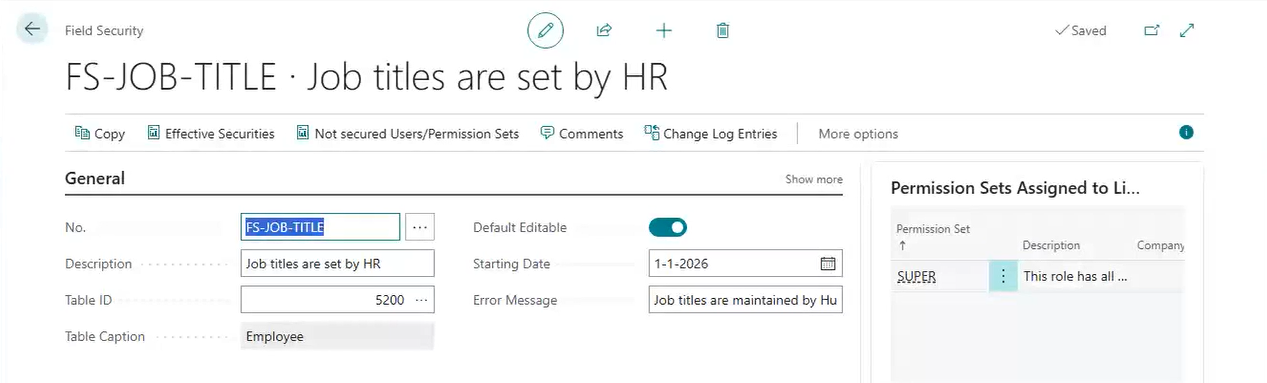
Setup. Search for Field Securities and choose New.
| Field | Value |
|---|---|
| No. | FS-JOB-TITLE |
| Description | Job titles are set by HR |
| Table ID | 5200 (Employee) |
| Default Editable | On. Everything stays editable, only the lines are locked. See Default Editable. |
| Starting Date | Today or a date in the past |
| Error Message | Job titles are maintained by Human Resources |
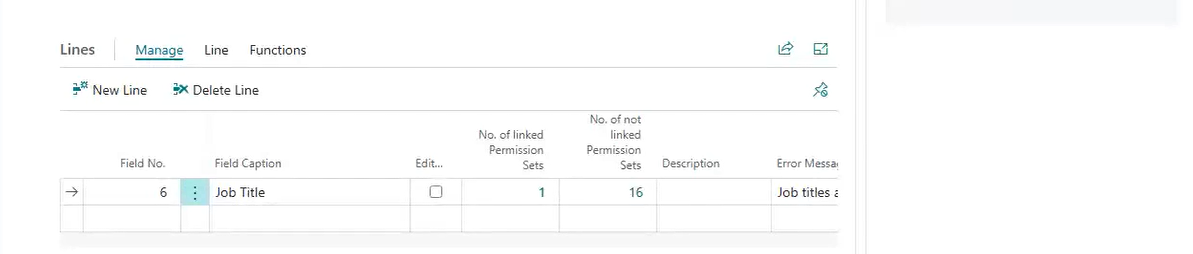
On the Lines tab, choose AssistEdit on Field No. and select Job Title (field 6). Keep Editable unchecked.
Link the permission sets of the users who may not change the job title. See Link permission sets.
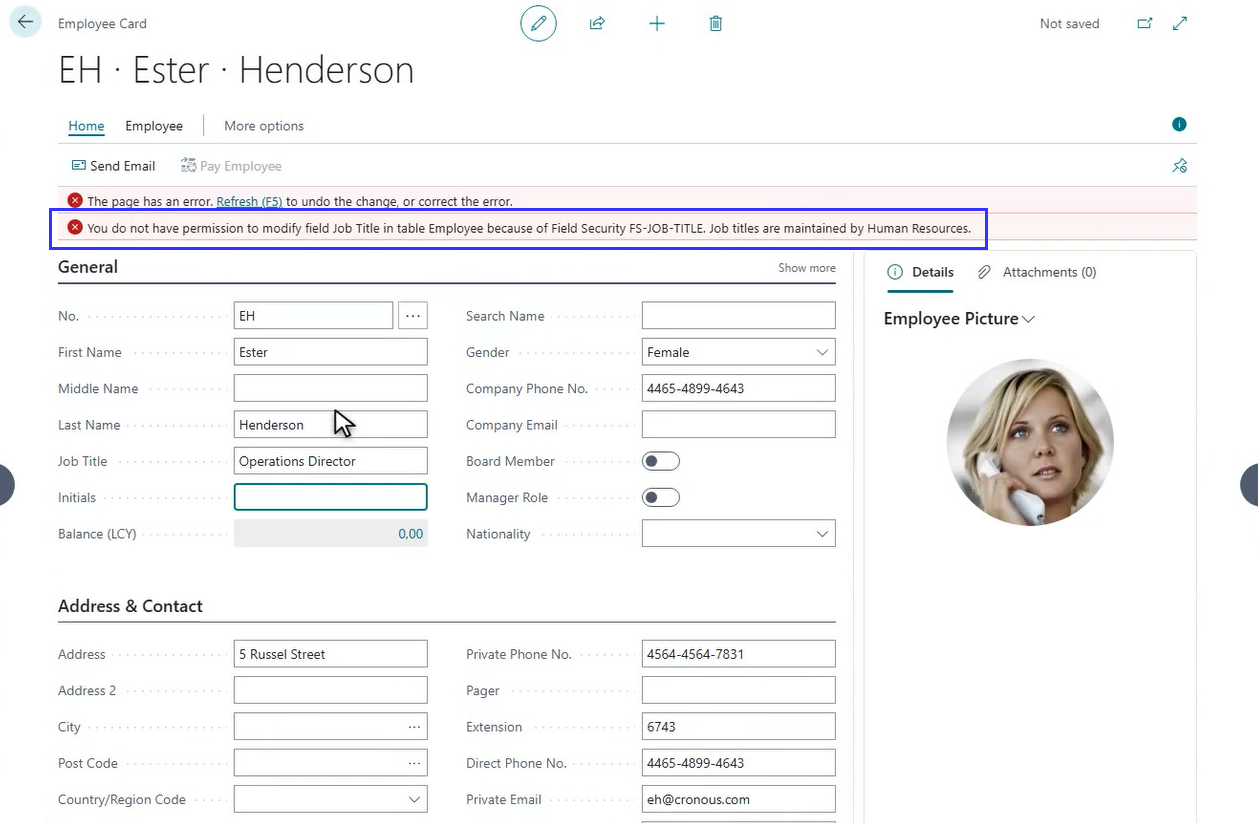
Result. The Job Title is locked, and the other fields of the Employee Card can still be edited. When the user tries to change the Job Title, the change is refused with your error message. Nothing is saved.
If it does not work. See the troubleshooting table. The most common causes: no sign-out and sign-in, or the user also has another permission set that can modify employees and is not linked.
¶ Customers: posting groups can be filled in once
Business case. You create customers from templates. The template fills the posting groups. After that, only authorized users may change them. Other users must still be able to fill in an empty field once.
Setup. A Field Security on the table Customer (18) with Default Editable on and an error message. Lines for VAT Bus. Posting Group (110), Customer Posting Group (21) and Gen. Bus. Posting Group (88), with Editable unchecked. Link the permission sets of the normal users to all three lines. On the linked permission sets, choose Edit List and check Initial Field Entry Allowed.
Users who should always be able to change the groups (the data owners) get a permission set that is not linked.
Result. A normal user can fill in an empty posting group once. When the group already has a value, the change is refused. Data owners can always change it. Details: Allow initial field entry.
If it does not work. Is Initial Field Entry Allowed checked on the permission set of this user, on all three lines? The setting works only with Default Editable on.
¶ Block Release on sales orders
Business case. Only the finance team may release sales orders. Sales people may create and edit orders but not release them.
Setup. Search for Action Securities. Select the Release action of the sales order page. Choose the number in No. of linked Permission Sets and link the permission set of the sales people. Remember: for Action Security a link blocks the action.
Result. A salesperson who presses Release gets: You do not have permission to execute action Release because of the action security on page .... The finance team, with a permission set that is not linked, can still release. See Block actions.
If it does not work. Is the action in the list? Load the default data if the list is empty. Is the user a member of the linked permission set directly or through a security group? Did the user sign in again?
¶ Lock a field only for one document type
Business case. On sales documents the Payment Terms Code may be set by sales on quotes, but on orders only by finance.
Setup. A Field Security on the table Sales Header (36) with Default Editable on. Choose Show more and fill in the filter of the header:
| Field | Value |
|---|---|
| Filter Field No. | Document Type |
| Filter Value | Order |
On the lines, add the field Payment Terms Code with Editable unchecked. Link the permission set of the sales people.
Result. For orders the field is locked for the sales people. For quotes and all other document types the rule does not apply. See the header filter.
If it does not work. The header filter works on the value of the record at the moment of the change. Check the spelling of the filter value, or enter the option number.
¶ Create Field and Filter Security with Copilot
Copilot can propose a Field Security or a Filter Security from a short sentence. You review the proposal and confirm it. This saves the clicks of the wizard. It does not replace your check: Copilot can pick the wrong field or permission set.
¶ What you need
- A build of the app for a Business Central version that supports Copilot in the app. The Copilot code exists only in those builds. See the release notes.
- The Copilot capability Generate Field and Filter Securities switched on under Copilot & AI Capabilities.
- The permission set
2C FIELDSEC MANAGE.
¶ Create a Field Security with Copilot
- Search for Field Securities and choose Suggest with Copilot.
- Type your request. Use this format: I want to [restrict / allow only] the [fields] on the table [table] for [user or permission set].
- Choose Generate.
- Check the proposal. See What to check before you confirm.
- Choose Confirm to save it, Regenerate to try again, or Discard.
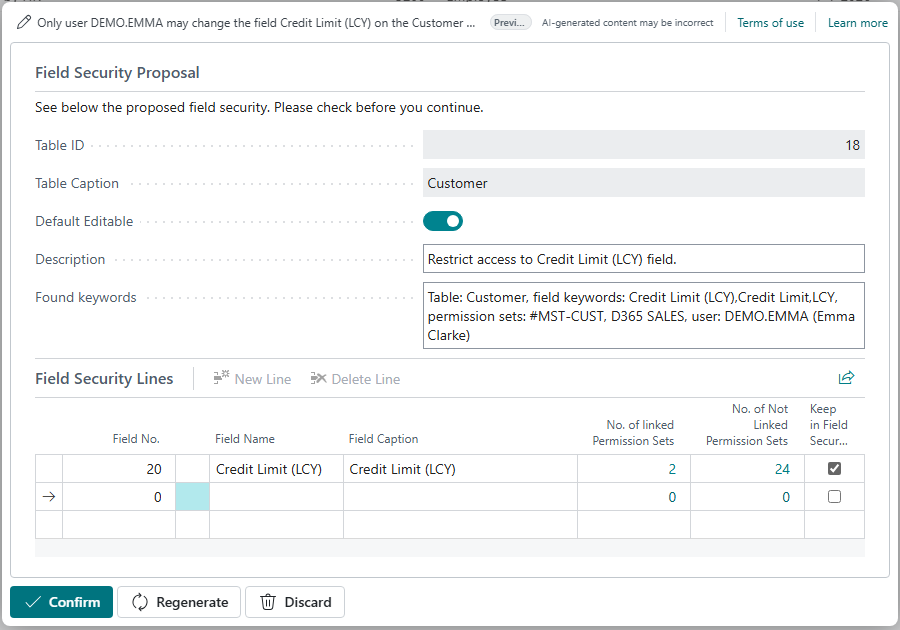
The proposal for the request Only user DEMO.EMMA may change the field Credit Limit (LCY) on the Customer table. Check the table, the field line and the keywords Copilot found, then choose Confirm, Regenerate or Discard.
The dialog offers sample prompts:
- I want to restrict the blocked field on the customer card for the permission set [permission set].
- I want to allow only the purchase and vendor related fields on the item table for user [user].
- I want to restrict the field vendor invoice no. on the purchase invoice for permission set [permission set].
A prompt that fits the Job Title case: I want to restrict the field Job Title on the Employee table for permission set [permission set]. Name one user or one permission set per request, and check in the proposal which sets Copilot linked.
Watch the demonstration on YouTube.
¶ Create a Filter Security with Copilot
- Search for Filter Securities and choose Suggest with Copilot.
- Type your request. Use this format: Show / Hide / Edit [table] with [field] [filter] for [user or permission set].
- Choose Generate, check the proposal and choose Confirm.
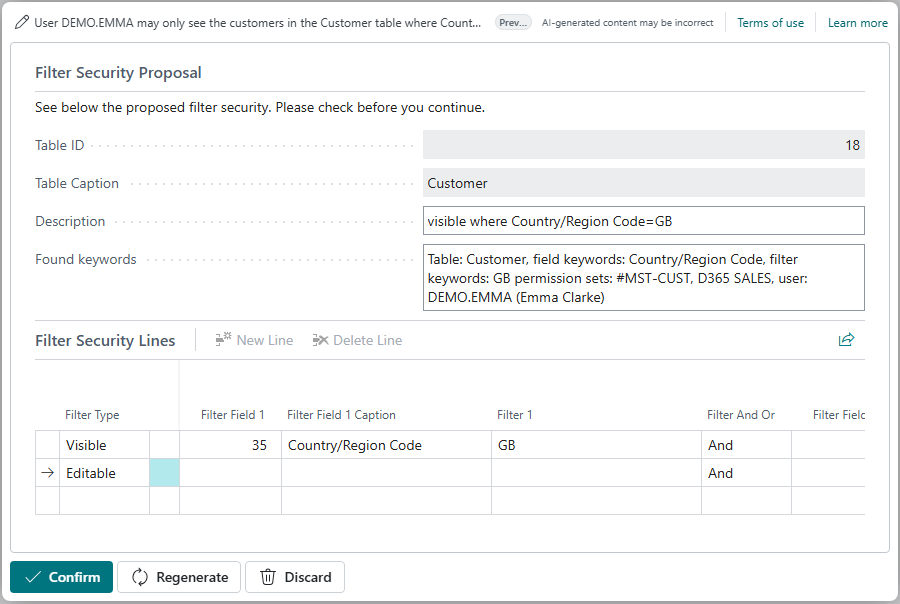
The proposal for the request User DEMO.EMMA may only see the customers in the Customer table where Country/Region Code is GB. The line of type Visible filters Country/Region Code on GB.
Sample prompts in the dialog:
- Hide customers with credit limit higher then 10000 for user [user].
- Permission Set [permission set] can edit items of replenishment purchase.
- Split purchase documents quote, invoice and order for user [user].
Watch the demonstration on YouTube.
¶ What to check before you confirm
Confirming saves the rule with today as the starting date. It becomes active at the next sign-in of the affected users.
Check each of these in the proposal:
- Table. Is it the table you meant (for example Employee, not Employee Ledger Entry)?
- Fields or filter. Are all fields there, and only those? For a filter: is the filter value right, and is the type Editable or Visible as you wanted?
- Permission sets. Are these the sets that must be locked? When you name a user, Copilot proposes permission sets of that user. Check that no other user shares them by surprise.
- Default Editable. Does the proposal lock one field, or the whole table? See Lock one field or lock the whole table.
- Error message. Is it empty or generic? Add a message that says who to ask.
After you confirm, open the rule and use Effective security to check who is covered. If the proposal is wrong in a way you cannot fix quickly, delete the rule and create it with the wizard.
Last reviewed: October 2026.