Field Security locks fields of a table for users who have chosen permission sets. When a user tries to change a locked field, Business Central refuses the change and shows your own error message. This protects data such as posting groups or job titles, which standard permissions cannot protect one field at a time.
Transcript of this video
Compliance Field Security. Lock a single field. Anyone who may edit an employee can change the job title. Standard Business Central cannot protect just that one field. So the title is changed, and saved. Nobody is asked why, and nothing is stopped. With Compliance Field Security, you secure one field of one table. Here, the job title of the employee. Everything else on the employee stays editable. Only that one field is locked. You write the message people will see, so they know who to ask. And you choose who is locked out, by linking permission sets. After the next sign-in, the rule is active. Same user, same employee, same field. Now the same user tries the same change. It is refused, with the message you wrote yourself. Nothing is saved. Protect the fields that matter. Compliance Field Security, by 2-Controlware. Try it for thirty days.
Video (1 minute): a user changes a job title, then Field Security locks the field and the change is refused with your own message.
¶ How it works
A Field Security belongs to one table. Its lines name the fields. You link permission sets to each line, and the rule applies to the users who have those permission sets. The rule starts on its Starting Date and is loaded when the user signs in.
Read the next section before you create a rule. It explains the one setting that decides what the lines mean.
¶ Lock one field or lock the whole table
The header has the switch Default Editable. It has two cases.
| Default Editable on | Default Editable off (shipped default) | |
|---|---|---|
| What is locked for the linked users | Only the fields on the lines. All other fields stay editable. | The whole table. Only the fields on the lines can still be edited. |
| A line with Editable unchecked | The field is locked. | Not used. A line is an exception, so Editable is checked. |
| A line with Editable checked | Not used. | The field can be edited (an exception). |
| What a linked permission set means | The users may not change this field. | The users may change this field. |
| Error message per line | Possible. | Not possible. Use the message in the header. |
| Initial Field Entry Allowed | Works. | Has no effect. |
The shipped default is off, and off locks the entire table for linked users. To lock only one field, such as the Job Title, turn Default Editable on before you add lines.
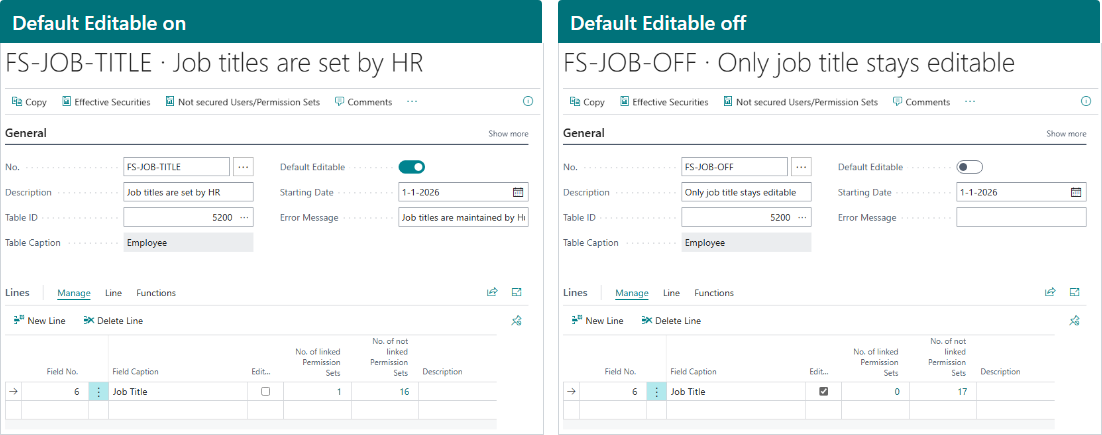
The same line means the opposite when Default Editable changes.
Good to know:
- When you change Default Editable on a rule that already has lines, Business Central asks for confirmation. The message says you reverse the logic of the fields already defined. All lines flip.
- When you change the Table ID, the lines of the rule are deleted.
- Users whose permission sets are not linked to the rule are not affected by it.
¶ Create a Field Security with the wizard
The wizard is the quickest path.
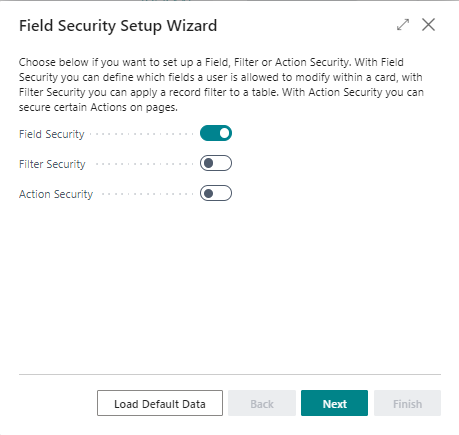
- Search for Field Security Setup Wizard and choose Next until you reach the choice of security type.
- Turn the Field Security switch on and choose Next.
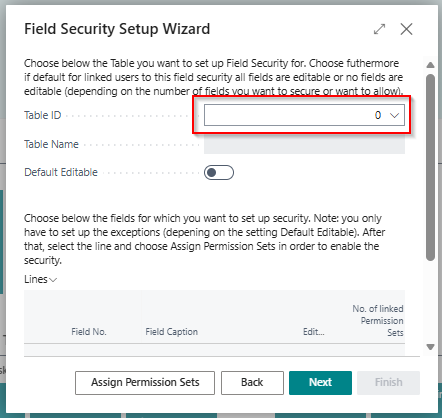
- Select the table in Table ID: use the drop-down, or enter the object ID or the table name. Decide whether Default Editable is on. See the table above.
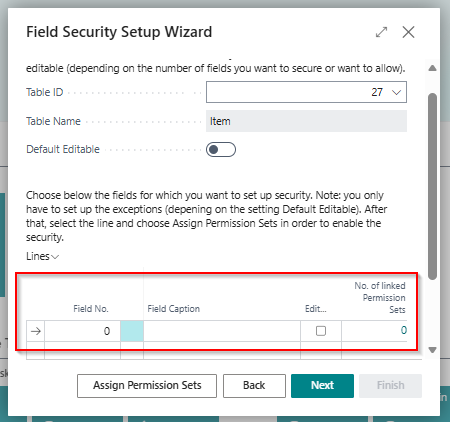
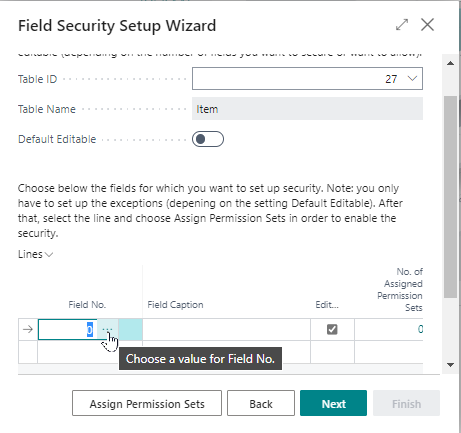
- Choose AssistEdit on Field No., select the fields in the list and choose OK.
-
Fill in Description (why the field is secured) and Error Message (the message a user sees).
-
Link permission sets. In the wizard the column Not Assigned Perm. Sets is the number of permission sets that are not linked. Choose Assign Permission Sets and then Edit List to add the sets. "Assigned" and "linked" mean the same. See Link permission sets.
-
Choose Next and then Finish. The wizard sets today as the starting date and opens the new Field Security.
Then sign out and in again. See When the rule does not apply.
¶ Create a Field Security manually
- Search for Field Securities and choose New.

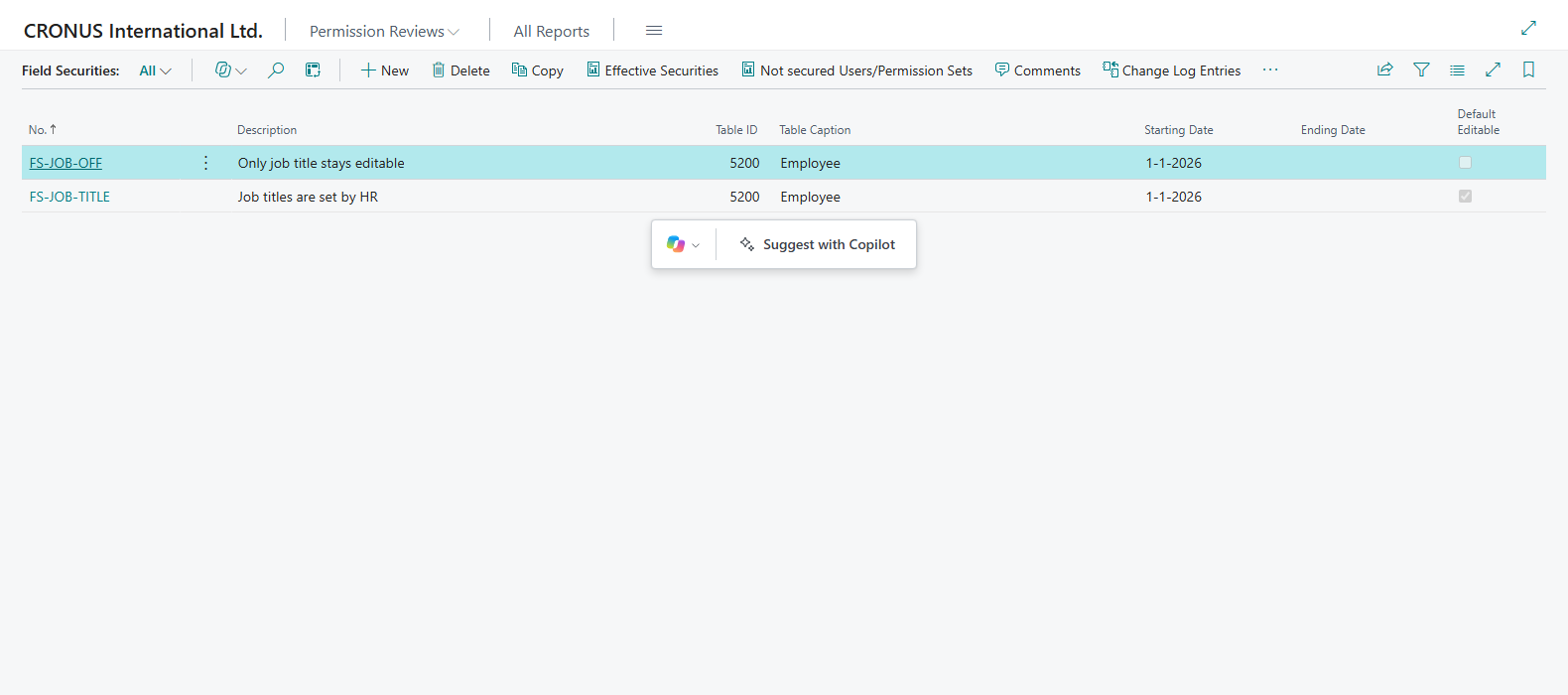
A filled-in new Field Security.
- Fill in the header:
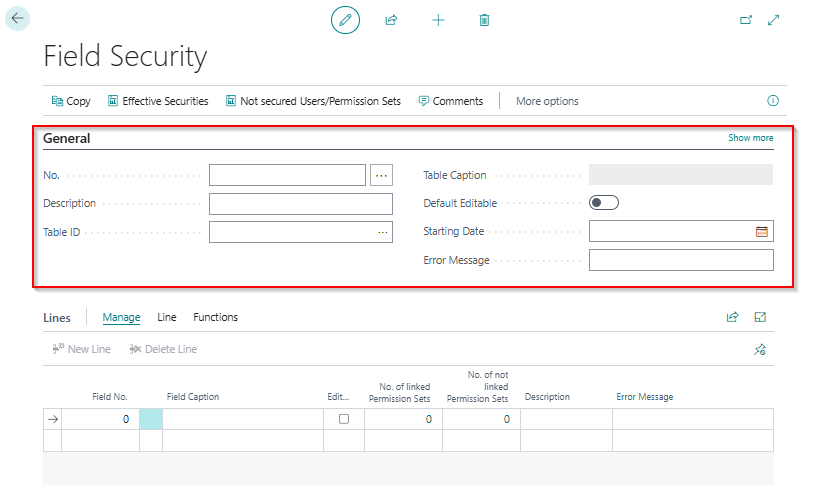
| Field | What to enter |
|---|---|
| No. | Filled in automatically when a number series is set up. Otherwise enter a number. |
| Description | What this rule is for, for example "Secure posting groups items". |
| Table ID | The table to secure. Table Caption is filled in automatically. |
| Default Editable | See Lock one field or lock the whole table. |
| Starting Date | The date the rule becomes active. Use today or a date in the past. An empty date means the rule is not active. |
| Error Message | The message the user sees when the rule stops a change. Say who to ask. |
| Ending Date | Optional. The rule stops after this date. |
- Choose Show more to see the optional fields. They limit the rule to certain records:
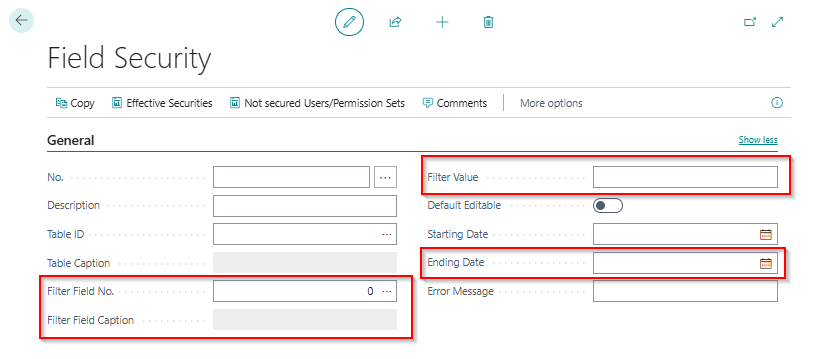
| Field | What to enter |
|---|---|
| Filter Field No. | Use AssistEdit to pick a field of the same table. The rule then applies only to records that match the filter. |
| Filter Field Caption | Filled in automatically. |
| Filter Value | The value for the filter field. Syntax: see Reference. The operators <, >, . and & are refused here. |
- On the Lines tab, add the fields to secure:

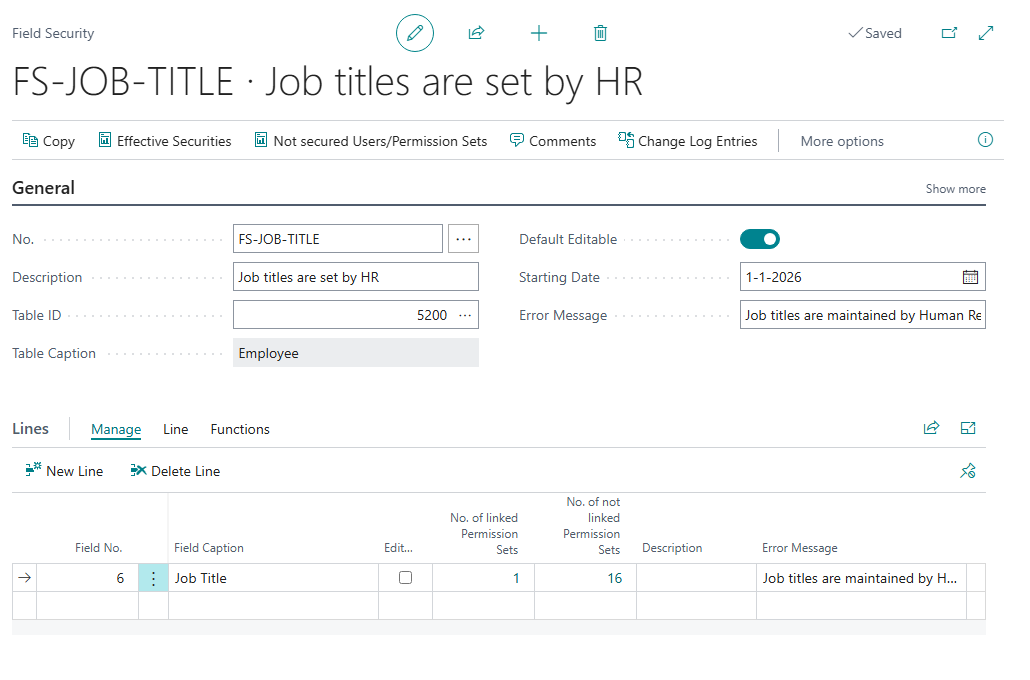
The Job Title line.
| Field | What to enter |
|---|---|
| Field No. | Use AssistEdit, select the field in the list of all table fields and choose OK. Field Caption is filled in automatically. |
| Editable | Unchecked by default when Default Editable is on (the field is locked). Checked by default when it is off (an exception). |
| No. of linked Permission Sets | The number of permission sets for which this line is active. Choose the number to manage them. |
| No. of not linked Permission Sets | The number of permission sets that can modify the table but are not linked to this line. |
| Description | Extra information. It is not shown in the error message. |
| Error Message | A message for this line. You can set it only when Default Editable is on. It replaces the header message. |
Link the permission sets next: Link permission sets to a rule. Actions on the page, such as Copy, Change Log Entries and Effective Securities, are explained in Effective security.

¶ Allow initial field entry
Sometimes a user may fill in a field once, but not change it afterwards. Example: you create customers from templates. The template fills the posting groups. After that, only authorized users may change them.
The control for this is Initial Field Entry Allowed. It is set per linked permission set, not per line. It works when Default Editable is on.
- Open or create the Field Security for the Customer table.
- Turn on Default Editable. Confirm the message about reversing the logic for fields already defined.
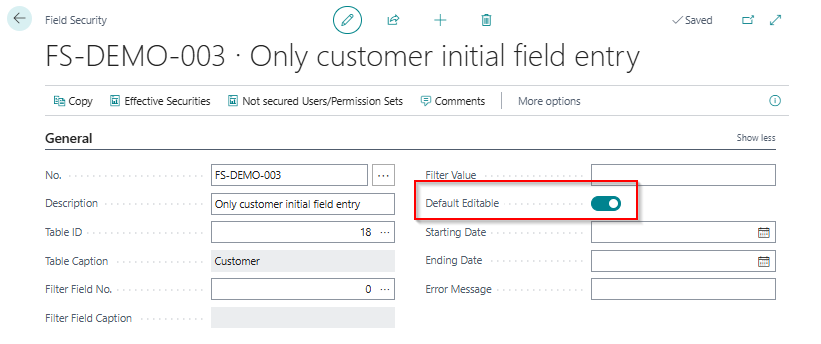
- Fill in the Error Message in the header. It is copied to the lines you create.
- Set the Starting Date, if it is not set yet.
- Add the fields one by one with AssistEdit: VAT Bus. Posting Group (110), Customer Posting Group (21) and Gen. Bus. Posting Group (88).
- Keep Editable unchecked on the lines.
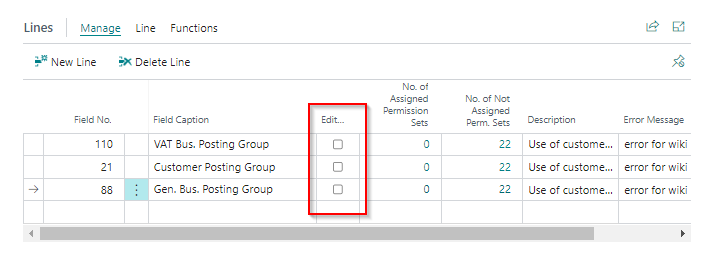
- Link permission sets to every line. Users with a permission set that is not linked to all three lines are not restricted. Use this to create a data owner: a user who may change these fields.
- On each line choose the number in No. of linked Permission Sets, then Edit List, and check Initial Field Entry Allowed for the permission sets that may fill in the field the first time.
Result. A user with that permission set may fill in an empty field once. When the field already has a value, the change is refused. Without the check mark the user can never change the field. The check works for a change of an existing record. It does not apply when a record is created or deleted.
¶ Check who is covered by a Field Security
A rule only works for the users who have a linked permission set. Before you rely on a rule, check who it covers. Open the Field Security and use the two actions in the ribbon. They need release 5.1.202404NN.0 (April 2024) or later.
Who is covered? Choose Effective Securities and answer Yes to calculate. The page lists the users and permission sets that the Field Security applies to for the secured table. Filter on Source Type and Source No. and calculate again to check one user or one permission set.
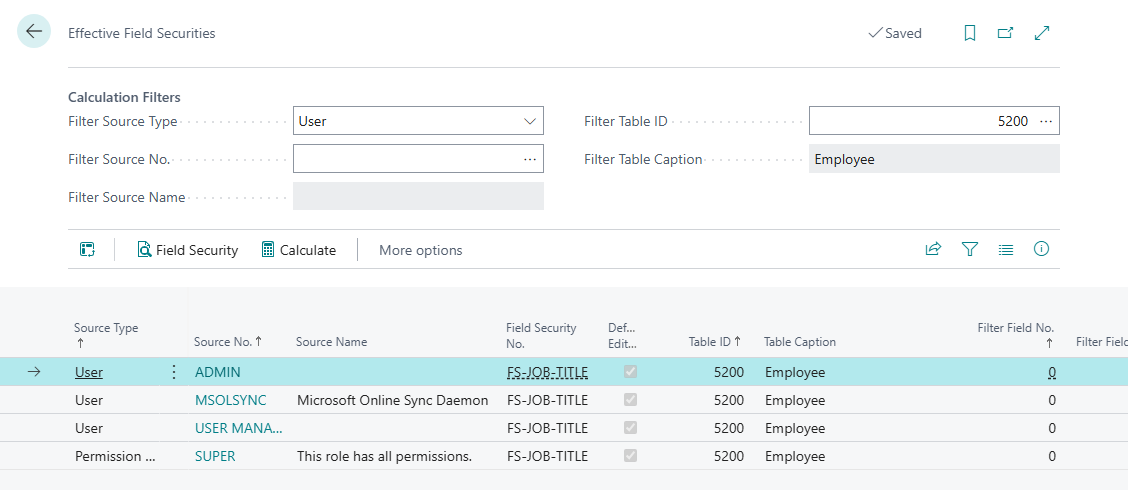
Effective Field Securities for the rule FS-JOB-TITLE: every user and permission set the rule applies to.
Who is not covered? Choose Not secured Users/Permission Sets and answer Yes. The page lists the users and permission sets that are not covered by this security, with their permissions on the table. The column Cause Permission Set ID shows through which permission set a user is not covered.
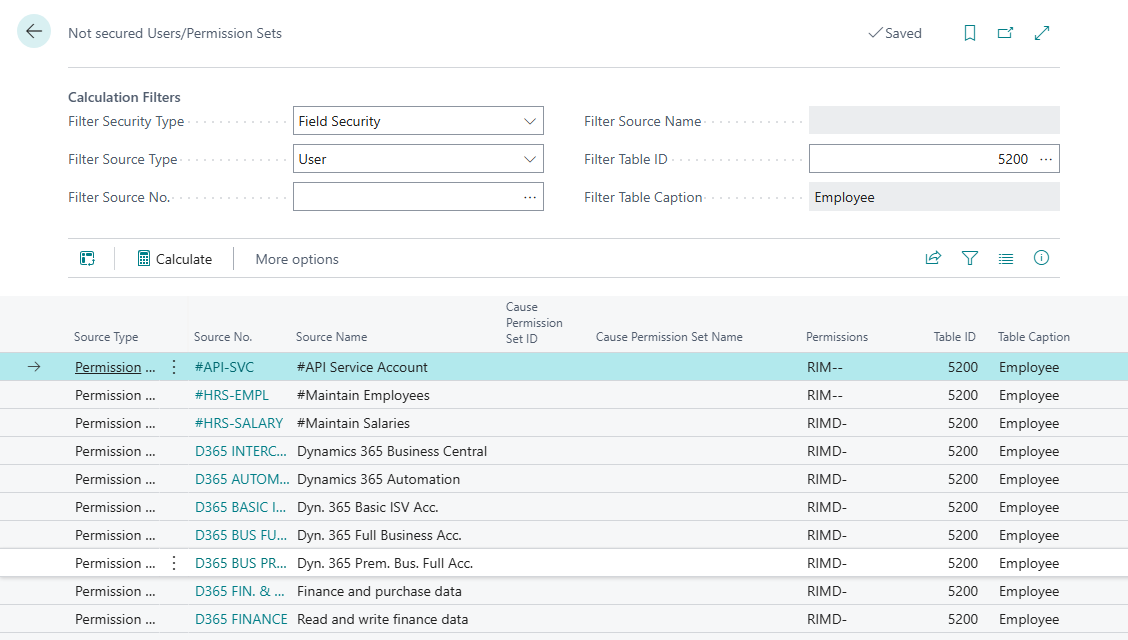
Users and permission sets that are not covered. The cause permission set tells you which set to link, or why a data owner is left out on purpose.
Typical findings: a permission set that gives write access to the table but is not linked yet, and a data owner on purpose. Link the missing set, or accept the finding, and calculate again. How the rules combine, and how to read the summary per user, is on the Reference page.
¶ When the rule does not apply
A Field Security works only when it is linked to permission sets. It does not apply to a user if:
- the user has a linked permission set and also another permission set with insert and modify permissions on the table that is not linked to the Field Security. This user is a data owner;
- the starting date is empty or in the future;
- the ending date is in the past;
- the link of the permission set has its own starting or ending date that excludes today, or names another company;
- the user does not have the permission set
2C FIELDSEC USE; - the trial or license has ended. See Limits.
After you create or change a rule, you and the affected users must sign out of Business Central and sign in again. The rules are loaded at sign-in.
¶ Special cases
- Approval flows. A switch on Field Security Setup lets the approval flow of sales and purchase documents pass. See Skip on Indirect Approval Actions.
- Copilot. You can generate a Field Security from a sentence. See Create rules with Copilot.
- Custom pages and add-ons. Field Security checks a change when the record is saved, so it works on any page the user works with. To also grey out or hide a field on a custom page, see Customization for developers.