This page takes you from installation to your first rule. The setup wizard does most of the work. Do the steps in order.
¶ Install the app
¶ Business Central online (AppSource)
- Open Compliance Field Security on Microsoft AppSource, or search AppSource for Compliance Field Security.
- Install the app in your environment. Compliance Essentials is installed with it.
¶ On-premises
Partners download the apps from the 2-Controlware web portal. Publish and install the extension as described in Publish and install an extension. For the Business Central versions we support, see the release notes.
Your license must contain these granules:
| App | Required granule |
|---|---|
| Compliance Essentials | 70077720 |
| Compliance Field Security | 70078120 |
If you are a partner and not authorized as reseller for these granules, contact sales@2-controlware.com.
¶ Run the setup wizard
After installation a notification says that the setup is not finished. Users with the permission set 2C FIELDSEC MANAGE or SUPER see it when they open the role center. Choose Start Wizard, or search for Field Security Setup Wizard.
The wizard has these steps:
- Start. You can load the default data here. See Load the default data.
- Numbering. Choose a number series for Field Security Nos. and for Filter Security Nos. You can create a series from this step. Turn on Default Nos. in the number series so that new records get a number automatically.
- Permissions. Select the user who maintains the rules (Field Security User). This user gets
2C FIELDSEC MANAGE. The wizard then asks whether it must assign2C FIELDSEC USEto all users. See Assign permission sets. - Registration. Fill in the form. This starts the trial. See Register the app.
- Choose setup. Create your first rule with the wizard, or finish and create it later.
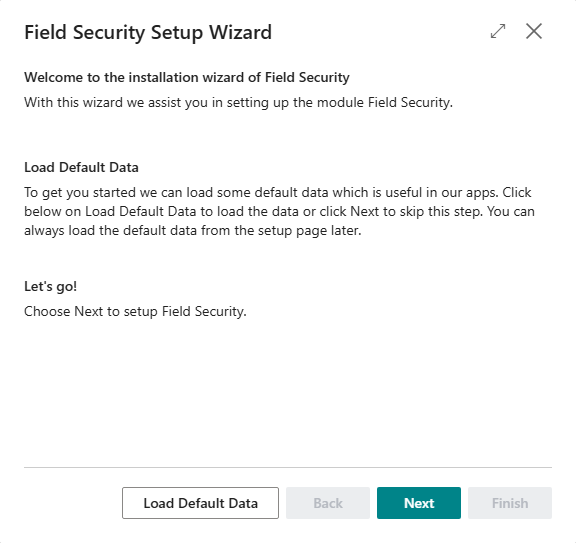
Step 1, Start: you can load the default data here.
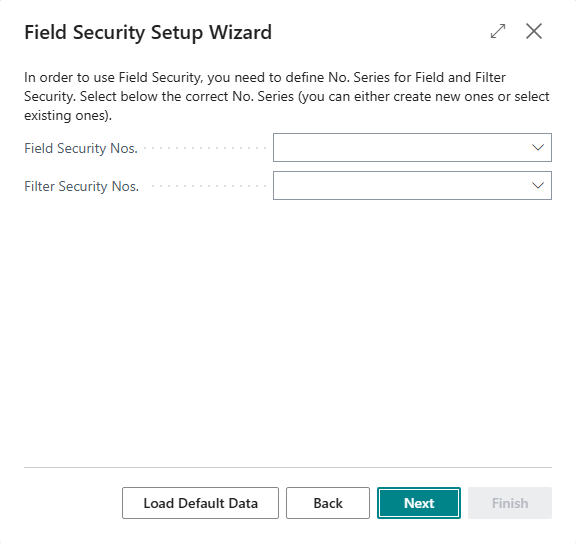
Step 2, Numbering: choose or create the number series for Field Security and Filter Security.
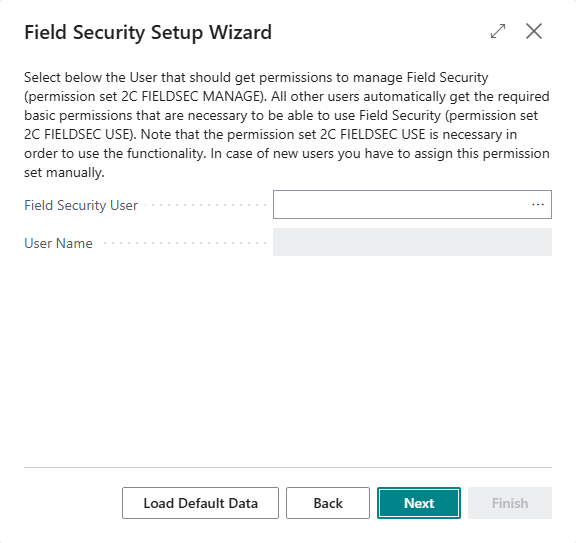
Step 3, Permissions: choose the user who maintains the rules. All other users get 2C FIELDSEC USE if you confirm.
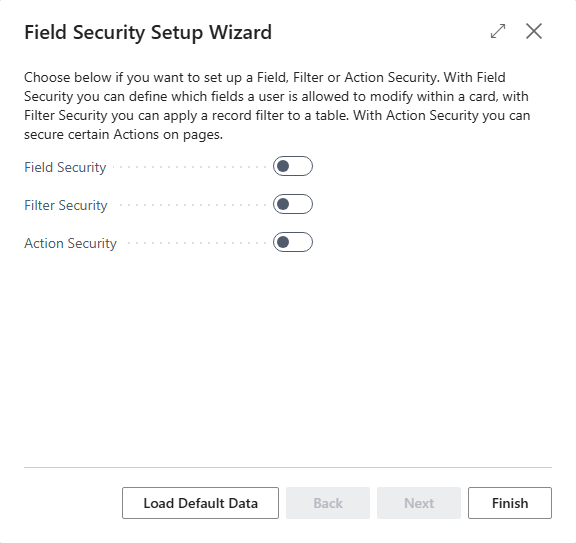
Last step, Choose setup: create your first rule with the wizard, or finish and create it later. The Registration step is skipped when the app is already registered.
¶ Load the default data
The default data fills the app with what it needs to work: the list of Action Securities, the list of pages that support Filter Security, default table relations and examples of calculated filters. Without it the Action Securities list is empty.
- In the wizard, choose Load Default Data on the first step. You can also skip it.
- Later: on Field Security Setup, choose Load Default Data.
A message confirms that the data import succeeded.
¶ Register the app
You register after every new installation, for each app and each database separately. Use one of these two ways. You do not need both.
- In the wizard: fill in the form on the Registration step.
- Later, without the wizard: search for Field Security Setup and choose Register in the top bar. Fill in the form.
If you closed the wizard before the Registration step and the setup is otherwise complete, opening the wizard again takes you straight to the Registration step.
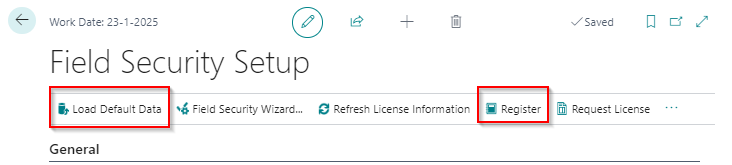
After registration, the License Information section on Field Security Setup shows the status and the trial end date.
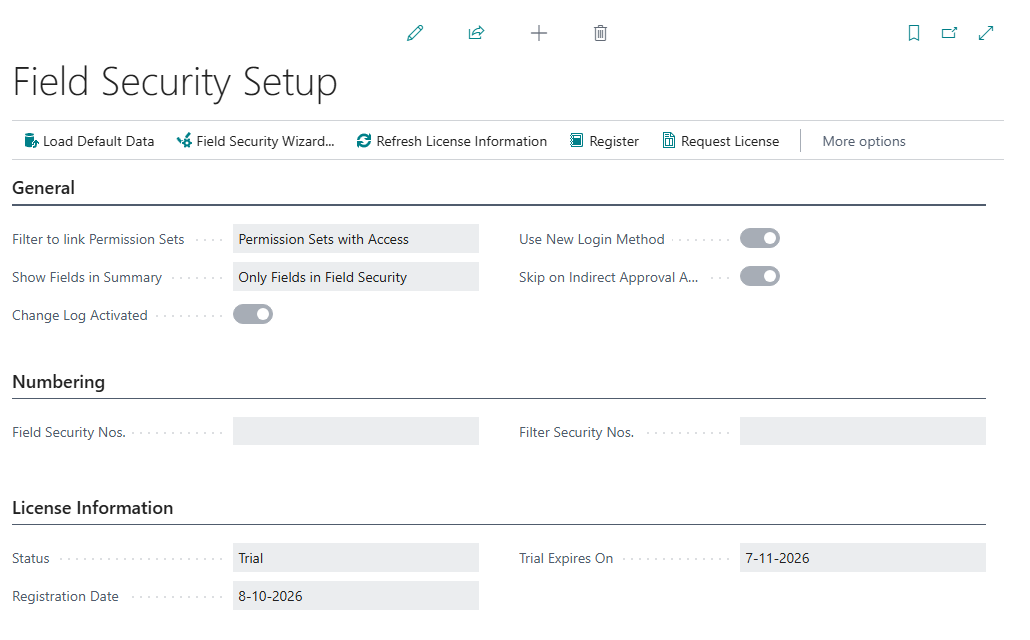
License Information after registration.
¶ Trial and license
Registration starts a trial. For the trial length, how to turn a trial into a license and how to get your license in a new environment, see Troubleshooting. On Field Security Setup you choose Request License, and the status changes from Trial to Contract.
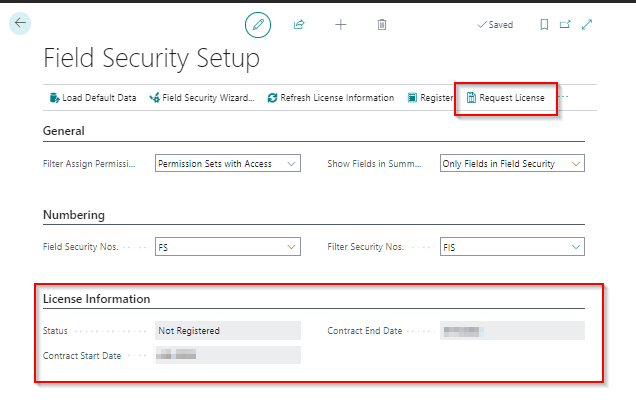
Without a valid trial or license the app does not apply your rules and you can set up no more than three Field Securities, three Filter Securities and three Action Securities. See Limits.
¶ Set the number series later
If you skipped the numbering step, open Field Security Setup and fill in Field Security Nos. and Filter Security Nos. on the Numbering FastTab. Choose a series or create a new one.

¶ Assign permission sets
The app has two permission sets:
2C FIELDSEC USE: needed by every user. Without it the app gives an error.2C FIELDSEC MANAGE: for the people who create and maintain the rules. It includes2C FIELDSEC USE.
What the wizard does. It gives 2C FIELDSEC MANAGE to the user you select. It also asks once whether 2C FIELDSEC USE must be assigned to all users. It asks only when no user has the permission set yet. All users who exist at that moment get it.
Users you create later do not get
2C FIELDSEC USEautomatically. Assign it yourself.
To assign a permission set to a user:
- Search for Users and open the user card.
- Under User Permission Sets, choose New Line and select the permission set.
- To remove one, select the line and choose Delete Line.
You need an account with SUPER permissions to assign and remove permission sets.
¶ First steps
- Make sure you have the
2C FIELDSEC MANAGEpermission set. - Follow the Quick start in 10 minutes, or create your first rule with the wizard: Lock fields, Hide records or Block actions.
- Link permission sets to the rule, set a starting date, then sign out and in again to test.
For worked cases see Examples. For a check before you use rules in production, see the Go-live checklist.
¶ Link permission sets to a Field Security rule
A rule only applies to users who have a linked permission set. Linking is the step that switches a rule on for a group of users. This page shows how to link permission sets for all three features, and how to change many lines at once.
¶ What "linked" means
The words "linked" and "assigned" mean the same in the app. Some pages and the wizard use "assigned" or "not assigned". This wiki says linked.
What a link means depends on the feature:
| Feature | A linked permission set means |
|---|---|
| Field Security, Default Editable on | The users may not change the field. |
| Field Security, Default Editable off | The users may change the field. Everything else in the table is locked for them. |
| Filter Security | The users get this filter: they see, or edit, only the matching records. |
| Action Security | The users cannot run the action. This is the opposite of what many people expect. |
A user gets a permission set directly or through a security group. Both count. The SUPER permission set is not exempt: if you link SUPER, the rule applies to users who have SUPER.
¶ Link a permission set to a line
- Select the line.
- Choose the number in No. of linked Permission Sets. In Filter Security and Field Security you can also choose Linked Permission Sets under Line on the ribbon (Ctrl+F7 in the wizard). In the Action Securities list, choose Linked Permission Sets under Action.
- Choose New and select the permission sets with AssistEdit.
The setting Filter to link Permission Sets on Field Security Setup decides what the list shows: Permission Sets with Access (only sets that have access to the table) or All Permission Sets.
To see which sets are linked to the selected line without leaving the page, choose the information icon in the top right corner. The FactBox pane shows them.
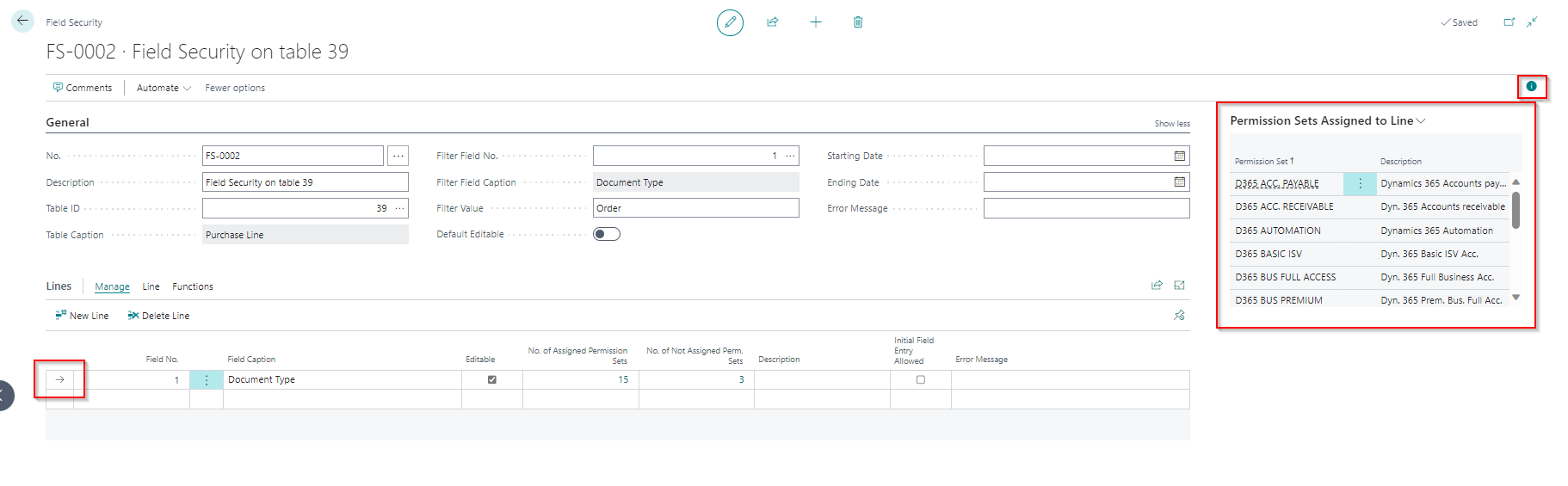
¶ Link a set that is not linked yet
The number in No. of not linked Permission Sets is the number of sets that can modify the table but are not linked. To link one, choose that number, select the set and choose Link Permission Sets. The column No. of Linked Users shows how many users have each permission set.
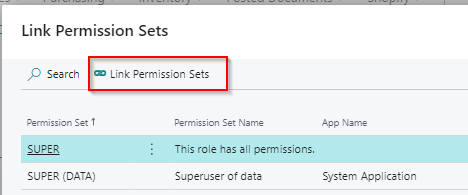

¶ Set a company, a period or initial entry
Choose Edit List on the linked permission sets to set, per permission set:
- Companies: the link applies only in these companies. Leave it empty for all companies. In the lookup you can select several companies or enter a company filter.
- Starting Date and Ending Date of the link. An empty date has no limit.
- Initial Field Entry Allowed (Field Security only). See Allow initial field entry.
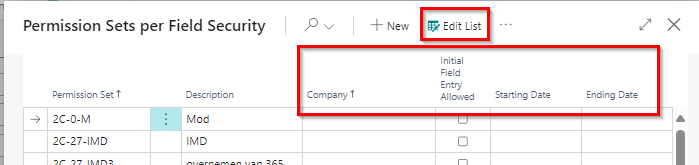
¶ Change many lines at once
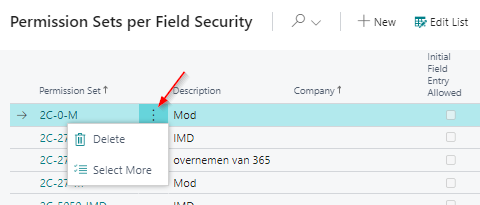
To change several sets at once, select them (use the three dots and Select more). The menu offers:
- Delete the chosen sets.
- Remove from all Security Lines: remove the chosen sets from every line of the rule.
- Copy to all Security Lines: add the chosen sets to every line.
- Replace on all Security Lines: the chosen sets replace the sets on every line.
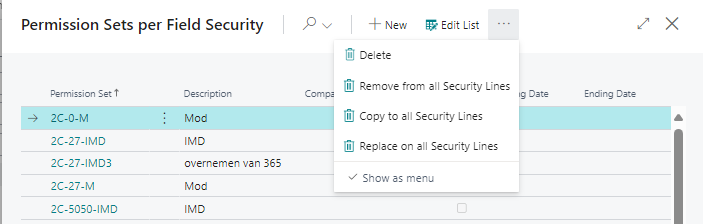
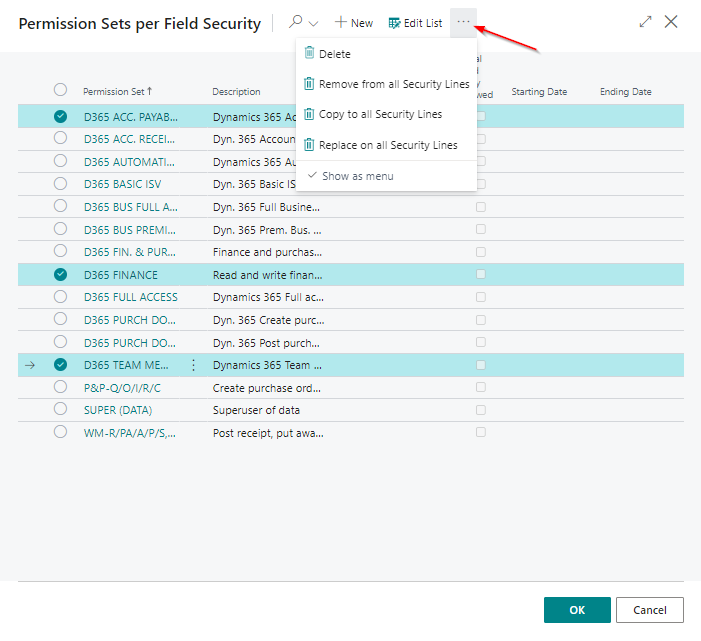
To remove one set, choose the three dots on its line and then Delete.
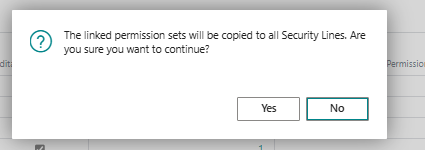
On the lines, Manage has New Line and Delete Line. Line has Linked Permission Sets. Functions has Copy linked Permission Sets to all Security Lines, which asks you to confirm.

¶ When a permission set is changed or deleted
If you delete a permission set in Business Central, its links are deleted too. The counts of linked and not linked sets are not always updated at once. Choose Calculate not linked Permission Sets on the Field Securities or Filter Securities list, or Calculate No. of not linked Permission Sets on Field Security Setup. See the FAQ.
¶ Field Security quick start in 10 minutes
In this quick start you lock one field, the Job Title of an employee, and test the rule with a normal user. You need about 10 minutes. You learn the same steps that every Field Security rule follows.
¶ Before you start
- Field Security is installed and registered, and the setup is finished. See Install and set up Field Security.
- You have the permission set
2C FIELDSEC MANAGE. - You have a test user who has
2C FIELDSEC USEand a permission set that allows editing employees. The test user must not have SUPER. Test with a user that is not an administrator, or the result is hard to read. - Use a test or sandbox environment first if you can.
¶ Steps
- Search for Field Securities and choose New.
- Fill in the header:
- Description: Job titles are set by HR
- Table ID: 5200 (Employee)
- Default Editable: turn it on. All other fields stay editable. Only the fields you list on the lines are locked. Why?
- Starting Date: today
- Error Message: Job titles are maintained by Human Resources
- On the Lines tab, choose AssistEdit on Field No., select Job Title (field 6) and choose OK. Keep Editable unchecked. Unchecked means locked.
- Choose the number in No. of linked Permission Sets, choose New and select a permission set that your test user has. This links the rule to everyone who has that permission set. See Link permission sets.
- Ask the test user to sign out and sign in again. The rules are loaded at sign-in.
- As the test user, open an employee and change the Job Title.
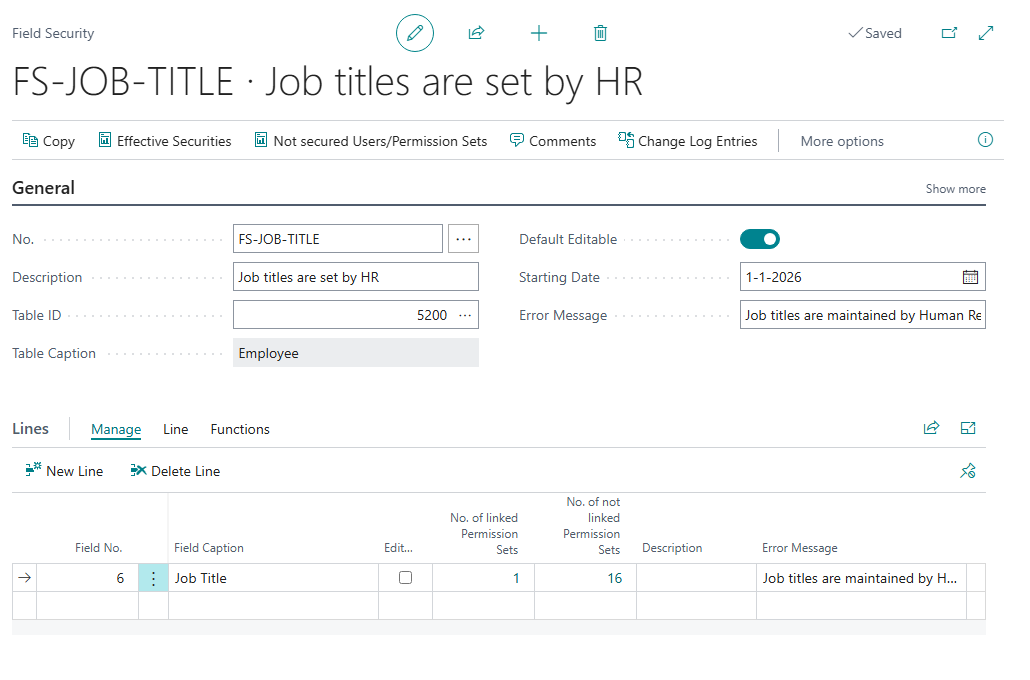
The Field Security card with the Job Title line.
¶ Result
The change is refused. Nothing is saved. The message reads like this:
You do not have permission to modify field Job Title in table Employee because of Field Security number. Job titles are maintained by Human Resources.
The other fields of the Employee Card can still be edited.
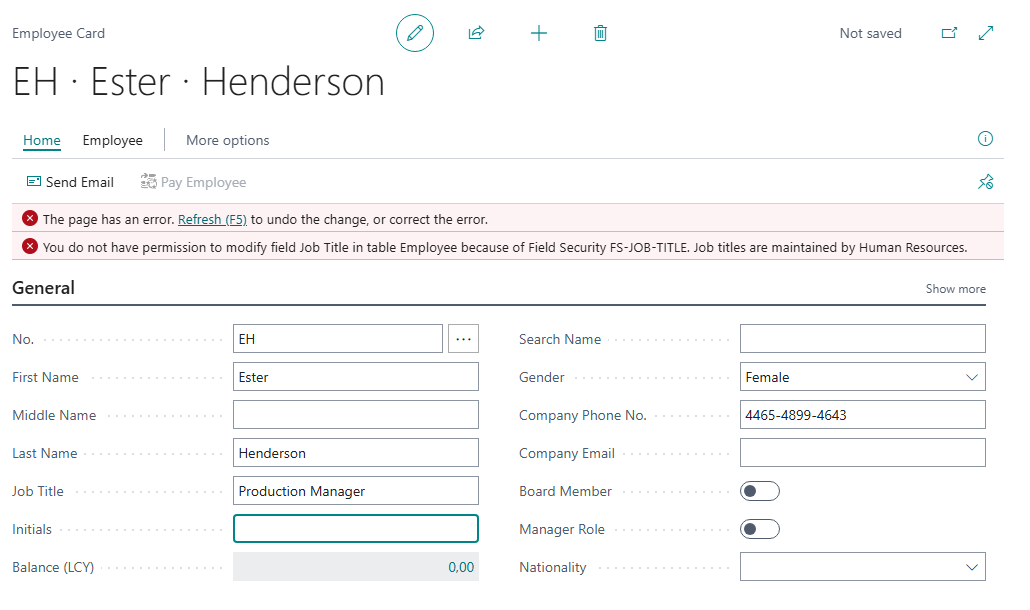
The message the test user sees.
¶ If it does not work
| What you see | Check |
|---|---|
| The change is saved | Did the test user sign out and in again? Is the permission set linked to the line? Does the user also have another permission set that can modify employees and is not linked? See FAQ. |
| You cannot create the rule | The setup may be unfinished, or the number series is missing. See Install and set up. |
¶ Clean up and next steps
Delete the test rule, or keep it as a template: choose Copy on the Field Security.
- Choose the right setting for your case: Lock fields.
- See more cases: Examples.
- Before you use rules in production: Go-live checklist.
¶ Field Security go-live checklist
Use this list before you switch rules on for real users, and again after an app update. Each item says what to check and where.
¶ The checklist
- Registration and license. On Field Security Setup, Status shows Trial or Contract and the dates are right. Without it the app applies no rules. See Limits.
- Default data. The list Action Securities is not empty. If it is, choose Load Default Data. See Install and set up.
- Number series. Field Security Nos. and Filter Security Nos. are filled in.
- Permission sets of the users. Every user has
2C FIELDSEC USE, including users created after the wizard ran. The maintainers have2C FIELDSEC MANAGE. - Starting date and ending date. Each rule has a starting date of today or earlier. An empty date means the rule is not active.
- Links. Every line of every rule has the right permission sets linked. Remember that for Action Security and for Field Security with Default Editable on a link restricts, and with Default Editable off a link permits. See Link permission sets.
- Data owners. For each rule you know the users who have a permission set with write access to the table that is not linked. The rule does not apply to them. Check that this is what you want.
- Effective Securities. Run Effective Securities and Not secured Users/Permission Sets on each rule. Read the results. See Effective security.
- A real test. Sign in as a normal user (not SUPER) who is covered. Try the change, the hidden record or the blocked action. Read the message. Sign in as a user who is not covered and check that nothing changed for them.
- Messages. The error messages say who to ask. Users who see "You do not have permission to ..." must know where to go.
¶ Notes
Sign in again. The rules are loaded at sign-in. After you change a rule, every affected user signs out and in again.
Change log. Changes to your rules are logged when Change Log Activated is on (the default). Keep it on, so you can show who changed a rule and when. See Reference.
Several companies. The rules and lines are the same in all companies. To limit a rule to certain companies, set the company on the link of the permission set (Edit List). See Link permission sets.
After an app update. Check items 1, 4 and 8 again. If links to permission sets seem lost, see the FAQ. Update the app first in a sandbox. For the versions we support, see the release notes.
Performance. The app builds the list of rules for a user at sign-in, not on every save. Keep the number of linked permission sets and lines as small as you can. The more lines a user has, the more the app does at sign-in. No measured sign-in times are published. Test with your own rules in a sandbox.
Approval flows. Check that your approval flows still work. See Skip on Indirect Approval Actions in the Reference.
Last reviewed: October 2026.