This page collects the facts you look up while you work: the filter syntax, the switches on Field Security Setup, the two permission sets, how rules combine and where the limits are.
¶ Filter syntax
A filter on a Filter Security line accepts plain text, numbers and the filter syntax of Business Central lists. Variables (such as T for today), SQL queries and method calls are not supported. For values that change with the user or the date, use a calculated filter.
Test a filter on the list itself first. Every line in the result is covered by your filter.
| Syntax | Meaning | Example |
|---|---|---|
| Value | Equal to the value. | Smith finds "Smith". |
<>Value |
Not equal to the value. | <>Smith finds everything except "Smith". |
From..To |
Between two values. | 1..10 finds 1 through 10. |
..Value and Value.. |
Up to, or from, a value. | ..1000 finds numbers up to 1000. |
>Value and <Value |
Greater than, less than. | >1000 finds numbers over 1000. |
Value* |
Starts with the value. | S* finds "San Francisco". |
*Value |
Ends with the value. | *east finds "Northeast". |
*Value* |
Contains the value. | *th* finds "Northeast". |
? |
One unknown character. | Sm?th finds "Smith" and "Smyth". |
Value1\|Value2 |
Or. The only option for option fields. | Invoice\|Credit Memo finds Invoice or Credit Memo. |
"" |
A blank value. | "" finds records with no value. |
The Filter Value in the header of a Field Security is stricter. It refuses the characters
<,>,.and&, and shows the message "The Filter value ... includes a non allowed operator <, >, . or &." Use plain values,*,?and|there.
For more syntax see Filtering and searching in Business Central.
¶ Setup switches
On Field Security Setup. The page has the FastTabs General, Numbering and License Information.
| Caption | What it does | Default |
|---|---|---|
| Filter to link Permission Sets | When you link permission sets, the list shows only Permission Sets with Access to the table, or All Permission Sets. | Set by the app |
| Show Fields in Summary | In Effective Securities, show All Fields with Access or Only Fields in Field Security. See Effective security. | Only Fields in Field Security |
| Change Log Activated | Logs every change to your rules (Field, Filter and Action Securities, links, calculated filters and table relations) in the Business Central change log. The Change Log Entries action on a rule shows them. | On |
| Skip on Indirect Approval Actions | Lets the approval flow pass. When a sales or purchase document changes from Pending Approval to Open or Released, Field Security and Filter Security do not check that change. | On in a new installation |
| Field Security Nos. and Filter Security Nos. | Number series for the rules. | Empty until you set them |
| Status, Registration Date, Trial Expires On, Contract Start Date, Contract End Date, Last License Check Error | License information. See Install and set up. |
Actions on the page:
| Action | What it does |
|---|---|
| Load Default Data | Loads the list of Action Securities, the pages with visibility control, default table relations and calculated filters. |
| Load Demo Data | Loads the demo package of the app: example calculated filters and sample rules. Do not use it in production. |
| Field Security Wizard | Starts the setup wizard. |
| Register, Request License, Refresh License Information | License steps. See Troubleshooting. |
| Calculate No. of not linked Permission Sets | Recalculates the counts of not linked permission sets on all rules. |
| Upgrade Tenant Permissions, Correct Scope and App Id | Repair actions after Business Central moved extension permission sets from tenant to system scope (Business Central 18). Use them when links to permission sets are lost or point to the wrong scope. |
¶ Permission sets
| Permission set | For | What it gives |
|---|---|---|
2C FIELDSEC USE |
Every user | The permissions the app needs in the background to check the rules. Read access to the rules. Without it the user gets an error. |
2C FIELDSEC MANAGE |
People who maintain the rules | Create, change and delete Field, Filter and Action Securities and the setup. Includes 2C FIELDSEC USE and the Compliance Essentials user permissions. |
See Assign permission sets for what the wizard assigns.
¶ How rules combine
- A user is covered by a rule when one of the user's permission sets (directly or through a security group) is linked to a line of the rule, the rule is active (starting date reached, ending date not passed) and the link is valid for the company.
- If a user has several permission sets and one of them allows the change, the change is allowed. This holds for sets linked to the same field, and for a set that gives write access to the table but is not linked at all (a data owner).
- If two different Field Securities on the same table cover the same user, the least restrictive one wins: when one rule lets the user change the field, the change is allowed.
- Visible filters on the same field widen the view. Filters on different fields narrow it. See Hide records.
- Field Security checks changes of existing records, and Editable Filter Security also checks inserts and deletes. Field Security does not block creating or deleting a record.
¶ Limits
Read these before you rely on a rule.
| Topic | How it works | Not covered |
|---|---|---|
| When the rules are loaded | At sign-in, once per day per session. Changes need a new sign-in. | |
| Trial and license | Without a valid trial or license (full access) the app loads no rules, so nothing is locked, hidden or blocked. You also cannot set up more than three Field Securities, three Filter Securities and three Action Securities. If the registration service cannot be reached, the app grants full access temporarily for one day. | The exact wording the users see. |
| Sessions | The app checks a write when the session has a user interface (the AL setting GuiAllowed). Every write that passes that check is enforced, whatever the page or source. |
Sessions without a user interface (web services, API pages, job queues, background sessions) are not checked. |
| Lists and cards | Field Security and Editable Filter Security check every save of a record in a user session, whatever page it comes from. | |
| Hidden records (Visible) | The filter is applied when one of the pages with visibility control opens. A table shows its number of pages in No. of Pages with Visibility Control. | Reports, queries and API pages are not filtered: Visible works on pages only. |
| Imports and code | Temporary records are not checked. A write is checked when the session has a user interface, also when it comes from an import in the client. | |
| Action Security | Only the actions in the Action Securities list. | |
| SUPER | SUPER is not exempt. If SUPER is linked, the rule applies to users who have SUPER. | |
| Companies | A link to a permission set can be limited to companies. Rules, lines and the number series are shared by all companies. | |
| System tables | Most system tables cannot be secured. | The exact list. |
| Field filter | The header filter of a Field Security refuses <, >, . and &. |
|
| Table ID | Changing the Table ID of a rule deletes its lines. |
For custom pages and add-ons see Customization for developers.
¶ Words you meet
| Word | Meaning |
|---|---|
| Linked or assigned | The same thing. A permission set is linked to a line of a rule. |
| Not linked or not assigned | A permission set that can modify the table but is not linked to the line. |
| Not secured | A user or permission set that a rule does not cover. See Effective security. |
| Data owner | A user with a permission set that has write access to the table and is not linked. The rule does not apply to this user. |
¶ Check who is covered: Effective Securities
Effective security shows what your rules mean in practice. You see, per user or per permission set, which fields and records are secured. Use it to check a new rule and to find mistakes in the setup, for example a user who is not covered because of a permission set that is not linked. Run it before you go live. "Assigned" and "linked" permission sets mean the same, see Link permission sets.
¶ Choose what the summary shows
On Field Security Setup, set Show Fields in Summary:
- All Fields with Access: the overview shows all fields that are editable.
- Only Fields in Field Security: the overview shows only the fields mentioned in the Field Security.

¶ Open the summary
- Search for Effective Field Securities or Effective Filter Securities.
- Choose Calculate to determine the current active securities.
- Choose the information icon in the top right corner to expand the FactBox pane.
You can also open it from a Field Security: choose the Effective Securities action, and then expand the FactBox pane the same way.
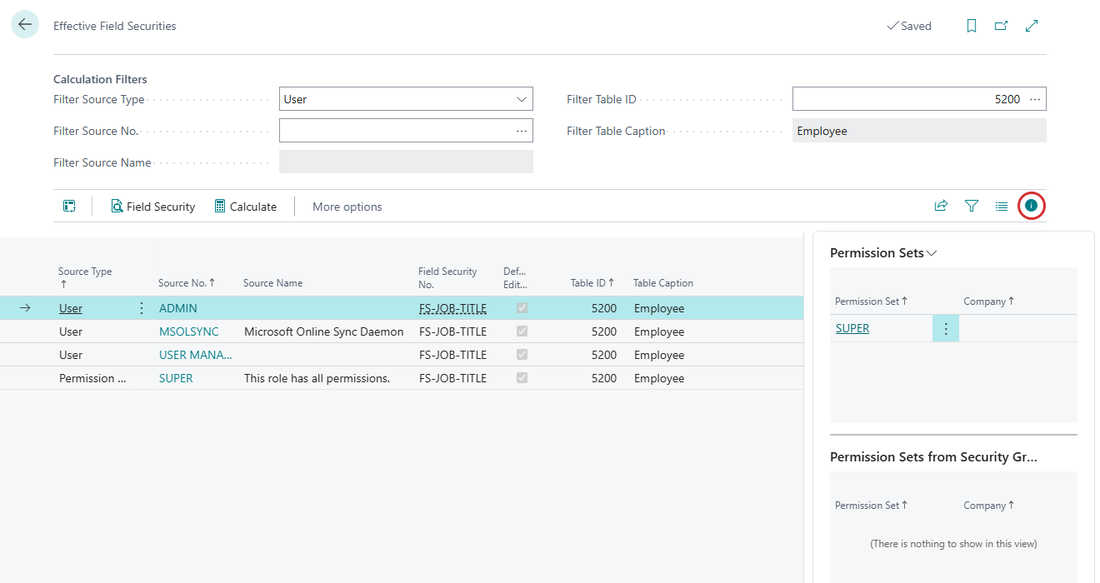
Effective Field Securities with the FactBox pane open.
When you select a line, the FactBox shows only what applies to that line:
- For a user: the permission sets of that user that play a role in this security.
- For a permission set: the objects that play a role in this security.
The permission sets in the summary are those that apply to the security, regardless of which users are summarized.
¶ Filter the summary
| Field | Use |
|---|---|
| Filter Source Type | Calculate for a User or for a Permission Set. |
| Filter Source No. | Use AssistEdit to select the user or permission set. |
| Filter Table ID | Use AssistEdit to select a table. |
| Field Security | Shows the Field Security of the selected line. |
¶ Check one security directly
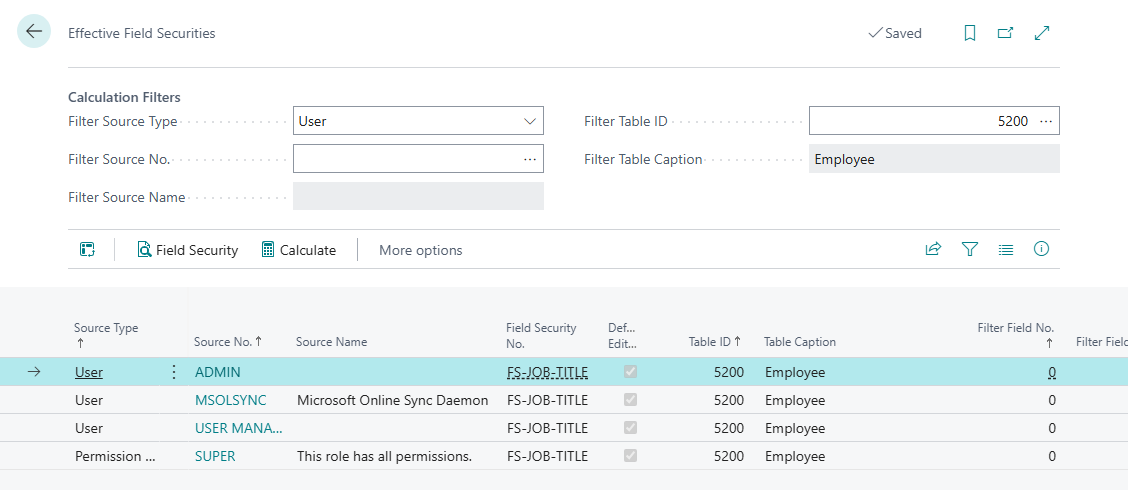
Two actions on the Field Security page help you check the setup (available from release 5.1.202404NN.0 of April 2024):
- Effective Securities calculates the sources (users or permission sets) that belong to the secured table. On the Effective Securities page you can filter on Source Type and Source No. and calculate again. Then only the results for your filter are shown.

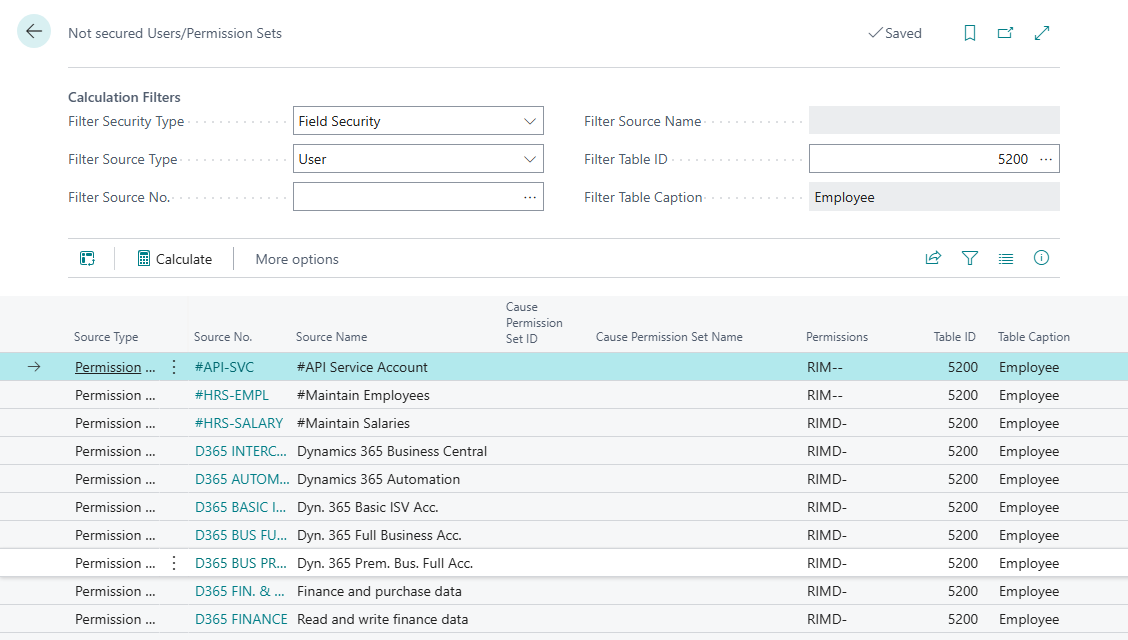
- Not secured Users/Permission Sets calculates the users or permission sets that are not covered by this security. The column Cause Permission Set ID shows why the user is not linked. With this you can find and correct an error in the setup.
The counts of linked and not linked permission sets are not updated by these actions. If the numbers look wrong, see the FAQ.
¶ Field Security for custom pages (developers)
This page is for AL developers and partners. Field Security, Filter Security and Action Security work out of the box on many standard Business Central pages, through event subscribers in the app. On custom pages and on pages of add-ons, you or the partner add your own events. Always try new events in a test environment first.
If you need an event for a standard page or action that the app does not have yet, send an event request to support@2-controlware.com. State the kind of event and the page or action.
¶ Field Security: page extension
To change the visible or editable state of a field on a page, implement a page extension that uses the Field Security logic to decide whether a field is visible or editable.
Other extensions that change the same properties can affect how your page extension works.
Example of a visible and editable security on the Employee Card. This is a sample page extension that controls the field Social Security No.:
pageextension 50100 EmployeeCardExt extends "Employee Card"
{
    layout
    {
        modify("Social Security No.") { Visible = isVisible_SocialSecurityNo; Editable = isEditable_SocialSecurityNo; }
    }

    var
        isVisible_SocialSecurityNo: boolean;
        isEditable_SocialSecurityNo: boolean;
        tmpBln: Boolean;

    trigger OnOpenPage();
    var
        RecRef: RecordRef;
        FieldSecMgt: Codeunit "2C FS Field Security";
    begin
        isVisible_SocialSecurityNo := true;
        isEditable_SocialSecurityNo := true;

        isVisible_SocialSecurityNo := FieldSecMgt.FieldVisible(Database::"Employee", Rec.FieldNo("Social Security No."), isVisible_SocialSecurityNo);
        isEditable_SocialSecurityNo := FieldSecMgt.FieldEditable(RecRef, Database::"Employee", Rec.FieldNo("Social Security No."), isEditable_SocialSecurityNo, tmpBln);
    end;
}
The sample page extension changes two properties of the field: Visible and Editable. Both are bound to variables. The OnOpenPage trigger sets both variables to true and then asks Field Security for the answer, so the field is hidden or read-only when a Field Security applies to the user. FieldVisible of codeunit 2C FS Field Security takes the table number, the field number and the current visibility, and returns the new visibility. FieldEditable takes a RecordRef (used to read the filter field of a Field Security that has a filter), the table number, the field number, the current editability and a Boolean that returns whether a filter was found, and returns the new editability. To secure another field, add another modify line and another pair of variables and calls.
¶ Filter Security: visibility on custom pages
Records are hidden when the page calls the Filter Security code from an event. The app does this for many standard pages. When you select a table in a Filter Security, No. of Pages with Visibility Control under Show more shows how many pages are known for that table. If an expected page is missing, it is probably a custom or add-on page. Adding it takes one event per page with almost the same code.
- Create a codeunit that holds all event subscribers. Give the relevant users permissions to this codeunit.
- Subscribe to
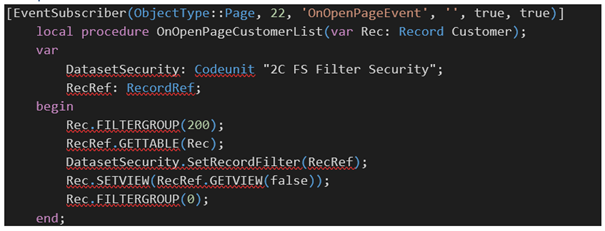
OnOpenPageEventof the page and apply the filter of the Filter Security to the record, as the app does for standard pages. The procedureSetRecordFilterof codeunit2C FS Filter Securitytakes the record as aRecordRefand sets the filter.
[EventSubscriber(ObjectType::Page, Page::"Location List", 'OnOpenPageEvent', '', true, true)]
local procedure OnOpenPageLocationList(var Rec: Record Location)
var
    DatasetSecurity: Codeunit "2C FS Filter Security";
    RecRef: RecordRef;
    CurrentFilterGroup: Integer;
begin
    CurrentFilterGroup := Rec.FilterGroup;
    Rec.FilterGroup(200);
    RecRef.GetTable(Rec);
    DatasetSecurity.SetRecordFilter(RecRef);
    Rec.SetView(RecRef.GetView(false));
    Rec.FilterGroup(CurrentFilterGroup);
end;
This example follows the pattern used in the app for the Location List. Replace the page and record type with your own.
An example of a visibility security on the customer list:
¶ Action Security: events on custom actions
- Create a codeunit with the event subscribers, and give users permissions to it.
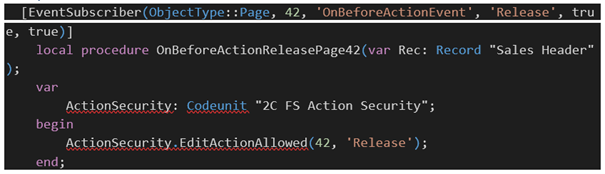
- Subscribe to
OnBeforeActionEventof the action and callEditActionAllowedof codeunit2C FS Action Securitywith the page number and the action name. It raises an error when the user has a permission set linked to this Action Security.
[EventSubscriber(ObjectType::Page, 20, 'OnBeforeActionEvent', 'ReverseTransaction', true, true)]
local procedure OnBeforeActionReverseTransactionPage20(var Rec: Record "G/L Entry")
var
    ActionSecurity: Codeunit "2C FS Action Security";
begin
    ActionSecurity.EditActionAllowed(20, 'ReverseTransaction');
end;
The example follows the pattern used in the app. A second example, action security for Release on the sales order:
- Add a record to table 70078130 (2C FS Page and Action Security), so permission sets can be linked to the new action. You can use RapidStart to create the record. For the action in the example above, the record has these values:
| Type | Page ID | Action Name | Description |
|---|---|---|---|
| Action | 20 | ReverseTransaction | Reverse transaction on the General Ledger Entries |
The page name and page caption are filled in automatically when you enter the page ID. The table fields only apply to the type Page, so leave them empty for an action. The page ID and the action name must be the same as in the event subscriber.
Then the action appears in the Action Security list.