Filter Security cuts a table into parts. You define a filter on fields of the table and link it to permission sets. Users with those permission sets can then see only the records that match the filter, or edit only those. Standard Business Central cannot do this. It matters when departments or roles share a table but must not touch each other's records.
Transcript of this video
Compliance Field Security. Filter security. Everyone who opens the employee list sees every employee. Whatever the department, and whether it is their business or not. Filter security cuts a table into parts. Here, the employee table. The line says which records are visible: only those where the job title starts with production. Plain filters and wildcards are enough. No programming is needed. You set a starting date, and the rule is active from that day. Then you link the permission sets that get this limited view. After the next sign-in, the same user sees only the two production employees. The other records are not deleted. They are simply out of sight, for this user. Everyone sees what they should. Compliance Field Security, by 2-Controlware. Try it for thirty days.
Video (1 minute): the Employee list shows every employee, then a Filter Security limits a user to the production employees.
¶ Editable or Visible
Each line has a Filter Type.
| Editable (the default) | Visible | |
|---|---|---|
| What the user can do | Edit, insert and delete only records that match the filter. | See only records that match the filter. |
| Other records | Still visible, but locked. | Out of sight on the pages of the app. They are not deleted. |
| Works through | Every save in the user's session. | The page, when it opens. |
| Two filters on one line | And or Or. | And only. |
| Filter on a related table | Possible. | Not possible. |
To change a record, both the old and the new version must match the filter. A user therefore cannot move a record out of the allowed part, or create one outside it.
Visible works on the pages that the app supports (see No. of Pages with Visibility Control below), not on every page. Editable is checked on every save, so use it when a rule must also hold on custom and add-on pages. See the Editable recipe.
¶ How several lines combine
A user can have several lines for the same table, for example through more than one permission set.
- For Visible: lines that filter the same field widen the view. The user sees the records that match any of those lines. Filters on different fields narrow it: a record must match all of them.
- For Editable: one matching line is enough to allow the change.
- On one line, Filter And Or says how filter 1 and filter 2 combine.
You can filter on any normal field of the table. Flow fields are not possible. Filters on a table that is related to the secured table are possible for the type Editable: fill in Table Relation No. on the line. Relations are the same as the ones Field Validation uses. For example, Field Validation uses the relation from Sales Line to Sales Header to run line rules only when the order status is not Open; a Table Relation No. line works the same way.
¶ Create a Filter Security
This procedure works for both types. The only difference is step 4.
- Search for Filter Securities and choose New.
- Select the Table ID. Use the list of tables or enter the object ID. A Filter Security number is created automatically. For this the number series needs Default Nos. to be on.
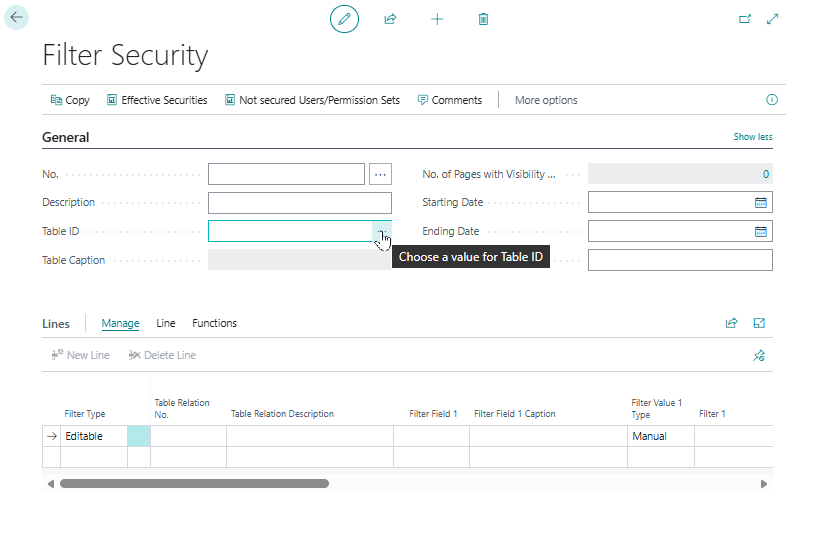
- Enter a Description, for example "Production staff only".
- On the line, choose the Filter Type: Editable to limit editing, or Visible to hide records.
- Choose the field to filter on in Filter Field 1. Use AssistEdit to open the field list, or enter the field number.
- Enter the value in Filter 1. For the syntax see Reference. For an option field such as Document Type you enter the option number and the page shows the text. For a value that depends on the signed-in user, see Calculated filters.
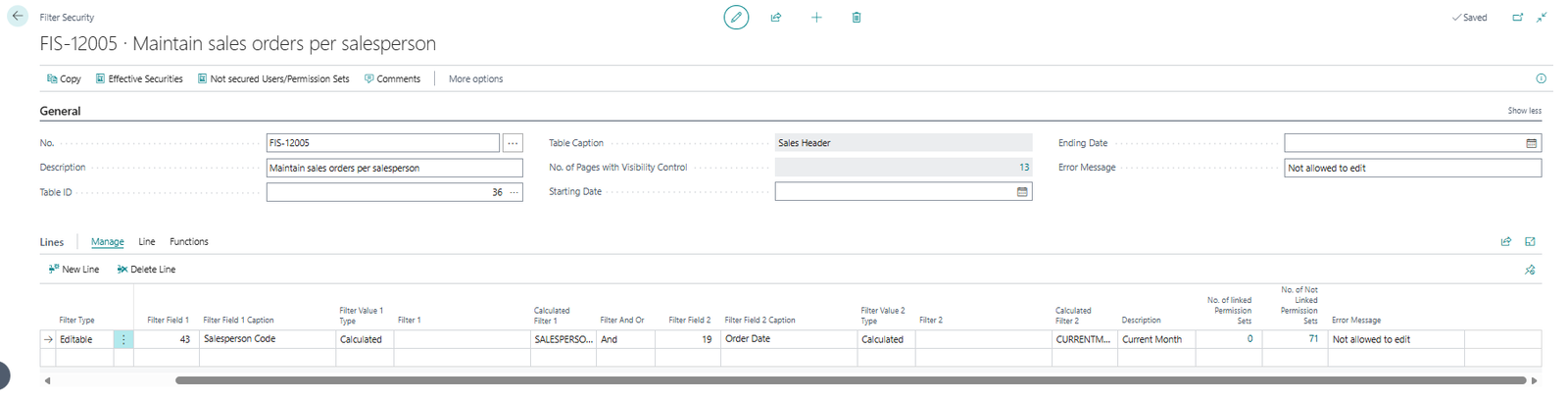
- Link permission sets to every line.
- Set a Starting Date and have the users sign out and in again. See When the rule does not apply.
Filter Security works only when it is linked to permission sets. The users also need 2C FIELDSEC USE.
To use more than one filter on a line, fill in Filter Field 2 and Filter 2, and choose And or Or in Filter And Or. The example above allows editing a sales order only when the salesperson is the signed-in user and the order date is in the current month. For more than two filters, link the same permission set to more lines.
¶ Hide records
With the type Visible, the app hides the records a user may not see. No custom code is needed.
When you choose a table in a Filter Security, the field No. of Pages with Visibility Control under Show more shows how many pages can hide records for that table. The filter is applied when one of those pages opens. Visible works on pages only: reports, queries and API pages show all records. If the page you expect is not in the list, it is probably a custom or add-on page. See Customization for developers. To see the list, choose the number.
¶ Calculated filters
A calculated filter changes with the user who is signed in, so you do not need a rule per user. Set Filter Value Type to Calculated and select a filter in Calculated Filter. The kinds, the defaults and how to add your own are on Calculated filters.
¶ Create a Filter Security with the wizard
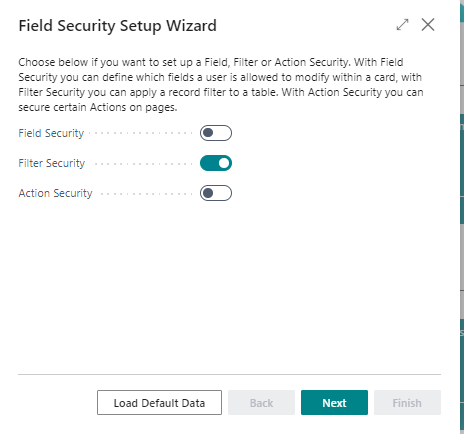
- Search for Field Security Setup Wizard and choose Next.
- Turn the Filter Security switch on and choose Next.
- Select the table in Table ID: use the drop-down, or enter the object ID or the table name.
- Add the filters on the lines. In Filter Field 1, choose the field to split the table on. In Filter 1, enter the value as text. For an option field such as Document Type you can enter
0|1|2|3|4|5|6|7|8|9. The app shows the text of each option. Remove the filters you do not need. - For a filter that depends on the signed-in user, set Filter Value Type to Calculated and select the filter in Calculated Filter.
- Select a line and choose Linked Permission Sets (Ctrl+F7) to link the permission sets. With Copy linked Permission Sets to all Security Lines under Functions you copy them to the other lines.
- Choose Next and Finish. The new Filter Security opens.
You can also generate a Filter Security from a sentence. See Create rules with Copilot.
¶ Check who is covered by a Filter Security
The Filter Security card has the same two actions as the Field Security card: Effective Securities lists the users and permission sets the rule applies to, and Not secured Users/Permission Sets lists those that are not covered, with the cause permission set. Use them after you have linked the permission sets. A Visible filter that covers nobody hides nothing, so this check is the quickest way to find a missing link. The screens work as described under Check who is covered by a Field Security; the summary per user is on the Reference page, under Effective Filter Securities.
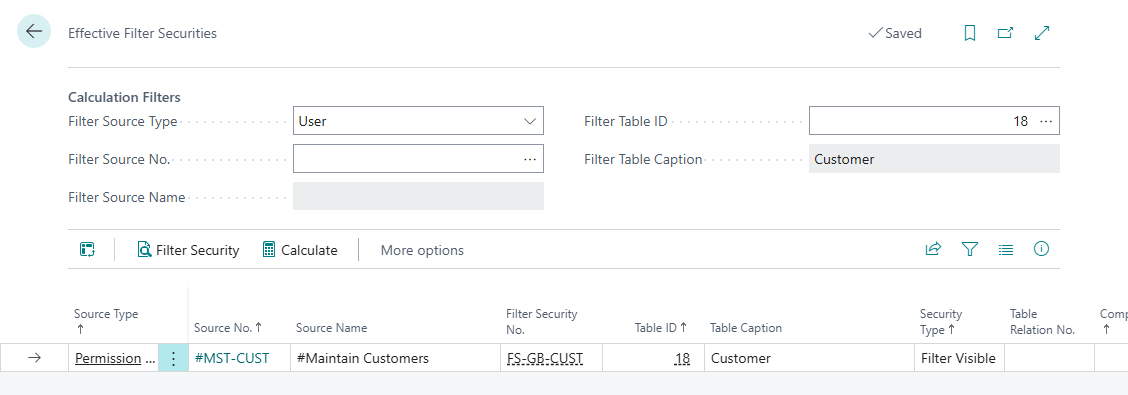
Effective Filter Securities: the permission set #MST-CUST is linked to the Filter Security FS-GB-CUST, so the Visible filter applies to everyone who has it.
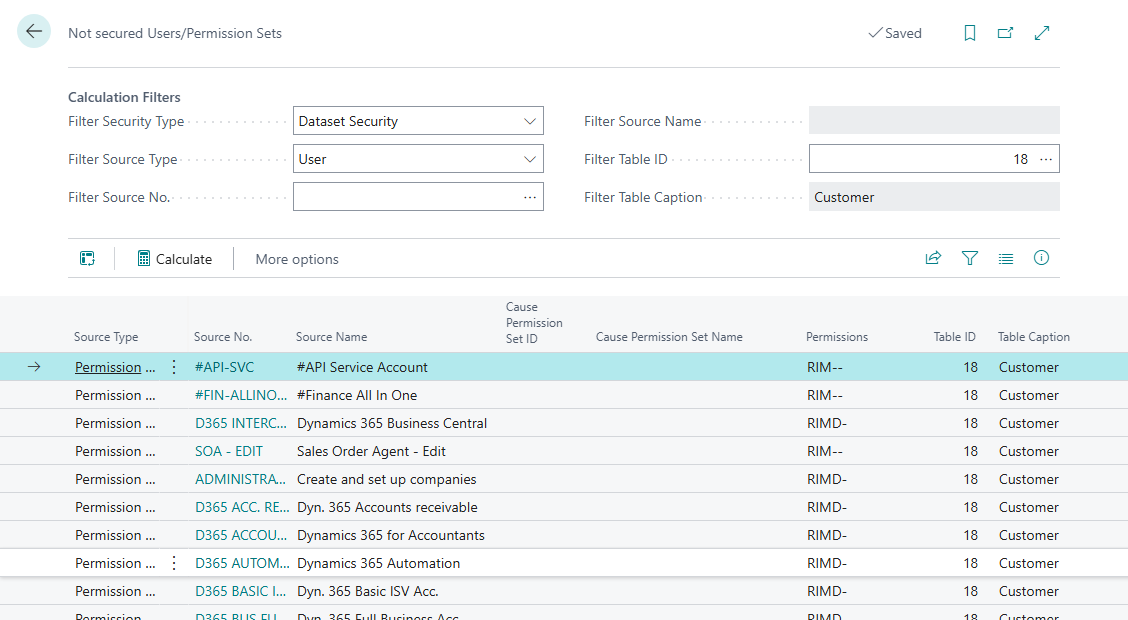
Not secured Users/Permission Sets: everyone who has access to the Customer table but is not covered by the Filter Security. For users the cause permission set shows through which set they are not covered.
¶ Special cases
- Approval flows. The switch Skip on Indirect Approval Actions also applies to Filter Security. See Reference.
- Splitting a whole table. If you split a table completely, you probably need an extra permission set for every filter. Use logical names.
¶ Filter Security recipes
Each recipe gives the business case, the values to enter, the result and what to check if it does not work. For the options behind them see Hide records with Filter Security. Register the app first. See Install and set up Field Security.
For every recipe, link the permission sets to every line, set a Starting Date and have the users sign out and in again.
¶ Production staff see only production employees
Business case. Everyone who opens the Employee list sees every employee. You want a group of users to see only the employees of Production.
Without Filter Security. The Employee list shows all employees.
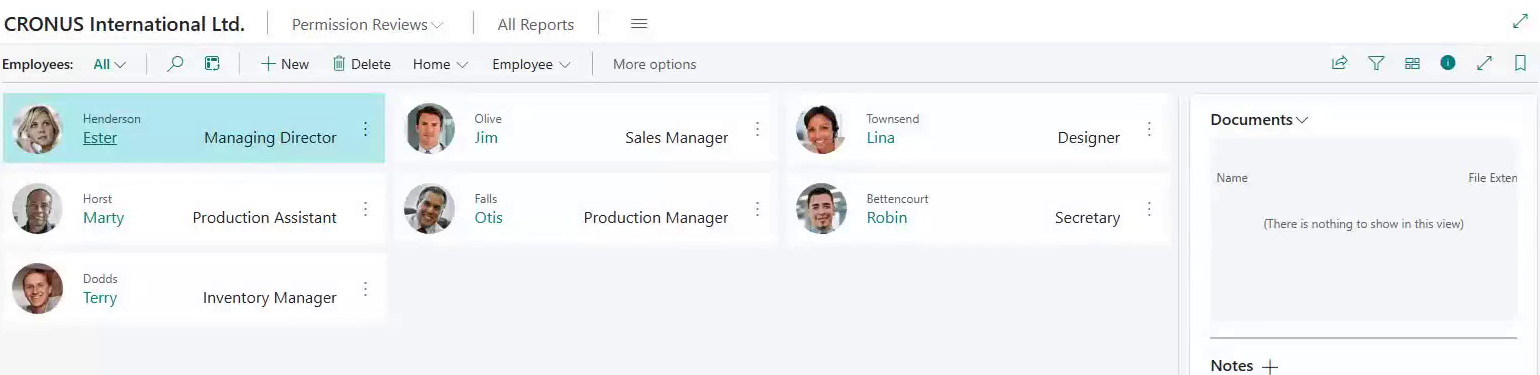
Setup. Search for Filter Securities and choose New.
| Field | Value |
|---|---|
| No. | FS-PRODUCTION |
| Description | Production staff only |
| Table ID | 5200 (Employee) |
| Starting Date | Today or a date in the past |
| Filter Type (line) | Visible |
| Filter Field 1 | Job Title (field 6) |
| Filter Value 1 Type | Manual |
| Filter 1 | Production* |


Then choose the number in No. of linked Permission Sets, choose New and select the permission sets that get this limited view.
Result. The user sees only the employees whose Job Title starts with "Production". The other records are not deleted. They are out of sight for this user.
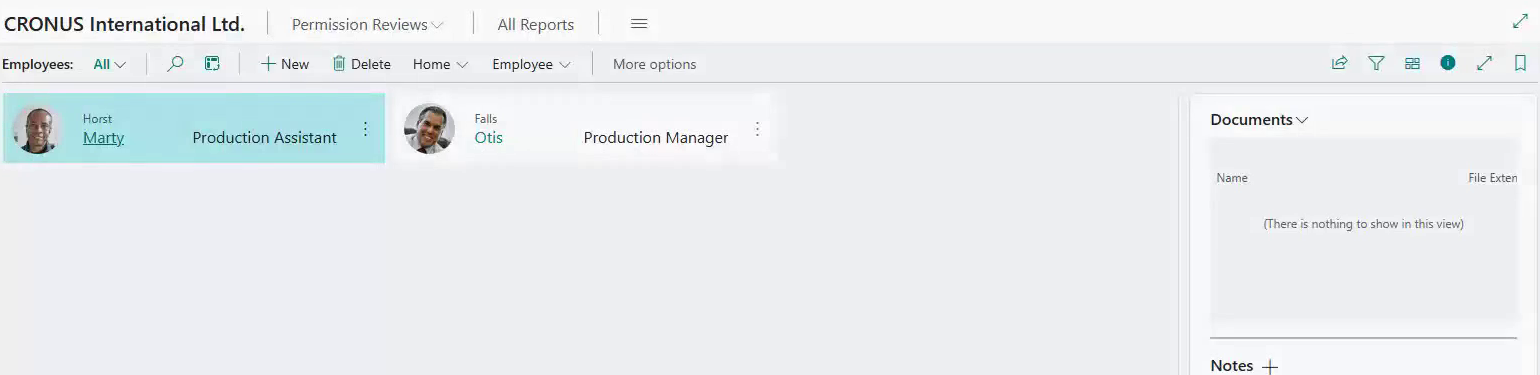
If it does not work. Is the starting date set? Did the user sign out and in again? Does the user have another permission set that is not linked and gives access (a data owner)? Use Effective security to see who is covered.
¶ Everyone sees the employees, but only Production edits production employees
Business case. All users may look at the Employee list, but only the Production team may change the records of production employees. This is the Editable version of the recipe above: nothing is hidden, the other records are locked.
Why Editable. Visible works only on the pages that the app supports. The field No. of Pages with Visibility Control shows how many that are, and custom or add-on pages are usually not among them. Editable is checked on every save in the user's session, whatever page the change comes from. If a rule must hold on every page, use Editable.
Setup. Search for Filter Securities and choose New.
| Field | Value |
|---|---|
| No. | FS-PRODUCTION-EDIT |
| Description | Only Production edits production employees |
| Table ID | 5200 (Employee) |
| Starting Date | Today or a date in the past |
| Filter Type (line) | Editable |
| Filter Field 1 | Job Title (field 6) |
| Filter Value 1 Type | Manual |
| Filter 1 | Production* |
Then choose the number in No. of linked Permission Sets, choose New and select the permission set of the Production team. Users who are not linked keep the access that their standard permissions give them. Link the sets of the users who must be limited, as described in Set up.
Result. The limited user sees every employee. The user can change, insert and delete only employees whose Job Title starts with "Production". On another employee, the change is refused with the message of the Filter Security. To change a record, both the old and the new version must match the filter, so a user cannot move a record out of the allowed part.
If it does not work. Is the starting date set? Did the user sign out and in again? Is the user linked to the rule, and does the user have another permission set that is not linked and gives write access (a data owner)? Use Reference to see how rules combine.
¶ Each salesperson sees only their own sales orders
Business case. All sales people use the same sales order list. You want each of them to see only the orders where they are the salesperson, without one rule per person.
Setup. One Filter Security on the table Sales Header (36). One line, one permission set (for example SALES-OWN) for all salespeople.
| Field | Value |
|---|---|
| Filter Type | Visible |
| Filter Field 1 | Salesperson Code |
| Filter Value 1 Type | Calculated |
| Calculated Filter 1 | SALESPERSONNO, the default calculated filter (kind Related Field) that returns the salesperson code of the signed-in user from User Setup |
| Filter Field 2 | Document Type |
| Filter 2 | Order (the app converts it to the option number) |
| Filter And Or | And |
Each salesperson needs a Salesperson/Purchaser Code on their line in User Setup.
Result. Each user sees only the sales orders with their own code. The filter changes per user, so it needs no line per person.
If it does not work. Is the code filled in on User Setup for this user? Is the order list one of the pages with visibility control? See Hide records.
¶ Hide a location per warehouse team
Business case. Each warehouse team may see only its own locations in the Location list.
Setup. One Filter Security on the table Location (14), one line per team and one permission set per team (for example WH-EAST).
| Field | Value |
|---|---|
| Filter Type | Visible |
| Filter Field 1 | Code |
| Filter 1 | The location codes of the team, for example EAST|EAST-2 |
The pipe means "or". For the syntax see Reference. Link the permission set of the team to its own line only.
Result. The team sees only its own locations in the Location list.
If it does not work. The page must be one of the pages with visibility control for the table Location. Check No. of Pages with Visibility Control. A team with an extra permission set that is linked to another line sees both sets of locations (the lines widen the view).
¶ Split purchase documents per document type
Business case. One team handles quotes, another handles orders, a third handles invoices. Each team may edit only its own document type.
Setup. Use one permission set per document type, so you can give each team its own part. For six document types you need six permission sets. Choose clear names such as PUR-QUOTE.
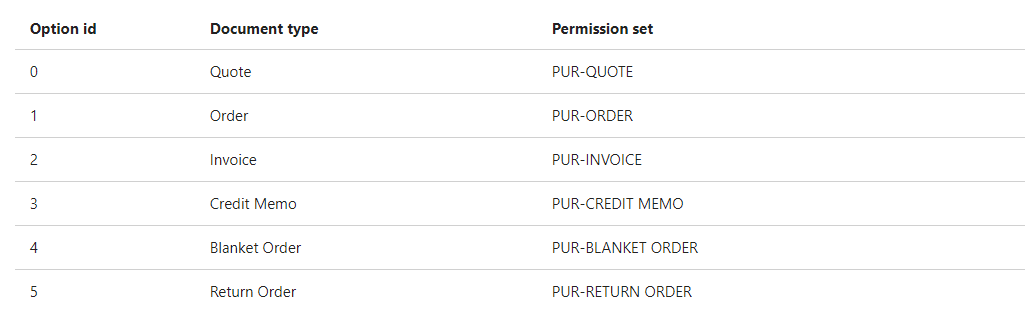
Purchase documents have two tables: the header (vendor, invoice and payment) and the lines (items and prices). You need one Filter Security for each table.
- Purchase Header (table 38): filter on the field Document Type. It is an option field, so you enter the option number in Filter 1. When you leave the field, the page shows the text. In standard Business Central the options are 0 Quote, 1 Order, 2 Invoice, 3 Credit Memo, 4 Blanket Order and 5 Return Order. Create a line per document type, and link the matching permission set to each line.
- Purchase Line (table 39): filter on Document Type in Filter Field 1 and on Type (field 5) in Filter Field 2. The pipe character means "or":
0|2|5means type 0, 2 or 5. Link the permission set, for example PUR-QUOTE, to the lines for quotes.
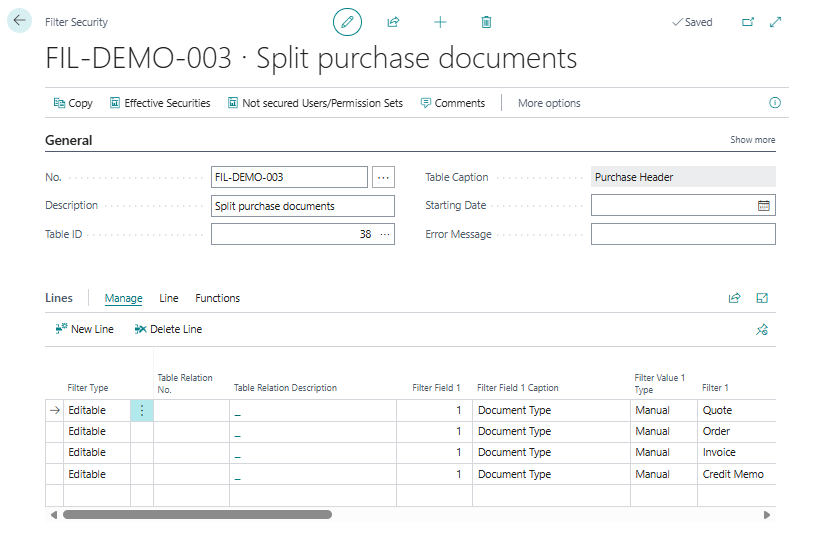
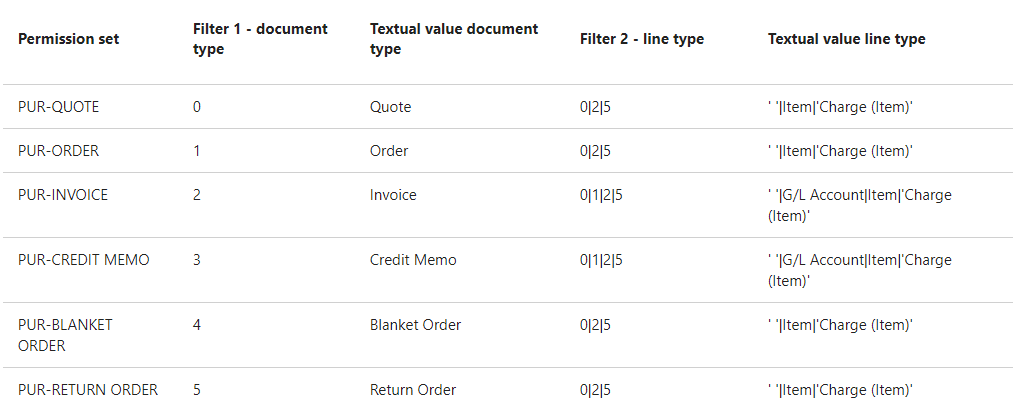
Every document type needs its own line, so each permission set is linked uniquely. Leave the Filter Type on Editable: the teams can still see all documents but edit only their own.
Result. A user in the quote team can edit quotes. A change on an order is refused with the message of the Filter Security.
If it does not work. Did you create a Filter Security for both the header and the lines? Does a user hold two of the six permission sets by accident?