A new rule protects what users enter from now on. It does not change what is already in the database. Check Table shows which existing records already break the rule, so you can turn a new rule into a clean-up list. Run it after you create a validation, and before you switch a rule from Warning to Error.
Transcript of this video
Clean up existing data. Field Validation also finds the records that already break a rule. A new rule protects everything users type from now on. This one says that every customer needs a country code. But what about the customers that are already in the system? Choose Check Table. Field Validation runs the rule over all existing records, and lists every customer that breaks it. Here, three. Select one, and open the related page. You land on the customer card, with the empty country code right in front of you. Enter the country code and close the card. That customer is now correct. Calculate again, and that customer is gone from the list. Two to go. Work through the list, and your old data is clean. Check Table turns a new rule into a clean-up list for the data you already have. Field Validation, by 2-Controlware. Better data, without code. Try it for thirty days.
Video (1 minute): Check Table lists the customers that break a new rule, opens the customer card to correct one, and calculates again.
¶ Run Check Table
- Open Field Validations, select a validation and choose Check Table. You can also choose it on the validation card.
- The Field Validations Check Overview opens and calculates at once. It lists every record that does not meet the rules. For each record you see the primary key (for example the customer number) and one line per field that breaks a rule.
- Select a record and choose Open related page. The page of the record opens so you can fix the data.
- Close that page and choose Calculate. The record is gone from the list if the issue is solved.
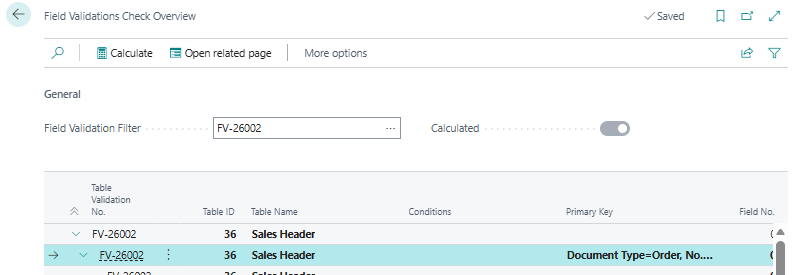
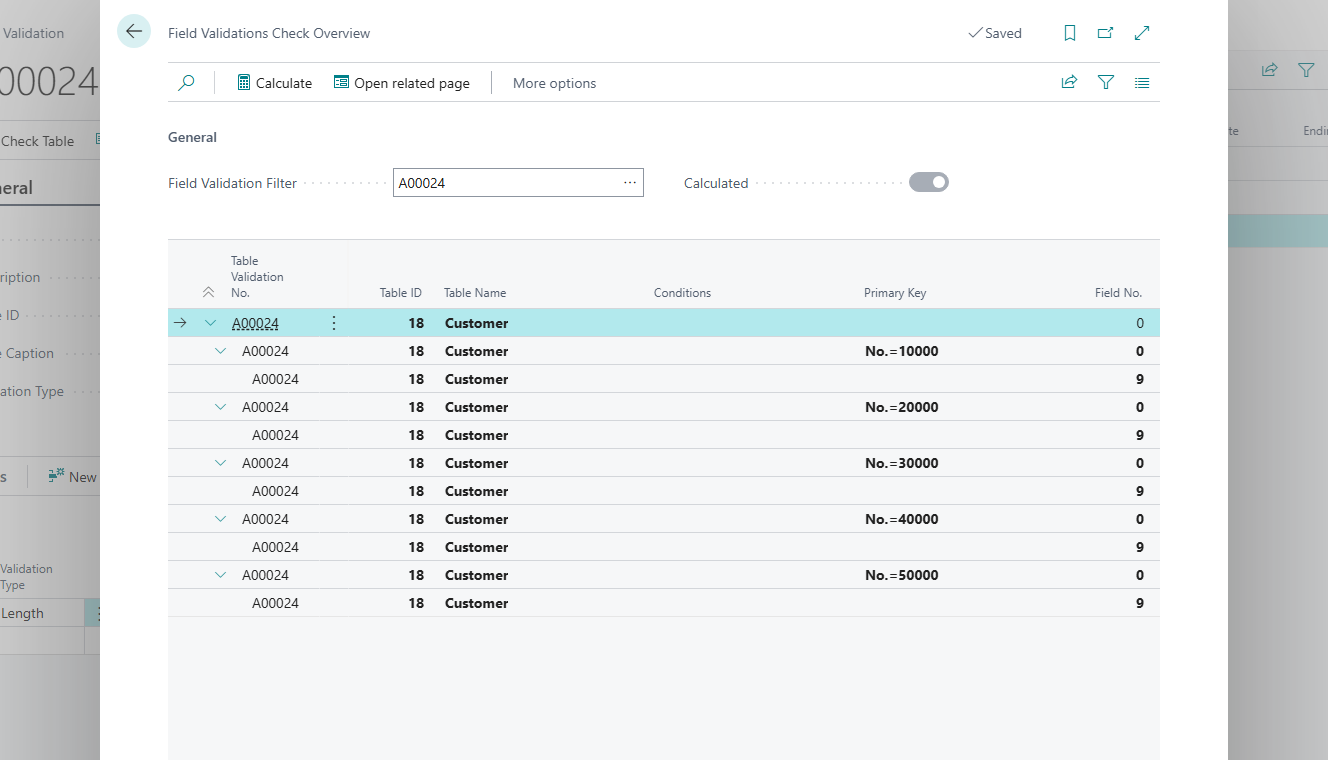
The Check Overview lists every record that breaks the rule. Here five customers break the length rule on the Phone No. field.
With the Field Validation Filter field you can select another validation. Choose Calculate to show the results of that validation.
The validation must be active, so its Starting Date must be today or earlier. The overview only shows results for a validation that has records that break its rules. You do not have to sign in again to use Check Table.
¶ Which page opens
Open related page opens the page that is set in Lookup Page ID on the validation (under Show more). Business Central fills it in when you choose the table, for example the customer card for the table Customer. Change it when you want users to land on another page.
¶ Recalculate by itself
When you come back from the related page, the overview still lists the record until you choose Calculate. If you want the list to refresh by itself, turn on Refresh Check after opening related page on the Field Validation Setup page.
¶ Tips
- Use Reference Fields for Notifications to add the name or description of the record to the findings. See Notification and reference fields.
Last reviewed: October 2026.