This page collects the facts you look up while you work: every field of a validation and its lines, the Validation Value syntax and the default messages.
¶ Field Validation fields reference
Use this page to look up what a field of a validation does. For the steps to create a validation, see Create a validation.
¶ Header fields
| Field | What it does |
|---|---|
| No. | With a number series, the number is filled in when you choose the table. Otherwise enter a number. |
| Description | A name for this validation, for example "Customer validation". |
| Table ID | The table you set the validation for. |
| Validation Type | Warning or Error. See Warning or error. |
| Init Values | Initial values for a new record, so certain conditions are set before the validation runs. For example, an item card is blocked when it is created. |
| Conditions | The conditions that must be met before the validation runs. For example, only when the card is unblocked or when a document is released. |
| Action after Validation | The action that is performed when the record does not meet the rules, for example setting the card to blocked again. Only for the type Warning. |
| Validate Default Dimensions | When on, the global default dimension settings of this table are validated too. See Dimension rules. |
| Starting Date | From this date the validation is active. If it is empty or in the future, the validation is not active. |
With Show more you see these fields too:
| Field | What it does |
|---|---|
| Lookup Page ID | The page that opens from Check Table with Open related page. It is filled in for you and can be changed. |
| Insert Check | When on, the validation is also checked when a record is inserted. Off by default. |
| Display results in message | Shows the results as a message instead of a page. Use this when the validation runs from a page where another error could block further processing. |
| Ending Date | Optional. From the day after this date the validation is no longer active. |
¶ Line fields
Each line is one rule.
| Field | What it does |
|---|---|
| Type | The kind of rule: Mandatory, Filter, Length, Related No. of Records, Related Field, Regular Expression or Calculated. See Which rule type do I need?. |
| Field No. | The field to validate. Use the AssistEdit button to select it, or enter the field number. |
| Field Caption | Filled in after you choose a field. |
| Table Relation No. | For a validation that uses a related table. Use AssistEdit to select the relation. See Table relations. |
| Validation Value | The value the field is checked against. The syntax depends on the type, see below. |
| Calculated Filter | The calculated filter for the type Calculated. See Calculated validations. |
| Regular Expression | The regular expression for the type Regular Expression. See Regular expressions. |
| Conditions Related Table | Conditions on the related table, when you validate with a table relation. |
| Notification | The message for this rule. A sample message is filled in. See Notification and reference fields. |
| Table Relation Validation Type | For the type Related Field: Equal, Not Equal, Greater than, Lower than, Greater or equal than, Lower or equal than. |
| Related Field No. | The field in the related table that you compare with the field in Field No. |
| Execute validation on Related Table modifications | Runs the line rule also when the related record changes. Needed for rules on lines that depend on a header. See Table relations. |
¶ Validation Value syntax
| Type | What to enter in Validation Value | Example |
|---|---|---|
| Mandatory | Leave empty. The field must not be empty. | |
| Filter | A Business Central filter for the field, with the usual filter characters. | >100, A*\|B*, <>'' |
| Length | The format min(0)..max(10). See below. |
min(5)..max(20) |
| Regular Expression | Leave empty. Choose the expression in the field Regular Expression. | |
| Related Field | Leave empty. Choose the relation, the comparison and the related field. | |
| Related No. of Records | A filter on the number of related records. | >=1 |
| Calculated | Leave empty. Choose the filter in Calculated Filter. |
For the types Mandatory, Related Field and Calculated, Business Central refuses a value in Validation Value.
¶ The Length format
The Length rule counts characters, and works on fields of the type Text and Code. Always enter both values in this exact format:
min(0)..max(10)
minis the shortest allowed length,maxthe longest allowed length.mincannot be below 0,maxmust be at least 1, andmincannot be greater thanmax.- Neither value can be larger than the length of the field itself.
- A format that is not correct is refused with the message that the format of a length filter should be like
min(0)..max(10).
When you add a Length line in the wizard, min(0)..max(10) is filled in for you as a starting point. Change the numbers to your needs. For example, min(10)..max(20) makes a phone number of 10 to 20 characters mandatory.

¶ Notification and reference fields
The Notification is the message the user sees on the results page. When you complete a line, Business Central fills in a sample message. You can overwrite it with your own text. If you change the rule afterwards, a new sample message may be filled in, so write your own text last.
| Type | Default message |
|---|---|
| Mandatory | Field Phone No. is mandatory. |
| Filter | Field Credit Limit must apply to filter >100. |
| Length | Field Phone No. must have length between 10 and 20. |
| Related No. of Records | Table Sales Price must have >=1 related records. |
| Related Field | Field Customer Posting Group must be Equal Customer Posting Group in table Customer. |
| Calculated | Field Order Date must apply to Filter current month. |
| Regular Expression | Field Phone No. does not match the required format (description of the expression). A Default Notification on the expression replaces this text. |
The names in italics are examples; Business Central uses the captions of your fields and tables.
¶ Reference fields for notifications
A message such as "Field Phone No. is mandatory." does not say which customer it is about. With Reference Fields for Notifications you add fields of the record to every message for a table.
- Open Field Validation Setup and choose Reference Fields for Notifications.
- Add a line with the Table ID and the Field No. For example table 18 (Customer) and field 1 (No.), and a second line for field 2 (Name).
- From now on the messages for that table end with the field captions and values, for example: Field Phone No. is mandatory. - No.: C00280; Name: Adatum Corporation.
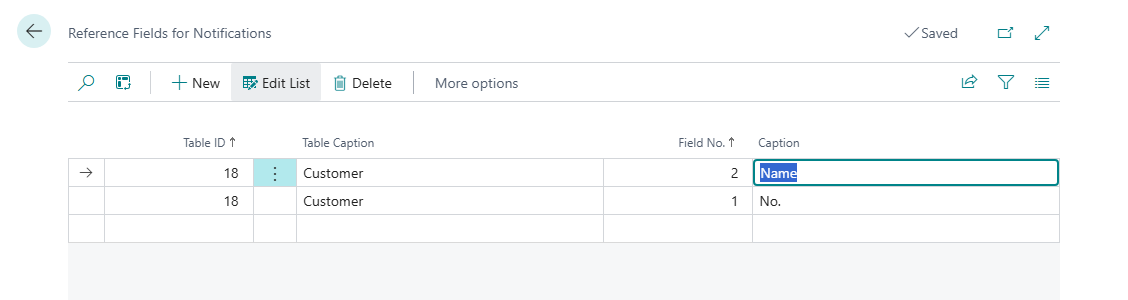
Two reference fields for the Customer table: the No. and the Name are added to every message.
Last reviewed: October 2026.