Field Validation has seven rule types for the lines of a validation, plus a switch for dimensions in the header. This page helps you pick the right one. Start from what you want to enforce.
¶ Decision table
| I want to make sure that... | Use this rule | Validation Value | Example |
|---|---|---|---|
| A field is filled in | Mandatory | Empty | Phone No. on a customer |
| A field is in a list, above a limit or not a certain value | Filter | A Business Central filter | Credit Limit >0, Country/Region Code <>'' |
| Text or a code has a certain length | Length | min(10)..max(20) |
Phone No. of 10 to 20 characters |
| Text follows a pattern | Regular Expression | Empty (choose the expression) | Document No. starts with year and month |
| A value fits the date, the user or the company | Calculated | Empty (choose the calculated filter) | Order Date in the current accounting period |
| A field equals, or compares with, a field in another record | Related Field | Empty (choose relation and field) | Customer Posting Group on a sales order equals the one on the customer |
| A record has enough related records | Related No. of Records | A filter on the number | A customer has at least one sales price: >=1 |
| A record has the right dimensions | Validate Default Dimensions (header) | Not applicable | Department is mandatory on a customer |
¶ The rule types in a few lines
¶ Mandatory
Fails when the field is empty. Empty means the empty value of the field type: blank text, zero for numbers, no date. For a Yes/No field, No counts as empty, and for an option, the first option counts as empty. Start here for master data. See Quick start in 10 minutes.
¶ Filter
The field must pass a filter, written in normal Business Central filter syntax. Use it for numbers, dates, options and text. The filter is checked against the value of the field. For a text field, <>'' means not empty.
¶ Length
Counts characters in a Text or Code field. The Validation Value is always min(0)..max(10), with your own numbers. See The Length format.
¶ Regular Expression
For patterns that a filter cannot describe, such as a postal code or a document number. See Regular expressions and the cookbook.
¶ Calculated
Checks a field against a value that is worked out when the record is validated, such as the current accounting period, the signed-in user or the current company. See Calculated validations.
¶ Related Field
Compares a field with a field in a related table, using a table relation and a comparison (Equal, Not Equal, Greater than, Lower than, Greater or equal than, Lower or equal than). See Recipe 4: Related field check and Table relations.
¶ Related No. of Records
Counts the records in a related table and compares the number with the Validation Value. The option Execute validation on Related Table modifications is on by default for this type, so the rule also runs when the related record changes.
¶ Dimension rules
Turn on Validate Default Dimensions in the header to check the record against the global Default Dimensions settings of the table, such as a dimension with the value posting Code Mandatory or Same Code, and the allowed value filter. A dimension finding is shown on the results page with the type Dimension.
- On the validation, turn on Validate Default Dimensions.
- If Business Central finds no default dimension settings for the table, it offers to open the setup page. Choose Yes, and set them.
- Use Table Default Dimensions Setup in the ribbon of the validation to view or change the settings later.
Not every table allows default dimensions. For a table that does not, Business Central refuses the switch.
¶ Combine rules
A validation can have many lines, and all lines are checked every time a record of the table is modified. Combine rule types for one field, for example a Mandatory rule and a Regular Expression rule on the same field. Some patterns accept an empty value, so the Mandatory rule is what catches an empty field. See the traps in the regular expression cookbook.
¶ Regular expressions in Field Validation
A regular expression is a string of characters that defines a search pattern. In Field Validation you use it to check whether the value of a field has the right format, for example a phone number, a document number or a postal code. For ready-made patterns with examples, see the regular expression cookbook.
¶ Regular expressions list
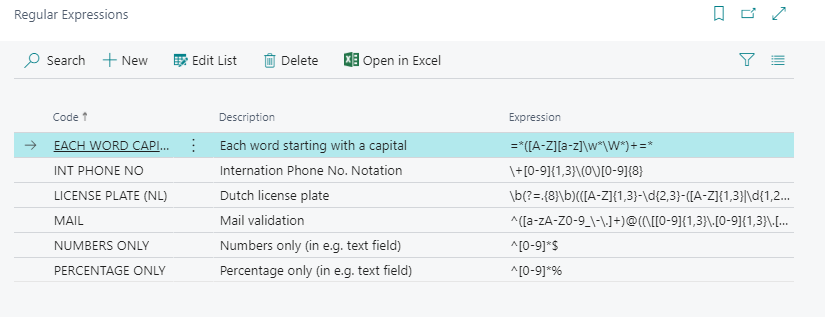
Search for Regular Expressions to see the list. The Load Default Data action on the Field Validation Setup page loads a standard set of six expressions, for example INT PHONE NO for international phone numbers. You can also add your own expressions on this page. Each expression has a Code, a Description, the Expression, a Test Value to try it out and an optional Default Notification.
¶ Test an expression
Type a value in Test Value. The value turns green when it matches the expression and red when it does not. Test with values that must pass and with values that must fail. Do this before you use an expression in a validation.
¶ Use a regular expression in a validation
The example below checks that the Phone No. of a customer is written in the international notation, for example +31(0)61234567. Business Central does not check this field itself, so the rule is the only check.
- In the validation line, select the type Regular Expression.
- Select the field that must be validated, here Phone No.
- In Regular Expression, choose the expression. Use the AssistEdit button to select
INT PHONE NO.
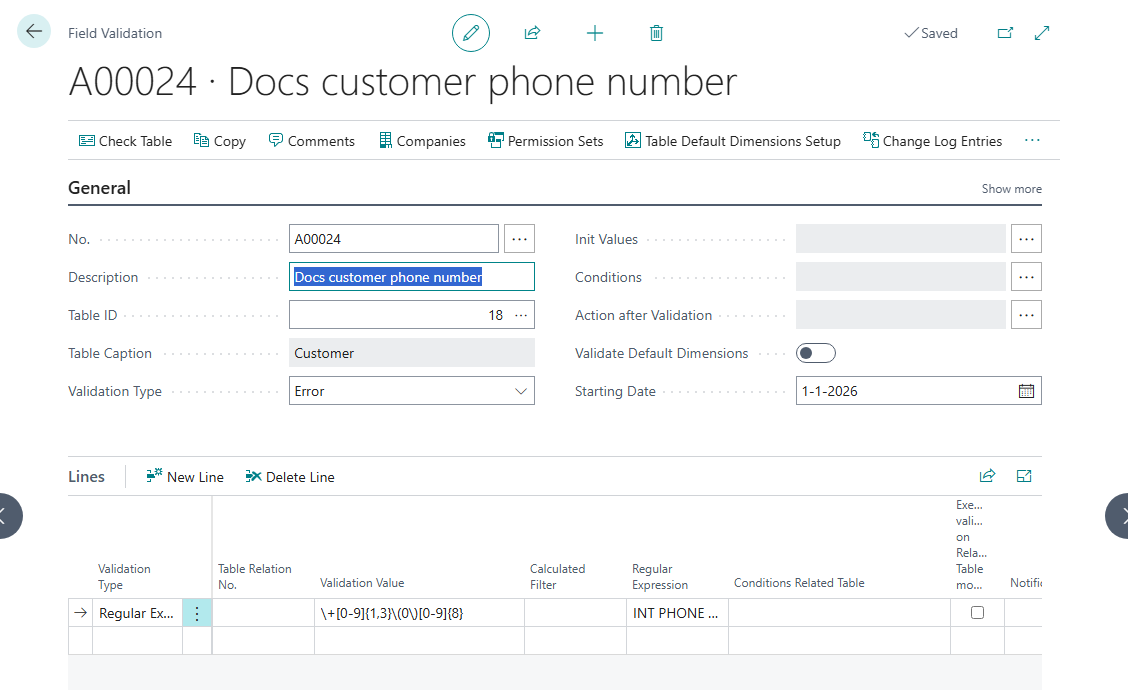
The finished line: type Regular Expression, the expression INT PHONE NO and its value.
When a user enters a value that does not match, the results page lists a finding with the message of the expression, or with the sample message "Field Phone No. does not match the required format", followed by the description of the expression.
¶ How the match works
- The expression is applied to the value as text, the same way it is shown on the page.
- It is case sensitive.
- It matches when the pattern occurs anywhere in the value. Start the expression with
^and end it with$if the whole value must match. - A value that is empty is checked too. Some expressions accept an empty value (for example
^[0-9]*$). Add a Mandatory rule when the field must be filled in.
These traps are explained with examples in the cookbook.
Business Central checks some fields itself before Field Validation runs. For example, it refuses an invalid value in the Email field of a customer, so a rule on that field never gets a chance to run. Use a regular expression on fields that Business Central does not check, such as Phone No. or a document number.
Remember that a validation is only active from its starting date, and that users must sign in again after you set one up. See When a validation is active.
¶ Copilot regular expressions generator
Designing regular expressions is complicated and takes time. From Business Central version 24.0 on, a Copilot can suggest the expression for you.
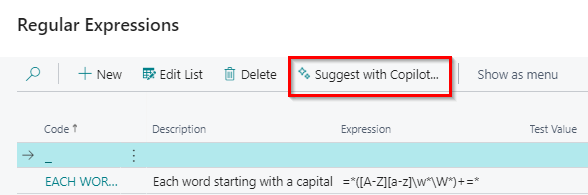
- On the Regular Expressions page, choose Suggest with Copilot.
- Describe in the prompt what the value must look like. The window explains how to build a good prompt. The Prompt guide next to Generate gives more help and a link to a demo video.
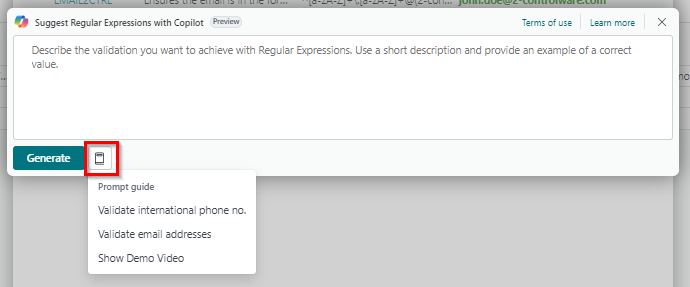
Be specific and give examples. For example: "Validate that a document number starts with the year and the month, then a dash, then at least one more character. Example: 202610-ORDER1."
- Choose Generate. Copilot proposes a regular expression that you can test right away.
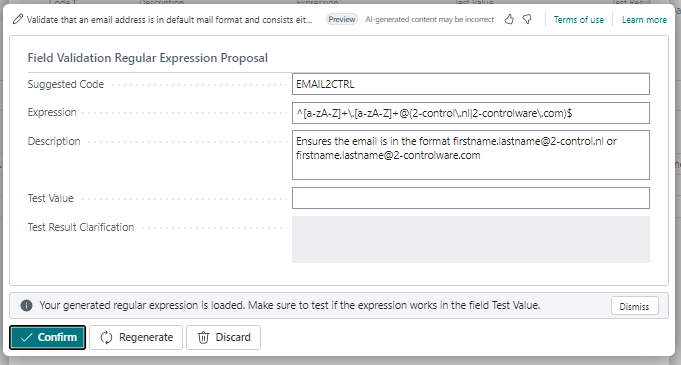
- Check the proposal and test it with a value.
- Choose Confirm to save the expression. Choose Yes when asked if you want to save it.
You can watch the demo video of the Copilot regular expressions generator on YouTube or on our media server.
¶ The proposal window
| Field or action | What it does |
|---|---|
| Suggested Code | The code Copilot proposes for the expression. You can change it before you confirm. |
| Expression | The regular expression for your prompt. |
| Description | A description of the expression. |
| Test Value | A value to test the expression. The value turns green when it is correct and red when it is not. |
| Test Result Clarification | Explains why a test value is not correct. |
| Confirm | Saves the expression so you can use it in a validation. |
| Regenerate | Generates a new expression. Do this when the prompt was not specific enough to give only one possible expression, and check the new suggestion. |
| Discard | Throws away the proposal and closes the window. |
| Dismiss | Closes the message "Your generated regular expression is loaded. Make sure to test if the expression works in the field Test Value." |
Copilot is a helper. Always test the expression with correct and incorrect values before you use it.
¶ Regular expression cookbook for Field Validation
This page gives you regular expressions you can copy into the Regular Expressions list, with values that match and values that do not. How to add and use an expression is explained in Regular expressions. Use the Test Value field on the list to try each example yourself.
¶ Read this first: three rules
- The pattern matches anywhere in the value. Without
^at the start and$at the end, an extra character before or after the pattern is accepted. - Matching is case sensitive.
[A-Z]does not accept lowercase letters. - An empty value is checked too. Patterns such as
^[0-9]*$match an empty value. Add a Mandatory rule on the same field when it must be filled in.
The examples were checked with a script that applies the same rule as Field Validation: a match anywhere in the value, case sensitive.
¶ The six default expressions
The Load Default Data action on the Field Validation Setup page loads these.
| Code | Expression | Matches | Does not match |
|---|---|---|---|
EACH WORD CAPITAL |
=*([A-Z][a-z]\w*\W*)+=* |
John Smith, Van Der Berg |
john smith, JOHN, empty |
INT PHONE NO |
\+[0-9]{1,3}\(0\)[0-9]{8} |
+31(0)61234567 |
+31612345678, 0612345678, +31(0)6123456 |
LICENSE PLATE (NL) |
\b(?=.{8}\b)(([A-Z]{1,3}-\d{2,3}-([A-Z]{1,3}\|\d{1,2}))\|(\d{1,3}-[A-Z]{2,3}-\d{1,3})\|([A-Z]{2}-([A-Z]{2}\|\d{2})-\d{2})\|(\d{2}-(\d{2}\|[A-Z]{2})-[A-Z]{2})) |
AB-12-CD, 12-AB-34, 12-ABC-3, AB-123-C |
AB1234, ab-12-cd, XX-YY-ZZ |
MAIL |
^([a-zA-Z0-9_\-\.]+)@((\[[0-9]{1,3}\.[0-9]{1,3}\.[0-9]{1,3}\.)\|(([a-zA-Z0-9\-]+\.)+))([a-zA-Z]{2,4}\|[0-9]{1,3})(\]?)$ |
john.doe@2-control.nl |
john.doe@contoso, john doe@contoso.com |
NUMBERS ONLY |
^[0-9]*$ |
12345, and empty |
12a45, 12 45 |
PERCENTAGE ONLY |
^[0-9]*% |
25%, % |
25, abc25% |
What each default really checks:
- EACH WORD CAPITAL matches when the value contains at least one word that starts with a capital followed by a lowercase letter. It does not check that every word does:
john Smithmatches. - INT PHONE NO needs the notation
+31(0)followed by exactly eight digits, for example+31(0)61234567. It is not anchored, so+31(0)612345678(nine digits) matches too. - LICENSE PLATE (NL) looks for eight characters in one of the Dutch notations. It is not anchored:
AB-12-CD-EFmatches because it starts with a valid plate. - MAIL accepts domain endings of two to four letters, so a valid address with a longer ending, such as
john@contoso.company, does not match. Business Central validates the Email field itself before Field Validation runs, so use this expression on other text fields. - NUMBERS ONLY matches an empty value.
- PERCENTAGE ONLY has no
$, so25%abcmatches.
¶ Traps
| Trap | Why | Fix |
|---|---|---|
^[0-9]*$ accepts an empty field |
* means zero or more |
Use + for at least one, or add a Mandatory rule |
[0-9]{8} accepts nine digits |
Not anchored: the first eight digits match | Put ^ before and $ after |
| Lowercase input is refused | [A-Z] is case sensitive |
Use [A-Za-z], or enter codes in capitals |
| A rule on a date or decimal field behaves unexpectedly | The expression is applied to the value as text, in the format of the page | Use expressions on Text and Code fields |
| A special character is not matched | Characters such as + ( ) . ? * have a meaning |
Put a backslash before them: \+, \(, \. |
| A field BC checks itself never reaches the rule | For example Email | Choose a field that BC does not check |
¶ New patterns
These patterns were tested with the examples in the table. Add them with New on the Regular Expressions list, and adjust them to your situation.
| Code | Expression | Matches | Does not match |
|---|---|---|---|
POSTAL CODE NL |
^[1-9][0-9]{3}\s?[A-Z]{2}$ |
1234 AB, 1234AB |
0123 AB, 1234 ab, 1234 ABC |
YEAR MONTH PREFIX |
^20[0-9]{2}(0[1-9]\|1[0-2])-.+$ |
202610-INV, 202612-A |
202613-INV, 202610, 2026-10-INV |
IBAN NL |
^NL[0-9]{2}[A-Z]{4}[0-9]{10}$ |
NL91ABNA0417164300 |
nl91abna0417164300, BE68539007547034 |
VAT NO NL |
^NL[0-9]{9}B[0-9]{2}$ |
NL123456789B01 |
NL123456789B1, NL123456789001 |
ITEM CODE |
^[A-Z]{3}-[0-9]{4}$ |
ABC-1234 |
ABC-12345, AB-1234, abc-1234 |
NO SPACES AROUND |
^\S(.*\S)?$ |
Contoso, Con toso |
Contoso, Contoso , empty |
PERCENT DECIMALS |
^[0-9]{1,3}(\.[0-9]{1,2})?%$ |
12.5%, 100% |
12,5%, 12.555%, 1000% |
Notes:
YEAR MONTH PREFIXis the pattern behind the document number rule in the release recipe: the external document number starts with the year and month.NO SPACES AROUNDalso refuses an empty value, so it works as a Mandatory rule as well.- The patterns use
[0-9]instead of\don purpose, so that only the digits 0 to 9 are accepted. - Postal codes, IBAN and VAT numbers are checked on their format only, not on whether they exist.
¶ Test before you use
- Add the expression on the Regular Expressions page.
- Enter a value that must pass in Test Value. It must turn green.
- Enter a value that must fail. It must turn red.
- Use the expression in a validation line with the type Warning first, and check the findings with Check Table.
¶ Calculated validations and table relations
Two advanced functions have their own pages in the top bar:
- Calculated filters: check a field against a value that is worked out when the rule runs, such as the current accounting period or the signed-in user.
- Table relations: use data from a related table, for example check all sales lines when the sales header is released.
Last reviewed: October 2026.